
“Mage.exe” is a command-line tool used in the Windows operating system for signing and verifying software manifests. Mage Signing is primarily used for signing manifests, which are XML files containing information regarding the deployment and update of a software application. By making use of “mage.exe” to sign the manifest, developers can ensure the authenticity and integrity of their applications, providing users with confidence that the software has not been compromised. The tool also enables the verification of signed manifests, allowing users to validate the source and integrity of the application before installation.
Signing a manifest file with Mage, in short: run
mage -sign <file> -CertHash <fingerprint> -TimestampUri <timestamp_server>, then verify withmage -verify <file>. Always include a timestamp; without one, the signature becomes invalid the moment the signing certificate expires, regardless of whether the manifest itself was ever tampered with.
Key Takeaways
- -CertHash must be the exact certificate fingerprint from the certificate’s detail view, not a key name or alias; a mismatch here is the most common cause of a failed sign command.
- -TimestampUri requires an active internet connection at sign time to reach the timestamp server; omitting it is valid syntax but leaves the resulting signature without long-term validity.
Environment Matrix
| Component | Requirement |
|---|---|
| Tool | Mage.exe, a .NET Framework tool included with Windows SDK signing tools or installed via Visual Studio’s .NET Framework component |
| .NET Framework | 4.0 or above |
| Typical install path | C:\Program Files (x86)\Microsoft SDKs\Windows\v10.0A\bin\NETFX 4.8.1 Tools (varies by SDK version) |
| Certificate | End-entity signing certificate; EV or self-signed from Encryption Consulting’s portal both supported |
| Key storage | FIPS 140-2 Level 3 HSM with proxy-based access in EC’s implementation |
| Hashing algorithm | sha256RSA (recommended) or sha1RSA, set via -Algorithm |
At Encryption Consulting, we have extensive expertise in compliance standards, including FIPS 140-2 Level 3 HSMs. We prioritize meeting industry regulations and standards for your package signing process. To enhance security, we utilize Proxy-Based access to the HSM, ensuring that your private key remains safeguarded from unauthorized access and potential breaches. We recognize that every organization has unique requirements, which is why we offer customized solutions tailored to your specific needs. By doing so, we provide a secure signing process that instills trust and confidence in our services.
Pre-Requisites
- Install mage on your system.
- Install .NET Framework 4 or above.
- Obtain a Signing Certificate.
Mage.exe is a .NET Framework tool, so it will either get automatically installed while you install .NET Framework using Visual Studio or it is downloaded with Windows SDK, under Windows SDK signing tools for Desktop apps.
You can locate it in the file path C:\Program Files (x86)\Microsoft SDKs\Windows\v10.0A\bin\NETFX 4.8.1 Tools. Once you’ve downloaded mage.exe to your system, you will need to set the PATH environment variable to mage.exe.
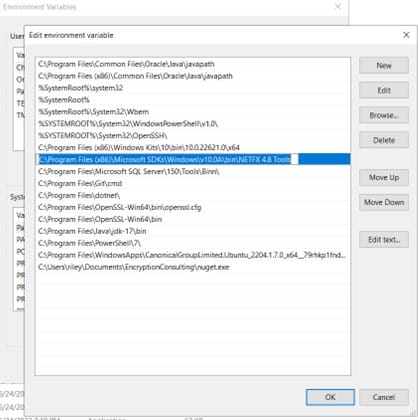
Mage commands and parameters
You can also see this by using mage -help or mage -help verbose in your CMD
| -s, -Sign [Sign options] | Uses a key pair or X509 certificate to sign a file. Signatures are inserted as XML elements inside of the files. You must be connected to the Internet when signing a manifest that specifies a -TimestampUri value. |
| -ver, -Verify [manifest-filename] | Verifies that the manifest is signed correctly. Cannot be combined with other commands. |
| -a, -Algorithm | Specifies “sha256RSA” or “sha1RSA as the algorithm to generate dependency digests with. |
| -ch, -CertHash | Provides Certificate Hash or Fingerprint |
| -ti, -TimestampUri | Specify time stamp url ex: http://timestamp.digicert.com |
Using the command line and EV certificate
We will use Mage.exe to sign a file
Syntax
mage -sign <file_name> -CertHash <hash_or_cert_fingerprint>
mage -verify <file_name>
For example:
mage -sign CodeSignText.exe.manifest -CertHash f39dbe6bcfaa43ca39585aa40ab0a19bf29991cb -TimestampUri http://timestamp.digicert.com
Here,
| <file_name> | specify the name of the file you want to sign or the path of the file, if it is not in the same directory |
| <hash_or_cert_fingerprint> | specify the fingerprint or Hash of your certificate. This can be found in the detail section of your certificate. |
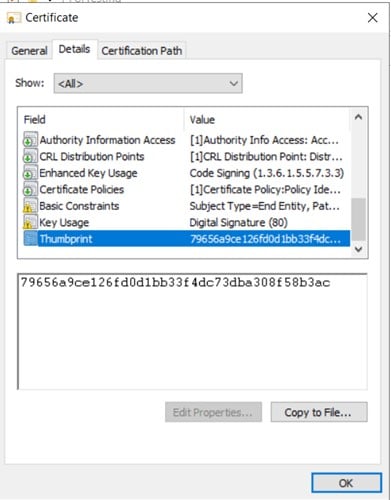
A sample of the executed command:
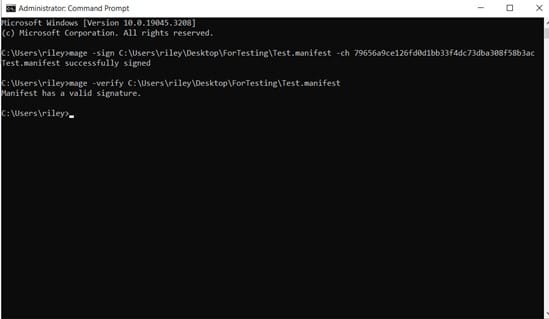
Verifying a Signed Manifest
After signing, run mage -verify <file_name> to confirm the signature is valid. A successful verification reports the signature checks out against the embedded certificate; a failure means the manifest was either never signed correctly or has been modified since signing. Don’t treat a sign command that returns without error as proof of a valid signature; always verify explicitly.
Common Errors
| Error | Likely Cause | Fix |
|---|---|---|
| Certificate not found / invalid hash | -CertHash value doesn’t exactly match the certificate’s fingerprint in its detail view | Re-check the fingerprint directly from the certificate rather than reusing a value from memory or a prior session |
| Sign command hangs or times out | -TimestampUri specified but the machine has no outbound internet access to reach the timestamp server | Confirm outbound connectivity to the timestamp URL, or verify a proxy isn’t blocking it |
| mage: command not recognized | PATH environment variable wasn’t set to the mage.exe install directory | Re-verify the PATH entry points to the correct SDK version’s Tools folder, since the path varies by SDK version |
CI/CD Use and Cleanup
For repeated signing in a pipeline, supply the certificate hash and timestamp URI as pipeline variables rather than hardcoding them in a script, and add the mage -verify step as a required stage immediately after signing so the build fails on an invalid signature rather than proceeding silently. If a certificate was imported to a build agent for testing, remove it from the certificate store once the pipeline is confirmed working.
Using the command line and self-signed certificate (from our web portal)
This method also involves leveraging the Mage (Command Line Interface) that provides functionality to create, publish, sign, and manage packages without changing the project files. But first, the user needs to generate a Self-Signed certificate from our web portal. After that, convert the download certificate from .pem to .crt format for better operations. When these steps are performed successfully, perform the following steps:
- Download the Certificate Chain from our “Signing Tools” screen. And unzip it in your client machine.
- After that, install the Root Certificate into your system.
Steps:
-
Click on the INSTALL CERTIFICATE button.
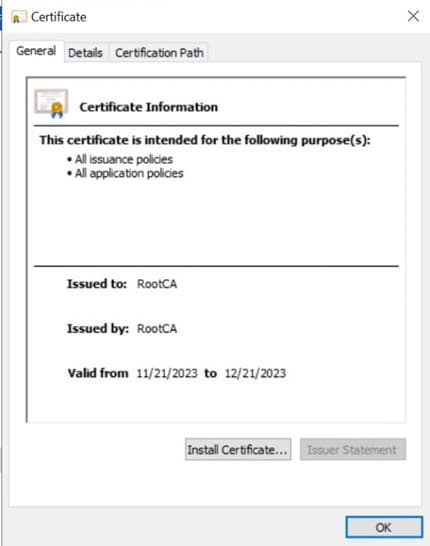
-
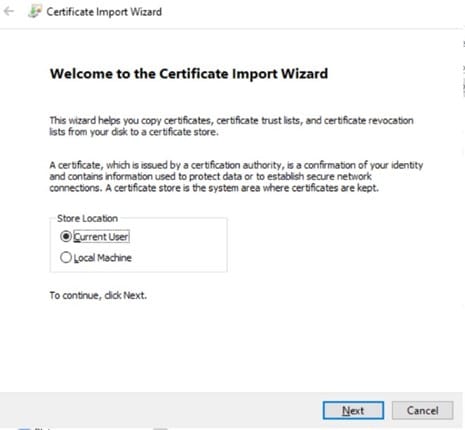
On the “Import Wizard” popup, select Current User and then hit NEXT
-
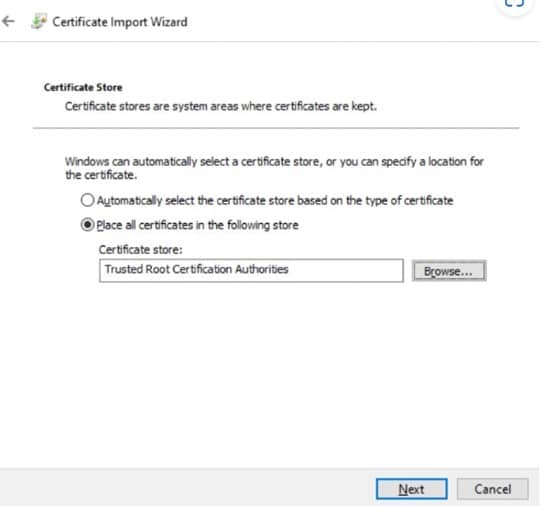
On the “Certificate Store” popup, choose Trusted Root Certification Authorities for the Root CA certificate and click on NEXT.
-
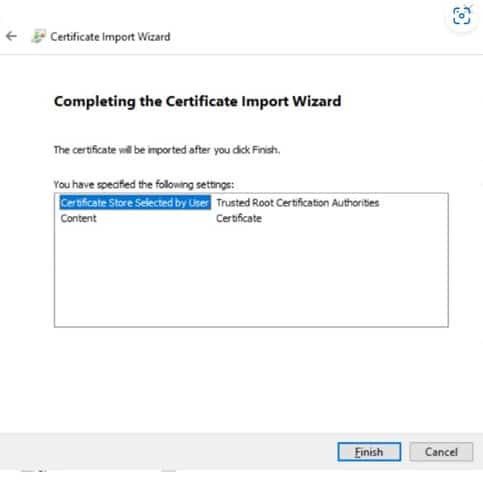
After verifying all the details, click on FINISH.
- After installing Root CA, install the Issuing CA from the Certificate Chain folder (intermediate.crt). Follow the same procedure, except to install this certificate in Intermediate Certification Authorities.
- After successfully installing the Issuing CA, install the End Entity certificate (or the Self-Signed certificate from our portal) into your system. The process is the same, except this certificate will be installed in the Personal store.
-
Run the repairstore command using the Thumbprint of this End Entity certificate. Like this:
certutil -f -repairstore -csp “Encryption Consulting Key Storage Provider” -user “My” <thumbprint of the certificate>
When all of these steps have been completed successfully, try running the Mage command-line command using this certificate’s thumbprint.
Syntax
mage -sign <file_name> -CertHash <hash_or_cert_fingerprint>
mage -verify <file_name>
For example:
mage -sign CodeSignText.exe.manifest -CertHash f39dbe6bcfaa43ca39585aa40ab0a19bf29991cb -TimestampUri http://timestamp.digicert.com
Here,
| <file_name> | specify the name of the file you want to sign or the path of the file, if it is not in the same directory |
| <hash_or_cert_fingerprint> | specify the fingerprint or Hash of your certificate. This can be found in detail section of your certificate. |
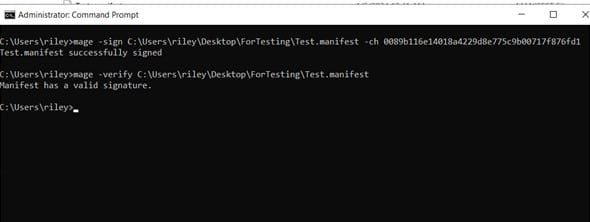
A sample of executed command
Conclusion
In today’s digital landscape, securing one’s digital application, files, manifests etc has been very crucial. Developers may verify the validity and integrity of their apps and provide consumers with peace of mind that the product hasn’t been altered by signing the manifest with “mage.exe”.
To verify the application’s integrity and source before installing it, users may also use the tool to verify signed manifests. Signing manifests is essential to preserving security and confidence in Windows platform software deployment procedures.
Encryption Consulting aims to provide you with the necessary tools and guidance to help create a more secure environment. We are well aware of how important file signing is for safeguarding against unforeseen circumstances. We are committed to your security, and we are here to provide you with the information and tools you need to secure the things that are most important to you. We have Code Signing solution to help you with signing your applications. You can reach out to us at [email protected] to request a demo of our CodeSign Secure.
Frequently Asked Questions
What happens if I sign a manifest without a timestamp?
The signature remains valid only until the signing certificate expires, regardless of whether the manifest was tampered with. Always include -TimestampUri so the signature remains verifiable based on when it was signed, not when it’s later checked.
Does mage -verify check anything beyond the signature itself?
It verifies the signature matches the manifest’s current content and was produced by the referenced certificate. It doesn’t independently confirm the certificate itself is still trusted or unrevoked; that check happens against the certificate chain separately.