
Imagine you’re about to download a file from the internet. How do you know it’s safe? How do you know it’s really from who it claims to be and that nobody has tampered with it along the way? This is where code signing comes in. Code signing is like a digital guarantee, assuring you about the origin and integrity of the software.
With the help of our PKCS11 Wrapper, which is a software library that interacts with Hardware Security Modules (HSMs), smart cards, or any key vaults, you can improve the efficiency of the code signing process for your organization. Along with PKCS#11 Wrapper, we will use JSign, a command-line tool that signs executable files, installer packages, and scripts with an Authenticode-compatible signature. JSign itself only signs; verifying a completed signature requires a separate tool, which we’ll cover after the signing steps below.
Signing with JSign and PKCS#11, in short: run
jsign --keystore <pkcs11properties.cfg> --storepass NONE --storetype PKCS11 --alias <alias> <file>(or the Windows/macOS equivalent usingjava -jar jsign-7.0.jar), then verify the result withsigntool verify /paon Windows orosslsigncode verifyon Linux/macOS, since JSign has no built-in verify command.
Key Takeaways
- JSign 7.0 is a signing-only tool; it has no verify subcommand. Confirming a signature requires a separate tool appropriate to your platform, which is easy to miss if you only follow the signing steps.
- The core jsign command is identical across Ubuntu, Windows, and macOS (–keystore, –storepass NONE, –storetype PKCS11, –alias); only the invocation wrapper differs (a native binary on Ubuntu via the .deb package, java -jar on Windows and macOS).
Environment Matrix
| Component | Ubuntu | Windows | macOS |
|---|---|---|---|
| Tested OS version | Ubuntu 24.02 | Windows 11 23H2 | Sequoia 15.2 |
| Java version | 17 | 22 | 17 |
| JSign package | .deb (jsign_7.0_all.deb) | .jar (jsign-7.0.jar) | .jar (jsign-7.0.jar) |
| Invocation | jsign directly | java -jar jsign-7.0.jar | java -jar jsign-7.0.jar |
| CodeSign Secure version | v3.02 | v3.02 | v3.02 |
What is JSign?
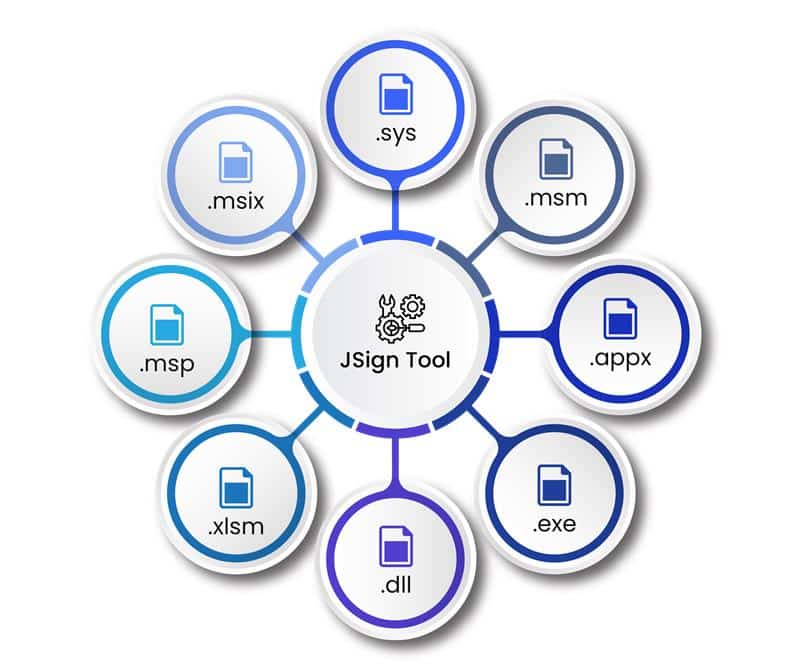
JSign is a free command-line tool available for Linux, Windows, and MacOS. It allows for platform-independent signing of a wide range of artifacts, such as Windows executables, software installers, scripts, and many more.
Configuration of PKCS#11 Wrapper on Ubuntu
Prerequisites
Before we look into the process of signing using JSign Tool and our PKCS11 Wrapper in Linux (Ubuntu) machine, ensure the following are ready:
- Ubuntu Version: Ubuntu version 22.04 or later (tested environment is Ubuntu 24.02)
- Dependencies: Install liblog4cxx12 and curl.
To install the dependencies, run the following commands
- sudo apt-get install curl
- sudo apt-get install liblog4cxx12
Installing EC’s PKCS#11 Wrapper
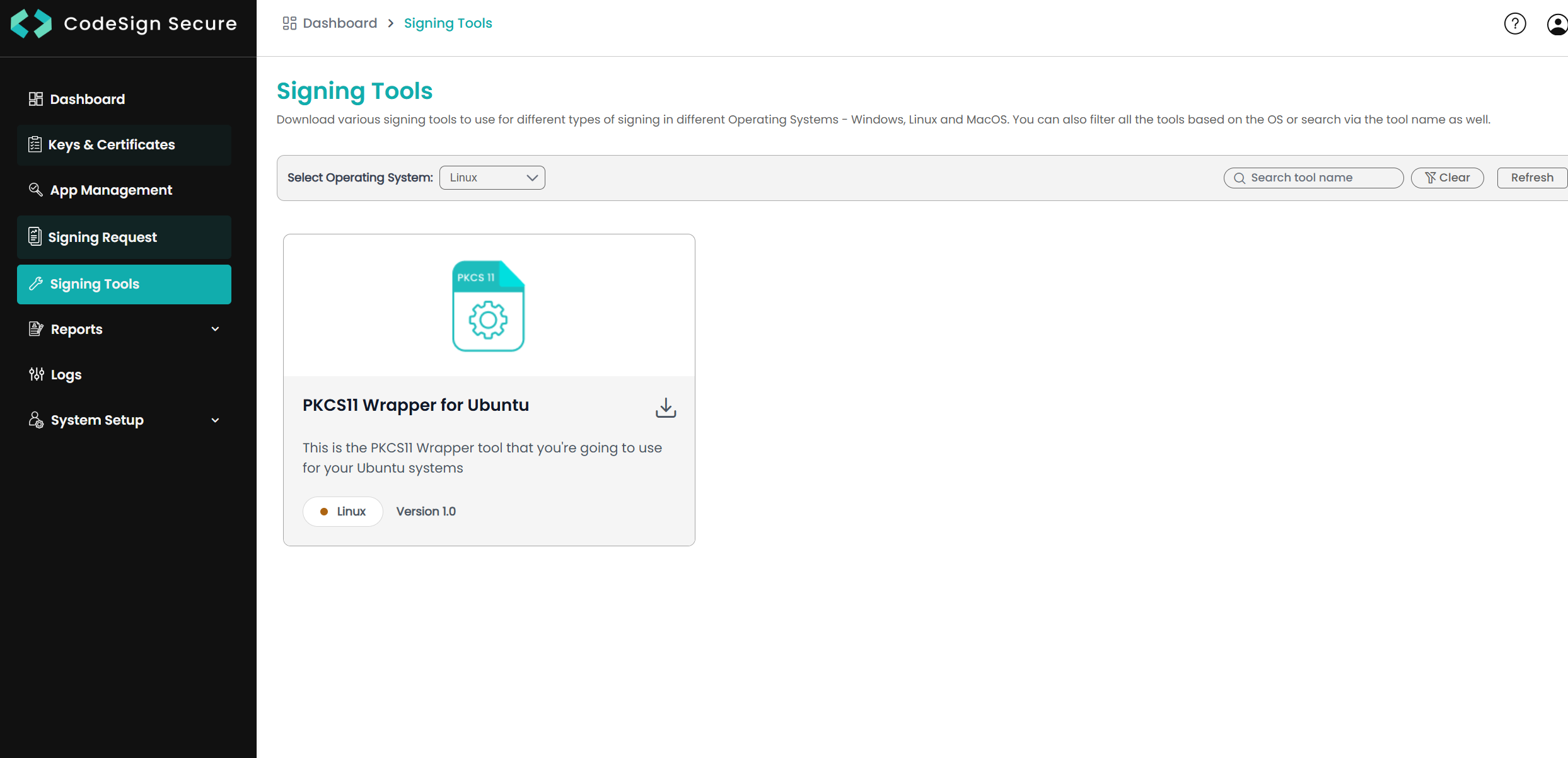
Step 1: Go to EC CodeSign Secure’s v3.02’s Signing Tools section and download the PKCS#11 Wrapper for Ubuntu.
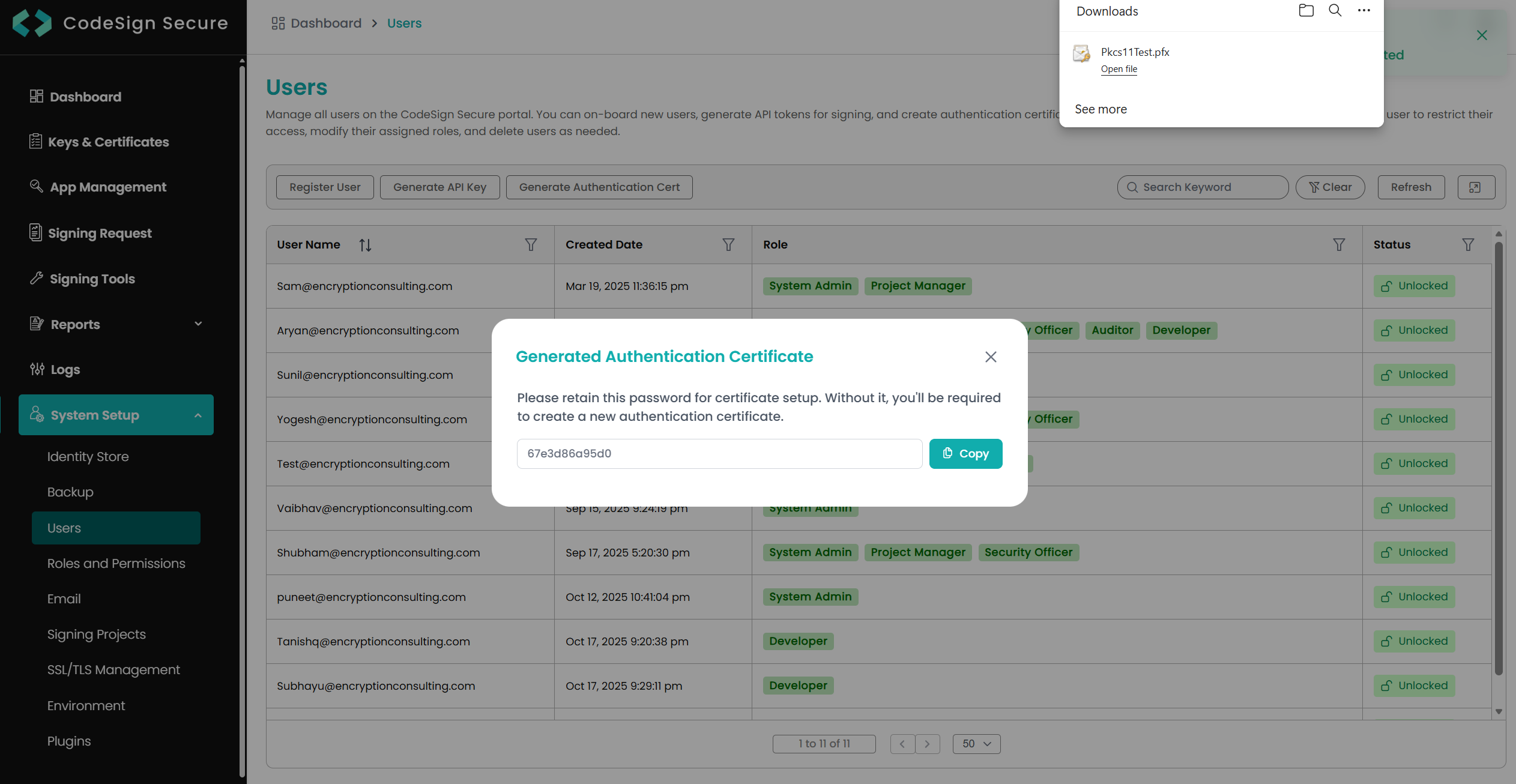
Step 2: After that, generate a P12 Authentication certificate from the System Setup > User > Generate Authentication Certificate dropdown.
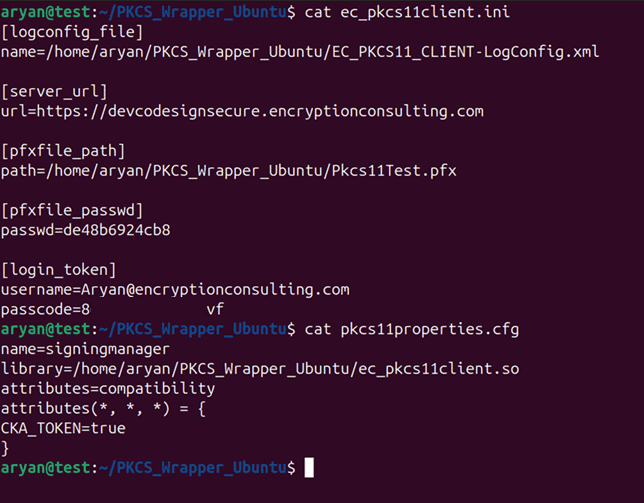
Step 3: Go to your Ubuntu client system and edit the configuration files (ec_PKCS#11client.ini and PKCS#11properties.cfg) downloaded in the PKCS#11 Wrapper.
Installing JSign Tool
Step 1: Install the latest version of JSign Tool (DEB package) using this link.
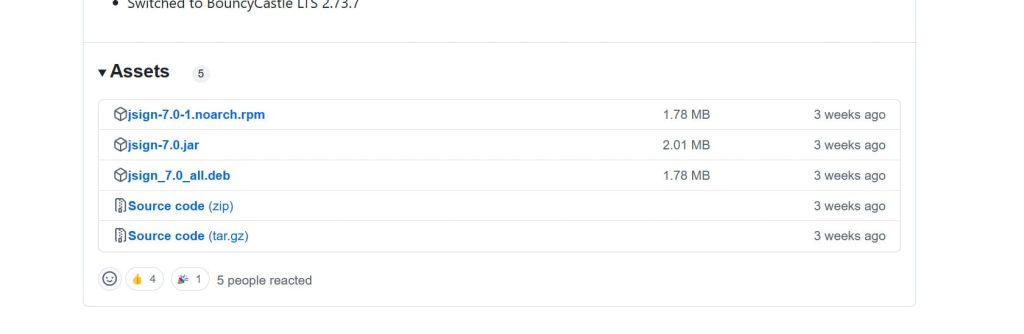
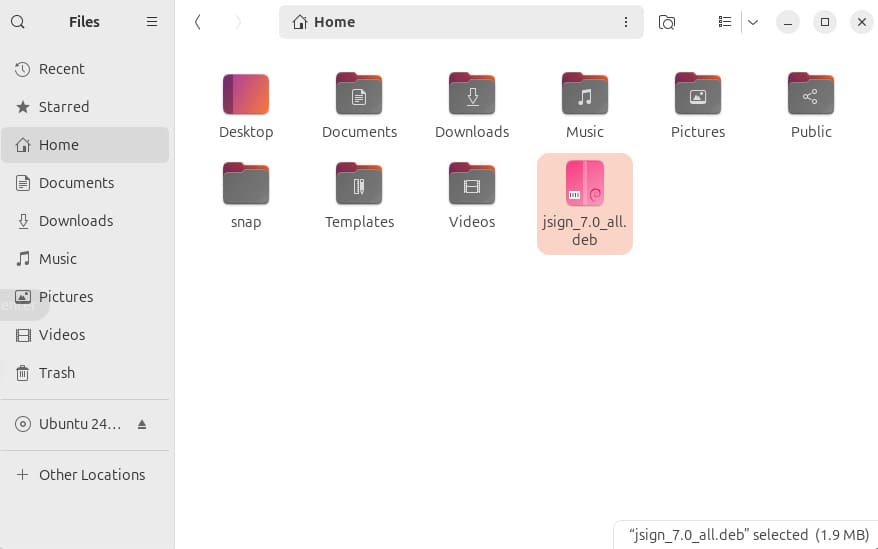
Step 2: Install the Debian package
sudo dpkg --install jsign_7.0_all.deb

Step 3: Check whether JSign has been properly installed or not
jsign
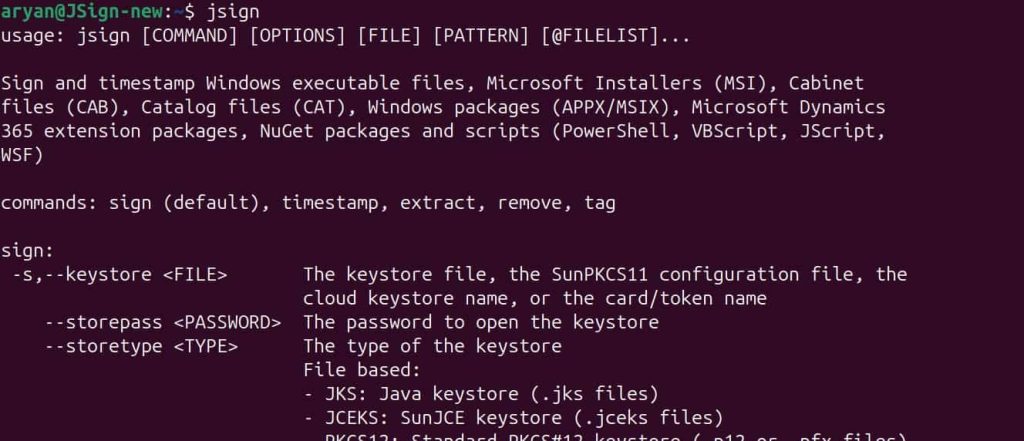
Install Java on your Ubuntu machine.
You will also need to install Java (Java 17 or lower) on your Ubuntu machine for JSign to work with our PKCS11 Wrapper.
Step 1: Install Java 17 on your Ubuntu machine.
sudo apt install openjdk-17-jdk
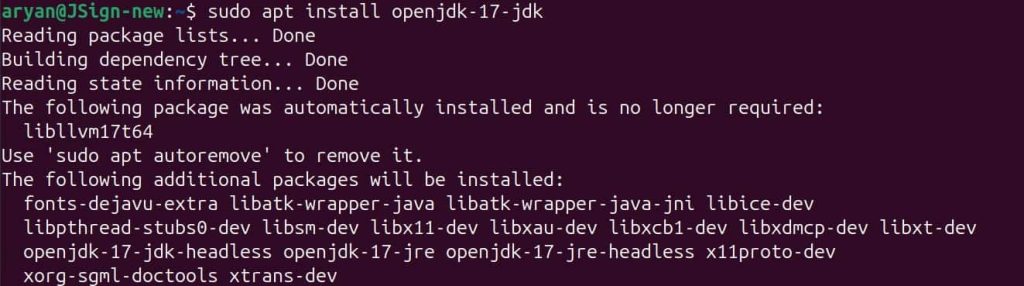
Step 2: Set Java 17 as the active version
sudo update-alternatives --config java
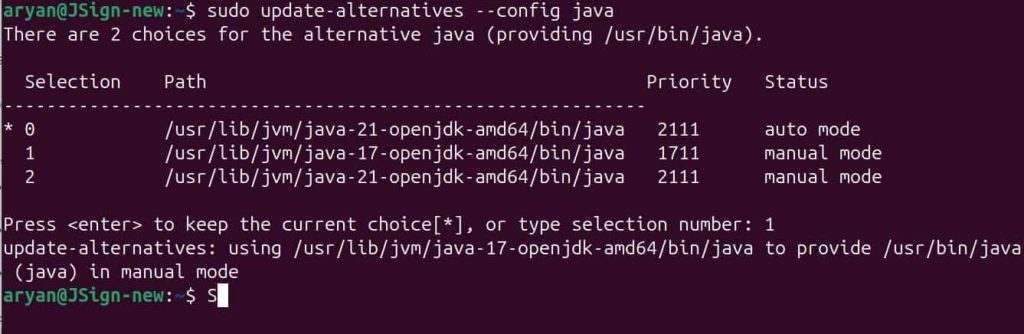
Step 3: Check whether Java has been installed properly or not
java -version

Signing
Step 1: Change the working directory of the terminal to that folder which contains your “ec_pkcs11client.ini” and “pkcs11properties.cfg” files.

Step 2: Run the signing command from this directory.
<Path of JSign tool> --keystore <Path of pkcs11properties.cfg> --storepass NONE --storetype PKCS11 --alias <Key alias of the signing certificate> <Path of the file to be signed>
A sample command is provided below:
jsign --keystore pkcs11properties.cfg --storepass NONE --storetype PKCS11 --alias gpg2 build_project.ps1

Verification (Ubuntu)
JSign doesn’t verify signatures itself. On Ubuntu, use osslsigncode (install with sudo apt-get install osslsigncode) to confirm the result:
osslsigncode verify build_project.ps1
A valid signature reports the certificate chain and confirms the signature is intact; a tampered or unsigned file is reported as such explicitly rather than silently passing.
Common Errors (Ubuntu)
| Error | Likely Cause | Fix |
|---|---|---|
| jsign reports it can’t find the PKCS11 provider | pkcs11properties.cfg path is wrong or the wrapper isn’t configured in the current directory | Run the command from the folder containing ec_pkcs11client.ini and pkcs11properties.cfg |
| Signing succeeds but osslsigncode verify fails | Full certificate chain wasn’t available when jsign signed the file | Confirm the certificate chain is complete in the PKCS#11 wrapper configuration before re-signing |
Prerequisites
Before we look into the process of using JSign Tool and our PKCS11 Wrapper on a Windows machine, ensure the following are ready:
- Windows Version: Windows 11 (tested environment is Windows 11 23H2)
Installing EC’s PKCS#11 Wrapper
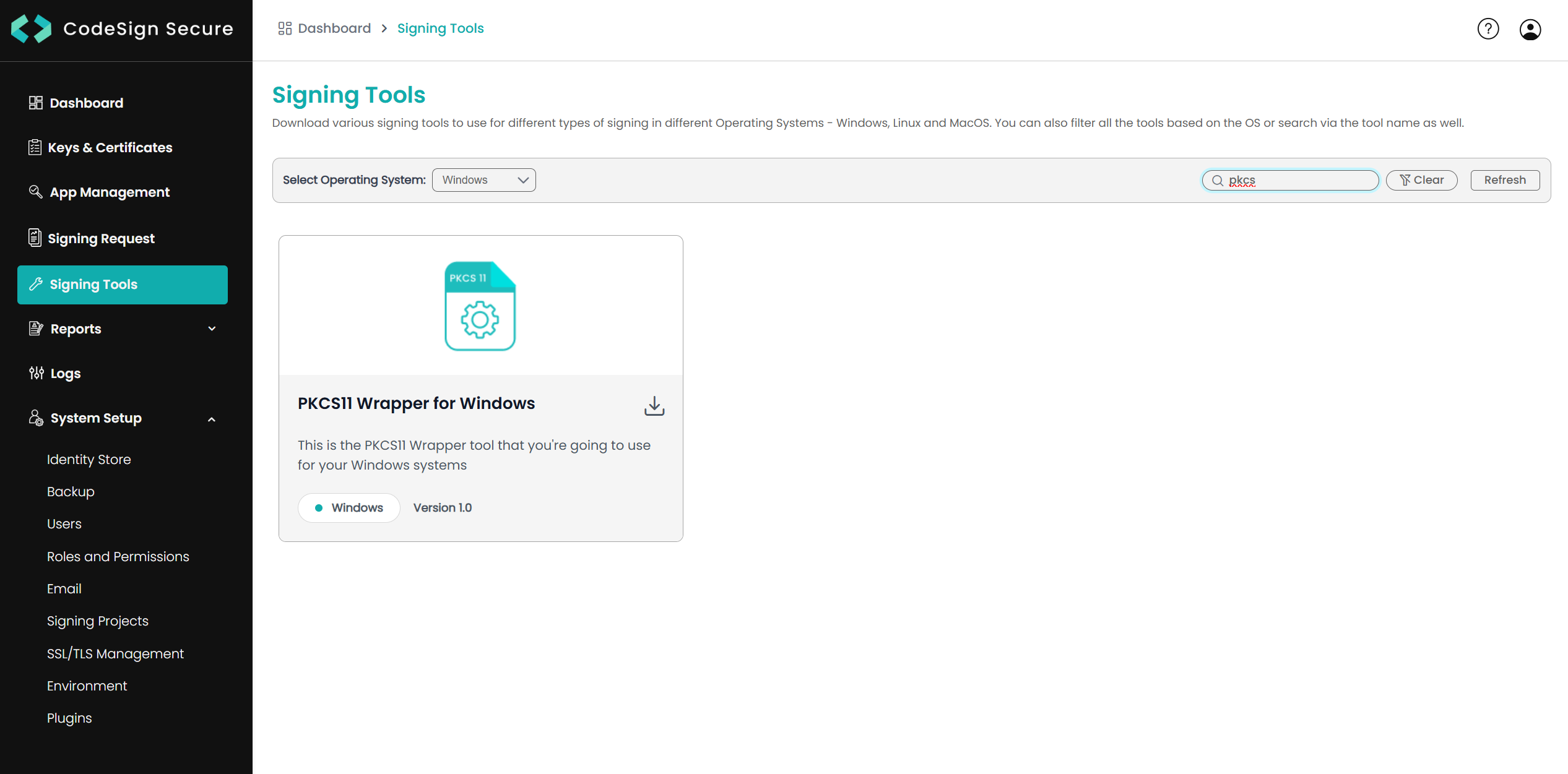
Step 1: Go to EC CodeSign Secure’s v3.02’s Signing Tools section and download the PKCS#11 Wrapper for Windows.
Step 2: After that, generate a P12 Authentication certificate from the System Setup > User > Generate Authentication Certificate dropdown.
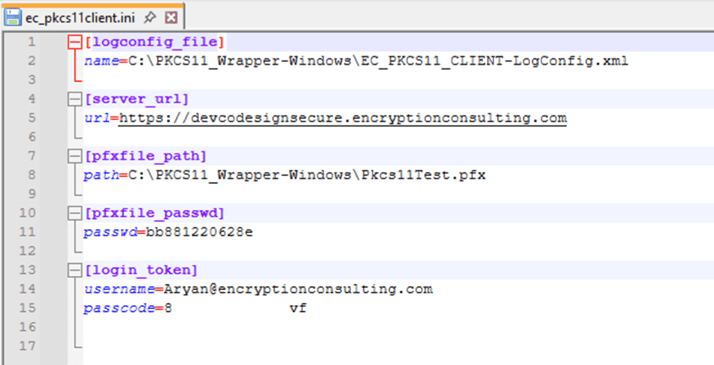
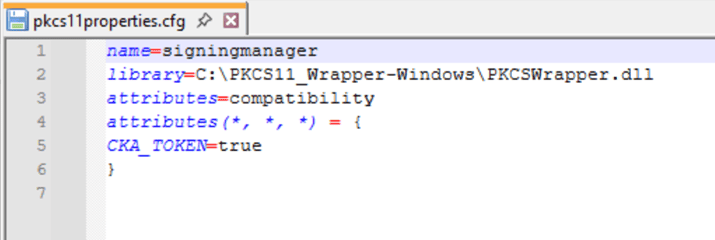
Step 3: Go to your Windows client system and edit the configuration files (ec_PKCS#11client.ini and PKCS#11properties.cfg) downloaded in the PKCS#11 Wrapper.
Install Java on your Windows machine.
You will also need to install Java (Java 22 or lower) on your Windows machine for JSign to work with our PKCS11 Wrapper.
Step 1: Install Java 22 (.exe installer) on your Windows machine from Oracle’s official site.
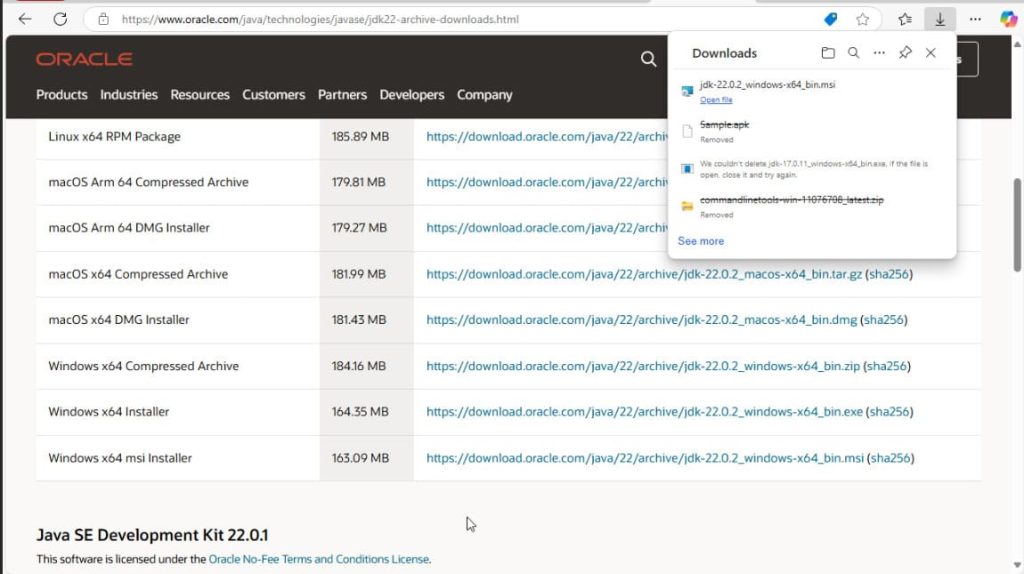
Step 2: Follow the instructions to install Java 22 on your machine.
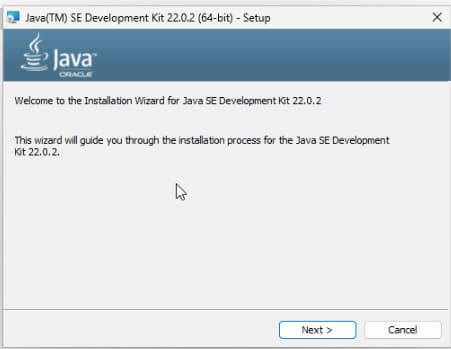
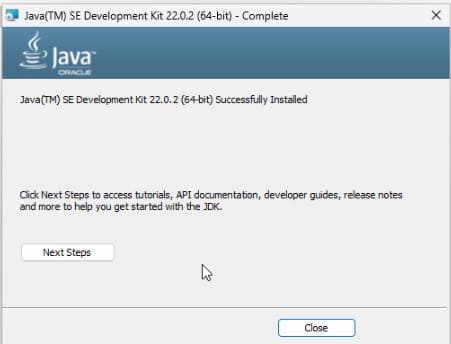
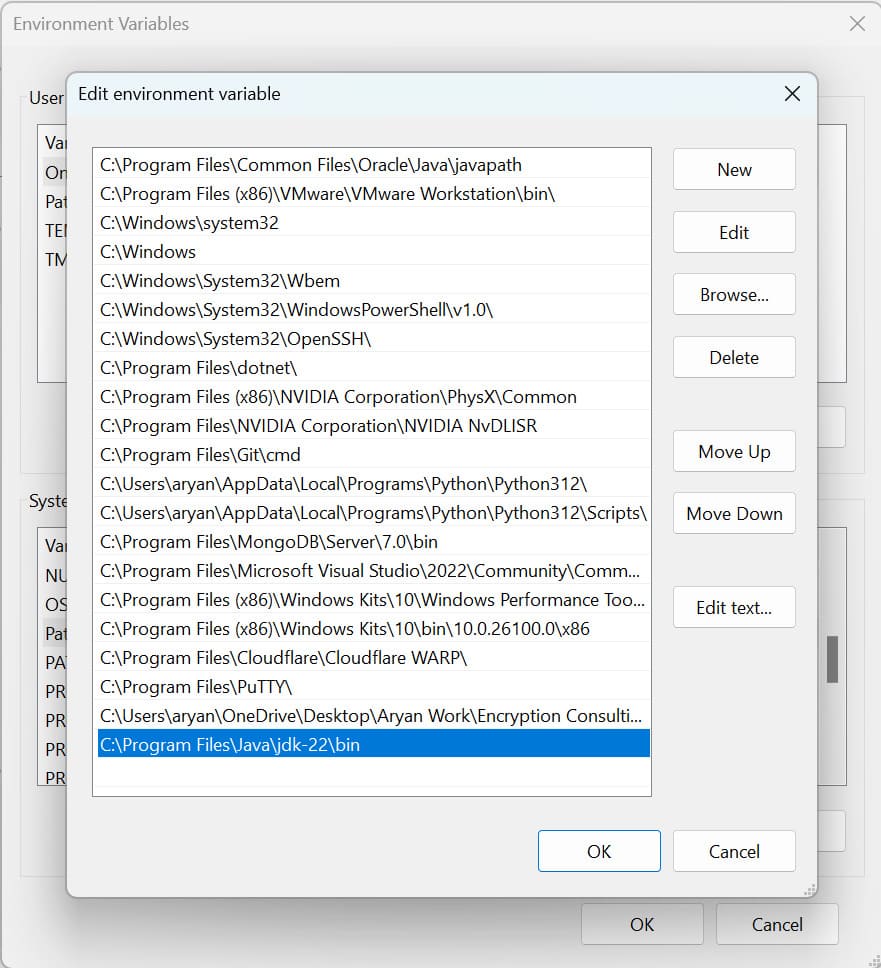
Step 3: Set Java 22 as the active version by storing the bin path in the PATH variable.
Installing JSign Tool
Step 1: Install the latest version of JSign Tool (JAR package) using this link.
Step 2: Check whether JSign has been properly installed or not
java -jar <Path of JSign Jar Package>
Signing
Step 1: Change the working directory of the terminal to the folder that contains your “ec_pkcs11client.ini” and “pkcs11properties.cfg” files.
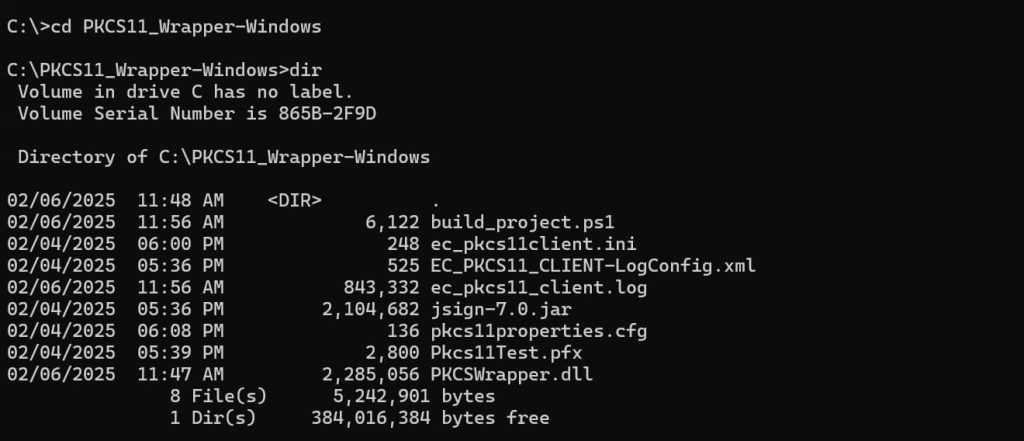
Step 2: Run the signing command from this directory.
java -jar <Path of JSign jar file> --keystore <Path of pkcs11properties.cfg> --storepass NONE --storetype PKCS11 --alias <Key alias of the signing certificate> <Path of file to be signed>
A sample command is provided below:
java -jar jsign-7.0.jar --keystore pkcs11properties.cfg --storepass NONE --storetype PKCS11 --alias gpg2 build_project.ps1

Verification (Windows)
JSign has no verify subcommand. On Windows, use the SDK’s signtool to confirm the signature:
signtool verify /pa build_project.ps1
A valid signature reports “Successfully verified” along with the certificate chain used. If the file was altered after signing or the certificate chain is incomplete, signtool reports the specific failure rather than a generic error.
Common Errors (Windows)
| Error | Likely Cause | Fix |
|---|---|---|
| java -jar reports it can’t find or load the jsign jar | Path to jsign-7.0.jar is incorrect or relative to the wrong directory | Use the full path to the jar, or run from the directory where it was downloaded |
| signtool verify reports “No signature found” | –out file wasn’t specified, so jsign signed the input file in place but a different file was checked | Confirm the exact file path passed to jsign matches the file passed to signtool verify |
Configuration of PKCS#11 Wrapper on MacOS
Prerequisites
Before we look into the process of using JSign Tool and our PKCS11 Wrapper on a MacOS machine, ensure the following are ready:
- MacOS Version: Sequoia 15.2 (tested environment Sequoia 15.2)
- Dependencies: Install liblog4cxx and curl.
To install the dependencies, run the following commands
- brew install curl
- brew install log4cxx
Installing EC’s PKCS#11 Wrapper
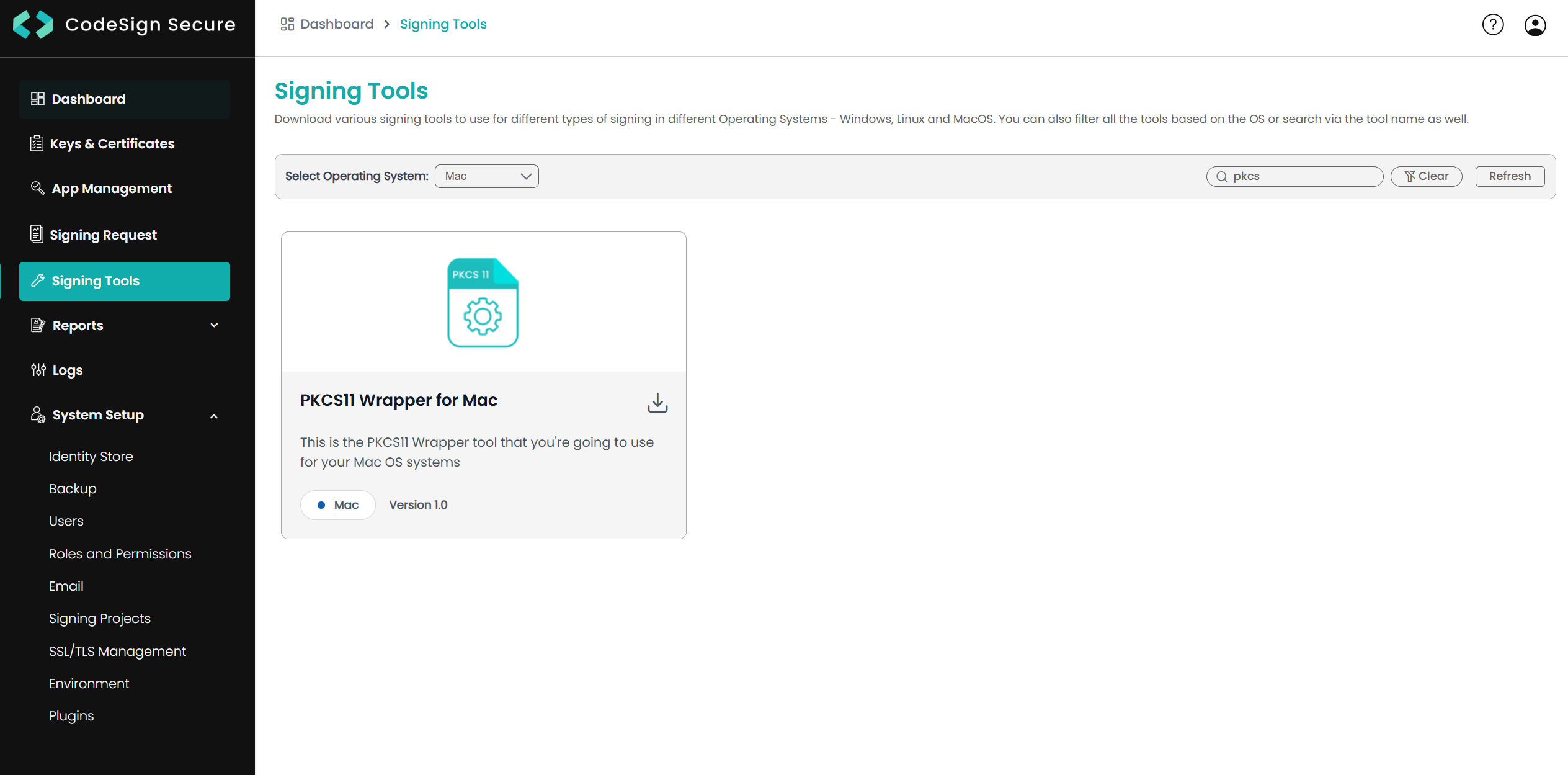
Step 1: Go to EC CodeSign Secure’s v3.02’s Signing Tools section and download the PKCS#11 Wrapper for MacOS.
Step 2: After that, generate a P12 Authentication certificate from the System Setup > User > Generate Authentication Certificate dropdown.
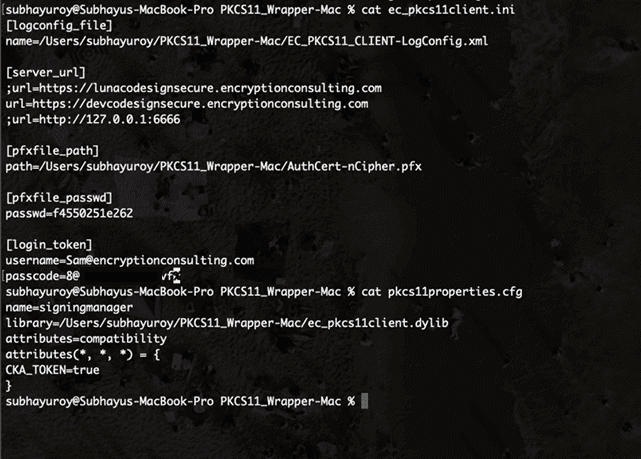
Step 3: Go to your MacOS client system and edit the configuration files (ec_PKCS#11client.ini and PKCS#11properties.cfg) downloaded in the PKCS11 Wrapper.
Install Java on your MacOS machine
You will also need to install Java (Java 17 or lower) on your MacOS machine for JSign to work with our PKCS11 Wrapper.
Step 1: Install Java 17 on your MacOS machine.
brew install openjdk@17
Step 2: Find the location where Java 17 is installed on your machine
brew info to openjdk@17
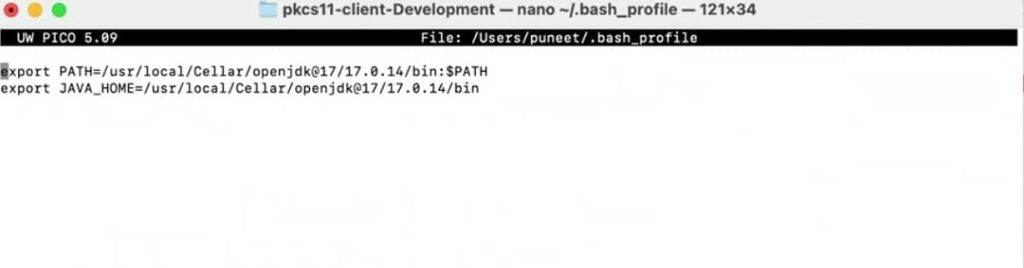
Step 3: Set Java 17 as the active version.
For Zsh: nano ~/.zshrc
For Bash: nano ~/.bash_profile
After running the above command, add these lines:
export PATH=<Path of Java 17 bin folder>:$PATH
export JAVA_HOME=<Path of Java 17 bin folder>
Step 4: Reload the environment variables
For Zsh: source ~/.zshrc
For Bash: source ~/.bash_profile
Installing JSign Tool
Step 1: Install the latest version of JSign Tool (JAR package) using this link.
Step 2: Check whether JSign has been properly installed or not
java -jar <Path of JSign Jar Package>
Signing
Step 1: Change the working directory of the terminal to the folder that contains your “ec_pkcs11client.ini” and “pkcs11properties.cfg” files.
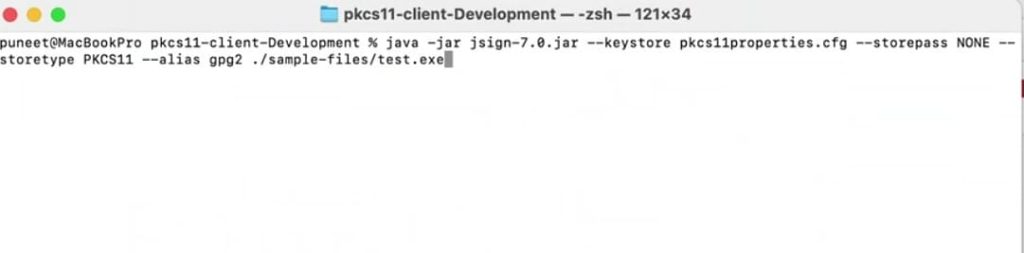
Step 2: Run the signing command from this directory.
java -jar <Path of JSign jar file> --keystore <Path of pkcs11properties.cfg> --storepass NONE --storetype PKCS11 --alias <Key alias of the signing certificate> <Path of file to be signed>
A sample command is provided below:
java -jar jsign-7.0.jar --keystore pkcs11properties.cfg --storepass NONE --storetype PKCS11 --alias gpg2 build_project.ps1
Verification (macOS)
As on the other platforms, JSign doesn’t verify signatures. On macOS, use osslsigncode (install via brew install osslsigncode) for Authenticode-style artifacts:
osslsigncode verify build_project.ps1
This reports whether the signature is valid and displays the certificate chain used to sign the file.
Frequently Asked Questions
Does JSign have a built-in verify command like apksigner or signtool?
No. JSign 7.0 only signs; it has no verify subcommand. Confirming a signature requires a separate, platform-appropriate tool: signtool verify /pa on Windows, or osslsigncode verify on Linux and macOS.
Does the CI/CD build agent need to keep the P12 authentication certificate after signing?
No. The private signing key never leaves CodeSign Secure’s HSM, so there’s no signing key to clean up locally. The P12 authentication certificate used to connect the wrapper to CodeSign Secure should be removed from a build agent if it’s shared or being decommissioned.
Conclusion
Encryption Consulting’s PKCS Wrapper simplifies the code signing process with JSign on Linux, Windows, and macOS. This integration simplifies a complex task, making it more manageable and less prone to errors.
If you want a smooth and reliable signing experience that scales with your needs, consider exploring our code-signing product, CodeSign Secure. This solution will enhance your organization’s security by enforcing best practices and offering detailed audit trails. CodeSign Secure is a comprehensive tool designed to elevate your code-signing workflow to the next level.
- Key Takeaways
- Environment Matrix
- What is JSign?
- Configuration of PKCS#11 Wrapper on Ubuntu
- Prerequisites
- Installing EC’s PKCS#11 Wrapper
- Installing JSign Tool
- Install Java on your Ubuntu machine.
- Signing
- Verification (Ubuntu)
- Common Errors (Ubuntu)
- Prerequisites
- Installing EC’s PKCS#11 Wrapper
- Install Java on your Windows machine.
- Installing JSign Tool
- Signing
- Verification (Windows)
- Common Errors (Windows)
- Configuration of PKCS#11 Wrapper on MacOS
- Frequently Asked Questions
- Conclusion