
Signing with Jarsigner and PKCS#11 means using Java’s built-in jarsigner tool to sign JAR, WAR, EAR, and SAR files while the private key stays inside a Hardware Security Module or token instead of a software keystore. EC’s PKCS#11 wrapper lets jarsigner talk to the HSM across Windows, Ubuntu, and macOS.
Code signing is a critical process in software development that ensures the authenticity and integrity of applications, protecting them from tampering and unauthorized modifications. To enhance this process, Encryption Consulting’s PKCS#11 library offers a powerful solution for performing code signing with Jarsigner across multiple operating systems, including Windows, Linux (Ubuntu), and macOS.
Jarsigner
The Jarsigner tool, included in the Java Development Kit (JDK), provides a robust mechanism for digitally signing files, making it an essential tool for Java developers distributing applications across various platforms.
It helps to sign the below mentioned file types:
- .jar: Java Archive files, which are general-purpose archives for Java classes and resources.
- .ear: Enterprise Archive files, used for packaging Java EE enterprise applications.
- .war: Web Application Archive files, used for packaging Java web applications.
- .sar: Service Archive files, used for packaging services in some Java EE environments.
Ubuntu, Windows, and macOS: Quick Comparison
Before diving into the platform-specific steps, here’s how the three setups differ at a glance.
| Aspect | Ubuntu | Windows | macOS |
|---|---|---|---|
| Tested OS version | Ubuntu 24.02 | Windows 11 23H2 | Sequoia 15.2 |
| Wrapper dependencies | liblog4cxx12, curl | None beyond the wrapper itself | liblog4cxx, curl (via Homebrew) |
| Java version installed | Java 17 | Java 22 | Java 17 |
| Java install method | apt install openjdk-17-jdk | Oracle .exe installer | brew install openjdk@17 |
| Shell config for JAVA_HOME | ~/.bashrc | PATH environment variable (GUI) | ~/.zshrc or ~/.bash_profile |
Configuration of PKCS#11 Wrapper on Ubuntu
Prerequisites
Before we look into the process of signing using Jarsigner Tool and our PKCS11 Wrapper in Linux (Ubuntu) machine, ensure the following are ready:
- Ubuntu Version: Ubuntu version 22.04 or later (tested environment is Ubuntu 24.02)
- Dependencies: Install liblog4cxx12 and curl.
To install the dependencies, run the following commands
- sudo apt-get install curl
- sudo apt-get install liblog4cxx12
Installing EC’s PKCS#11 Wrapper
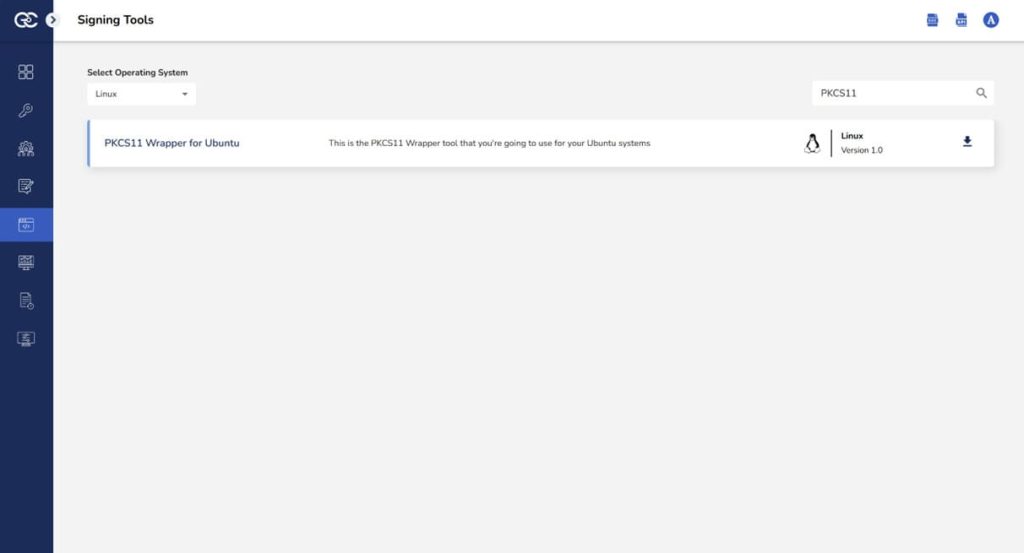
Step 1: Go to EC CodeSign Secure’s v3.02’s Signing Tools section and download the PKCS#11 Wrapper for Ubuntu.
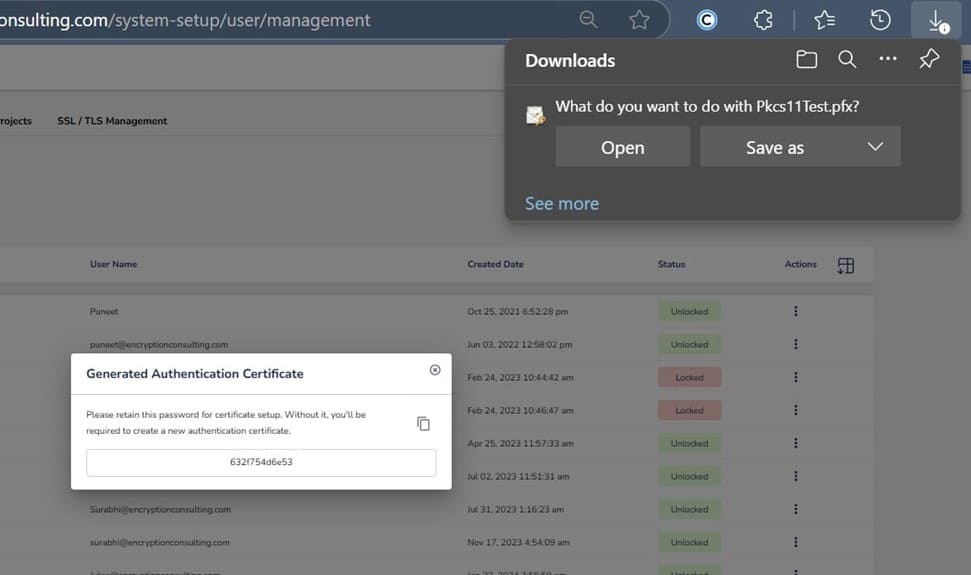
Step 2: After that, generate a P12 Authentication certificate from the System Setup > User > Generate Authentication Certificate dropdown.
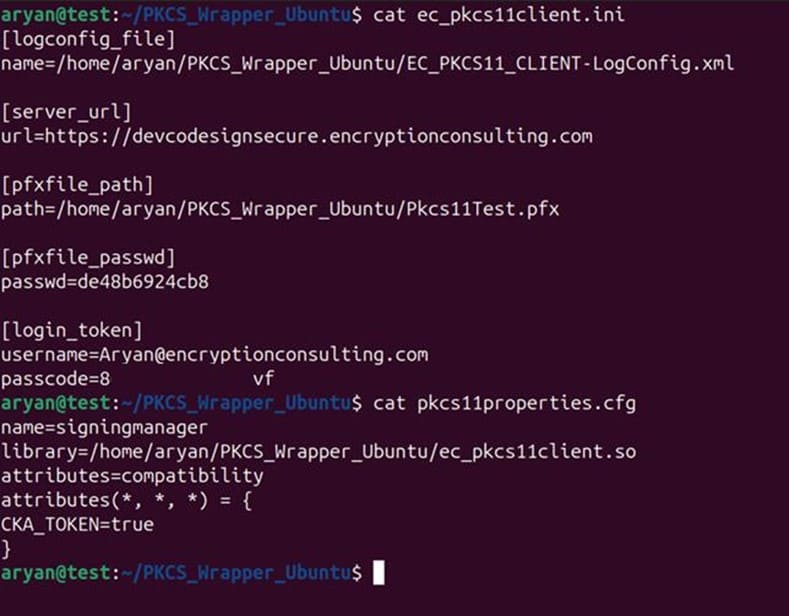
Step 3: Go to your Ubuntu client system and edit the configuration files (ec_PKCS#11client.ini and PKCS#11properties.cfg) downloaded in the PKCS#11 Wrapper.
Install Java on your Ubuntu machine.
You will also need to install Java (Java 8-17) on your Ubuntu machine for Jarsigner to work with our PKCS11 Wrapper.
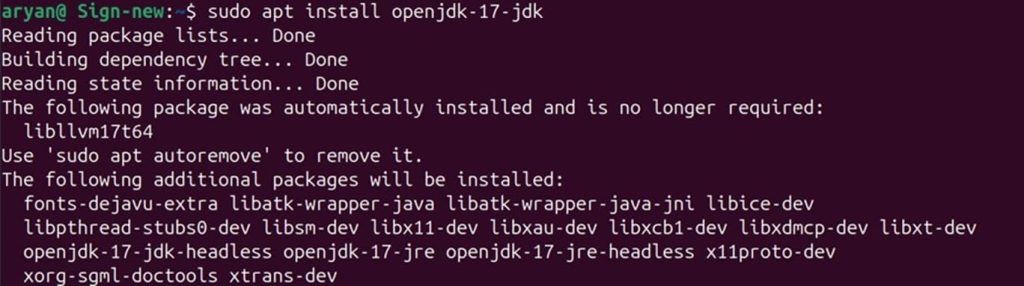
Step 1: Install Java 17 on your Ubuntu machine.
sudo apt install openjdk-17-jdk
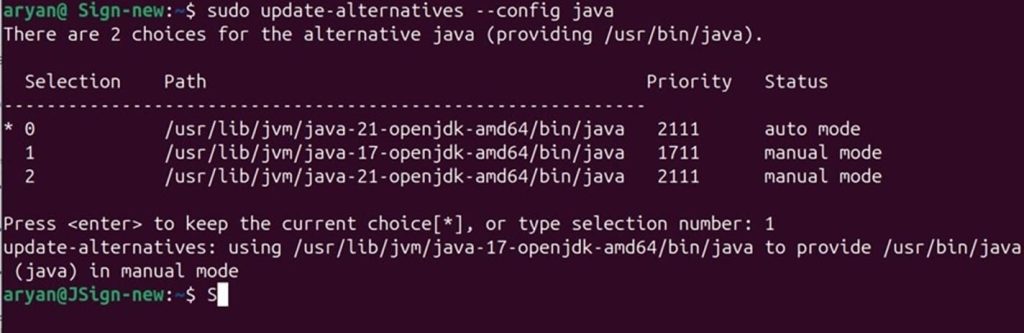
Step 2: Set Java 17 as the active version
sudo update-alternatives –config java
Step 3: Check whether Java has been installed properly or not
java -version

Step 4: Set Java 17 as the active version.
Run: nano ~/.bashrc
After running the above command, add these lines at the end of the file:
export JAVA_HOME=<Path of Java 17 bin folder>
export PATH=$JAVA_HOME/bin:$PATH

Press Ctrl + X, then Y to confirm, and then Enter to save.
Step 5: Reload the bashrc file
Run: source ~/.bashrc
Step 6: Check is the variable has been set
echo $JAVA_HOME
If not, then open a new terminal and try again.
Signing
Step 1: Change the working directory of the terminal to the folder that contains your “ec_pkcs11client.ini” and “pkcs11properties.cfg” files.

Step 2: Run the signing command from this directory.
<Path of Jarsigner tool> -keystore NONE -storepass NONE -storetype PKCS11 -sigalg SHA256withRSA -providerClass sun.security.pkcs11.SunPKCS11 -providerArg <Path of pkcs11properties.cfg> -signedjar <Path of the file after signing> <Path of the file to be signed> <Key alias of the signing certificate> -tsa http://timestamp.digicert.com
A sample command is provided below:
jarsigner -keystore NONE -storepass NONE -storetype PKCS11 -sigalg SHA256withRSA -providerClass sun.security.pkcs11.SunPKCS11 -providerArg pkcs11properties.cfg -signedjar helloworld_signed.jar helloworld.jar gpg2 -tsa http://timestamp.digicert.com
Verification
Step 1: For Verification, run the following command:
<Path of Jarsigner tool> -verify <Path of the file after signing> -certs -verbose
Step 2: A sample command is provided below:
jarsigner -verify helloworld_signed.jar -certs -verbose
Configuration of PKCS#11 Wrapper on Windows
Prerequisites
Before we look into the process of using Jarsigner Tool and our PKCS11 Wrapper on a Windows machine, ensure the following are ready:
- Windows Version: Windows 11 (tested environment is Windows 11 23H2)
Installing EC’s PKCS#11 Wrapper
Step 1: Go to EC CodeSign Secure’s v3.02’s Signing Tools section and download the PKCS#11 Wrapper for Windows.
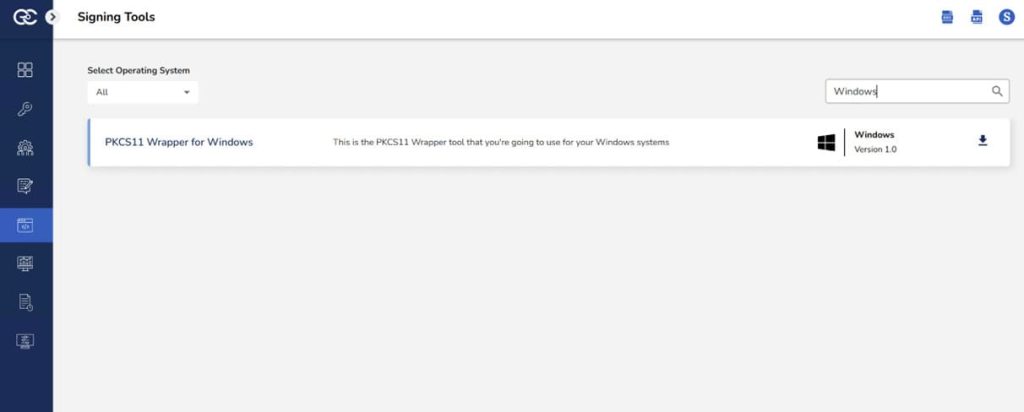
Step 2: After that, generate a P12 Authentication certificate from the System Setup > User > Generate Authentication Certificate dropdown.
Step 3: Go to your Windows client system and edit the configuration files (ec_PKCS#11client.ini and PKCS#11properties.cfg) downloaded in the PKCS#11 Wrapper.
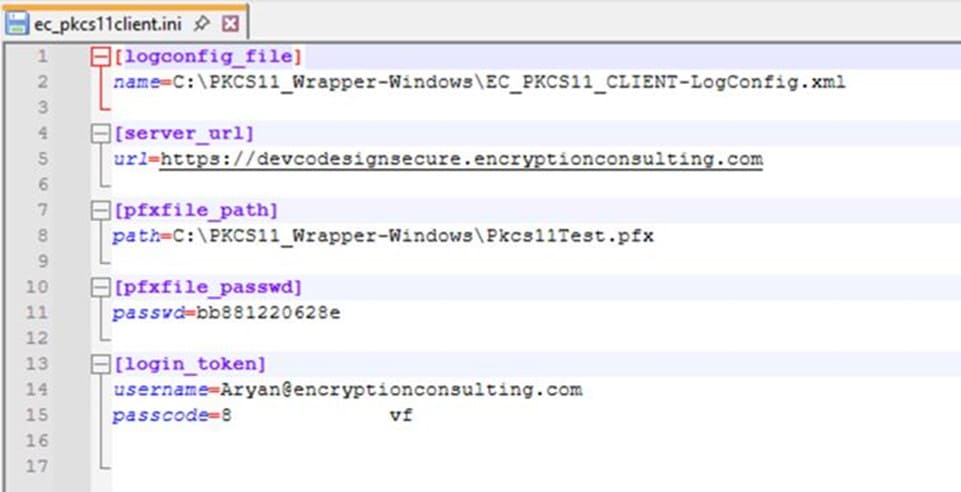
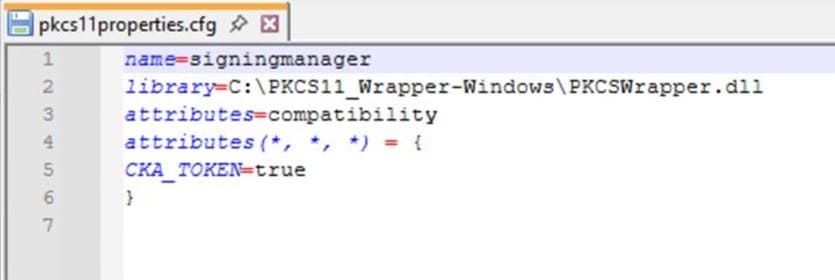
Install Java on your Windows machine
You will also need to install Java (Java 8-22) on your Windows machine for Jarsigner to work with our PKCS11 Wrapper.
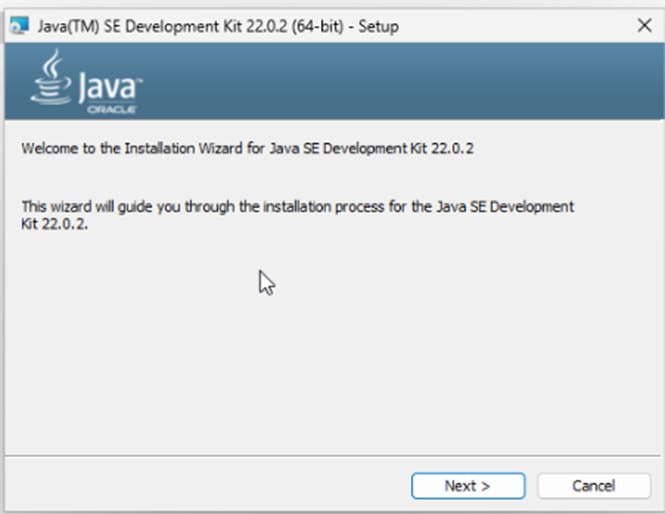
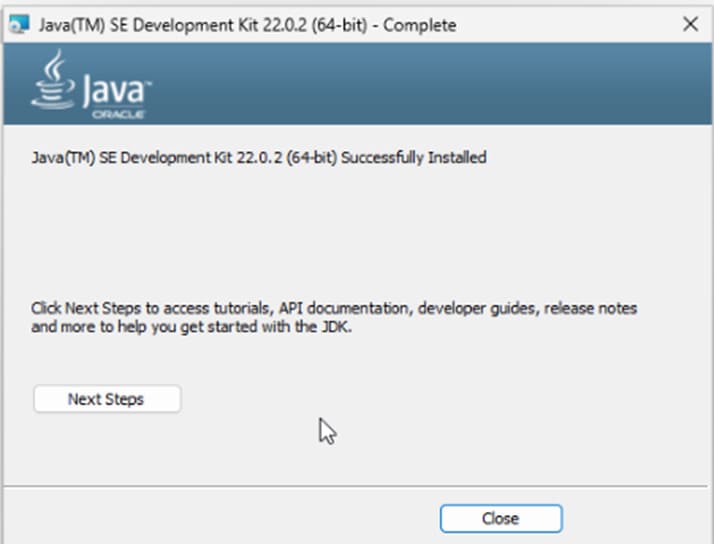
Step 1: Install Java 22 (.exe installer) on your Windows machine from Oracle’s official site.
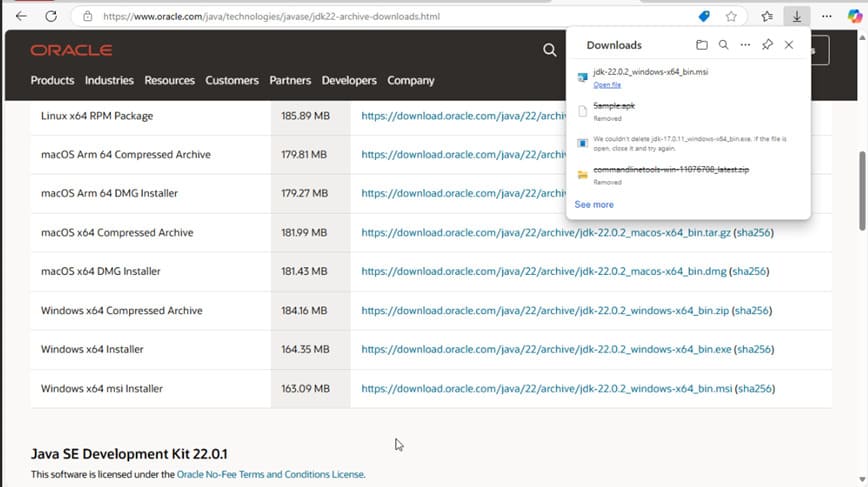
Step 2: Follow the instructions to install Java 22 on your machine.
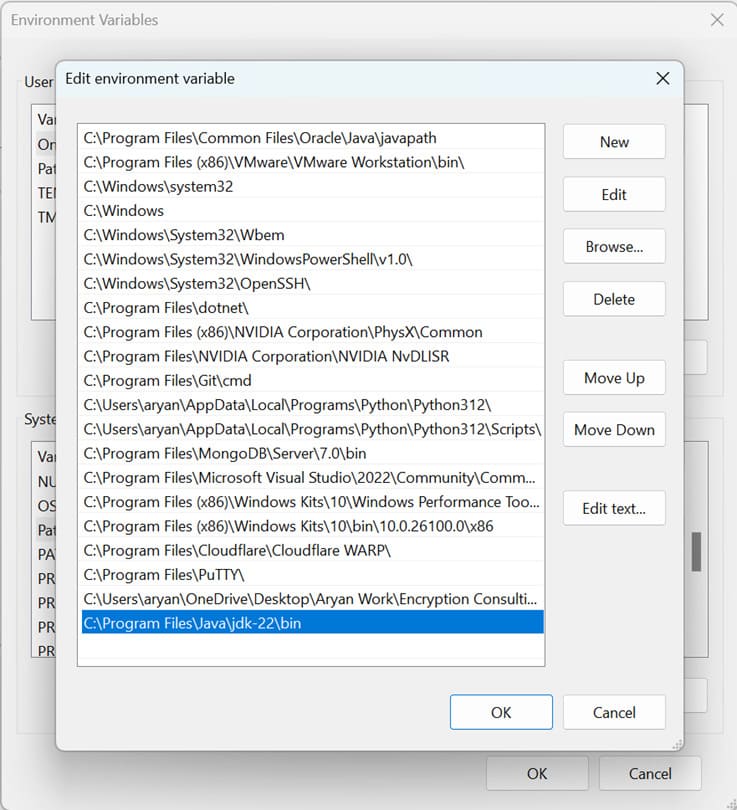
Step 3: Set Java 22 as the active version by storing the bin path in the PATH variable.
Signing
Step 1: Change the working directory of the terminal to the folder that contains your “ec_pkcs11client.ini” and “pkcs11properties.cfg” files.
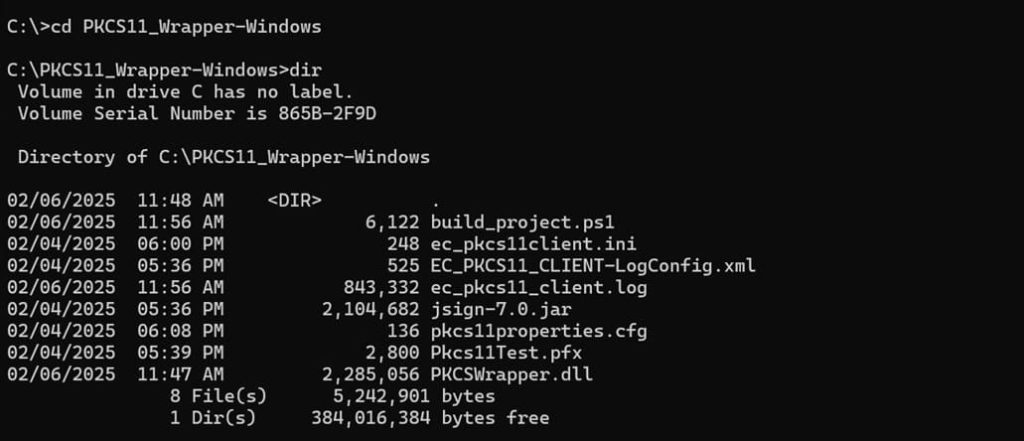
Step 2: Run the signing command from this directory.
<Path of Jarsigner tool> -keystore NONE -storepass NONE -storetype PKCS11 -sigalg SHA256withRSA -providerClass sun.security.pkcs11.SunPKCS11 -providerArg <Path of pkcs11properties.cfg> -signedjar <Path of the file after signing> <Path of the file to be signed> <Key alias of the signing certificate> -tsa http://timestamp.digicert.com
A sample command is provided below:
jarsigner -keystore NONE -storepass NONE -storetype PKCS11 -sigalg SHA256withRSA -providerClass sun.security.pkcs11.SunPKCS11 -providerArg pkcs11properties.cfg -signedjar helloworld_signed.jar helloworld.jar gpg2 -tsa http://timestamp.digicert.com
Verification
Step 1: For Verification, run the following command:
<Path of Jarsigner tool> -verify <Path of the file after signing> -certs -verbose
Step 2: A sample command is provided below:
jarsigner -verify helloworld_signed.jar -certs -verbose
Configuration of PKCS#11 Wrapper on MacOS
Prerequisites
Before we look into the process of using Jarsigner Tool and our PKCS11 Wrapper on a MacOS machine, ensure the following are ready:
- MacOS Version: Sequoia 15.2 (tested environment Sequoia 15.2)
- Dependencies: Install liblog4cxx and curl.
To install the dependencies, run the following commands
- brew install curl
- brew install log4cxx
Installing EC’s PKCS#11 Wrapper
Step 1: Go to EC CodeSign Secure’s v3.02’s Signing Tools section and download the PKCS#11 Wrapper for MacOS.
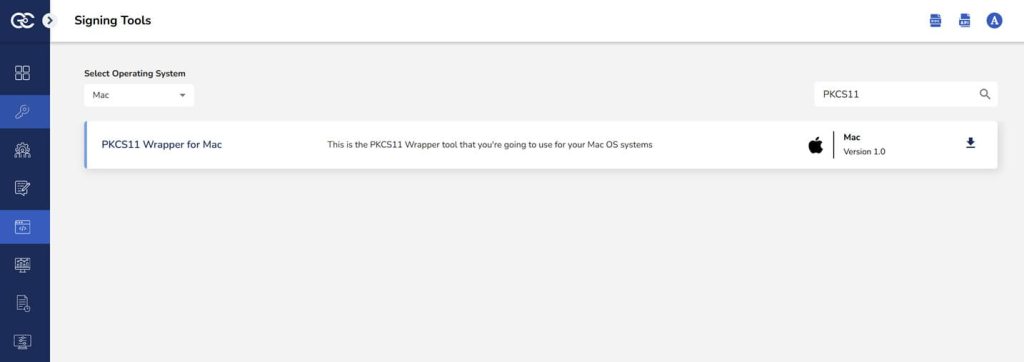
Step 2: After that, generate a P12 Authentication certificate from the System Setup > User > Generate Authentication Certificate dropdown.
Step 3: Go to your MacOS client system and edit the configuration files (ec_PKCS#11client.ini and PKCS#11properties.cfg) downloaded in the PKCS11 Wrapper.
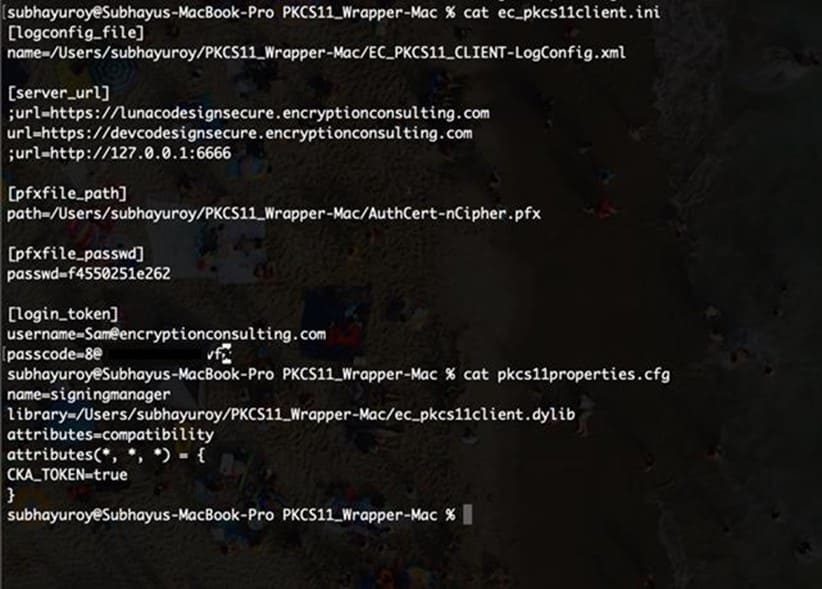
Install Java on your MacOS machine.
You will also need to install Java (Java 8-17) on your MacOS machine for Jarsigner to work with our PKCS11 Wrapper.
Step 1: Install Java 17 on your MacOS machine.
brew install openjdk@17
Step 2: Find the location where Java 17 is installed on your machine
brew info to openjdk@17
Step 3: Set Java 17 as the active version.
For Zsh: nano ~/.zshrc
For Bash: nano ~/.bash_profile
After running the above command, add these lines:
export PATH=<Path of Java 17 bin folder>:$PATH
export JAVA_HOME=<Path of Java 17 bin folder>
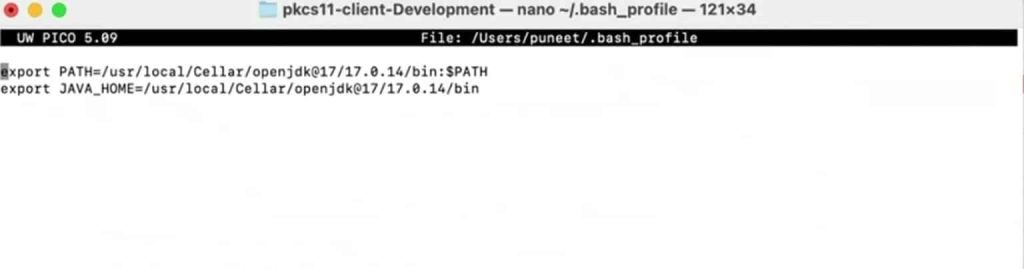
Step 4: Reload the environment variables
For Zsh: source ~/.zshrc
For Bash: source ~/.bash_profile
Signing
Step 1: Change the working directory of the terminal to the folder that contains your “ec_pkcs11client.ini” and “pkcs11properties.cfg” files.
Step 2: Run the signing command from this directory.
<Path of Jarsigner tool> -keystore NONE -storepass NONE -storetype PKCS11 -sigalg SHA256withRSA -providerClass sun.security.pkcs11.SunPKCS11 -providerArg <Path of pkcs11properties.cfg> -signedjar <Path of the file after signing> <Path of the file to be signed> <Key alias of the signing certificate> -tsa http://timestamp.digicert.com
A sample command is provided below:
jarsigner -keystore NONE -storepass NONE -storetype PKCS11 -sigalg SHA256withRSA -providerClass sun.security.pkcs11.SunPKCS11 -providerArg pkcs11properties.cfg -signedjar helloworld_signed.jar helloworld.jar gpg2 -tsa http://timestamp.digicert.com
Verification
Step 1: For Verification, run the following command:
<Path of Jarsigner tool> -verify <Path of the file after signing> -certs -verbose
Step 2: A sample command is provided below:
jarsigner -verify helloworld_signed.jar -certs -verbose
Frequently Asked Questions
What is Jarsigner, and what file types can it sign?
Jarsigner is a code signing tool included in the Java Development Kit (JDK). It signs Java Archive (.jar), Enterprise Archive (.ear), Web Application Archive (.war), and Service Archive (.sar) files.
Why use PKCS#11 with Jarsigner instead of a standard Java keystore?
A standard Java keystore file stores the private key on disk, which is vulnerable to theft if the file system is compromised. PKCS#11 lets Jarsigner delegate the signing operation to a Hardware Security Module or token, so the private key is generated, stored, and used entirely in hardware and never exported.
What Java version do I need to run Jarsigner with EC’s PKCS#11 wrapper?
Any Java 8 through 17 release works on Ubuntu and macOS, and Java 8 through 22 on Windows. The documented setup uses Java 17 on Ubuntu and macOS and Java 22 on Windows.
Why does the Windows setup use Java 22 while Ubuntu and macOS use Java 17?
Both versions are within the supported Java 8-22 range for this wrapper, so either works on any of the three platforms. If your environment standardizes on a single Java version across teams, confirm that version falls within the supported range for your OS before deviating from the documented example.
What’s the exact jarsigner command for signing with the PKCS11 provider?
The core command is jarsigner -keystore NONE -storepass NONE -storetype PKCS11 -sigalg SHA256withRSA -providerClass sun.security.pkcs11.SunPKCS11 -providerArg pkcs11properties.cfg -signedjar <output file> <input file> <key alias> -tsa http://timestamp.digicert.com, run from the folder containing your wrapper’s config files. It’s identical across Ubuntu, Windows, and macOS.
How do I verify a JAR file was signed correctly?
Run jarsigner -verify <signed file> -certs -verbose. This checks the signature against the file’s hash and displays the certificate details used to sign it.
Why does the sample command include a -tsa timestamp server?
The -tsa flag records that the signing certificate was valid at the moment of signing. Without it, the signature’s trust is tied to the certificate’s validity period, so the signed JAR becomes untrusted the moment the certificate expires, even if nothing else changed.
Which CodeSign Secure version currently ships this PKCS#11 wrapper?
CodeSign Secure v3.02, which also added native LMS and ML-DSA post-quantum signing, GPG2 integration, and Debian/RPM package signing alongside jsign and jarsigner support.
How does CodeSign Secure protect the signing key beyond what the PKCS#11 wrapper itself does?
Beyond routing signing through an HSM via PKCS#11, CodeSign Secure adds client-side hashing, virus scanning of the artifact before it’s signed, detailed audit logging of every signing event, and policy enforcement over who can sign what, none of which the raw jarsigner/PKCS#11 command line provides on its own.
Conclusion
Encryption Consulting’s CodeSign Secure takes code signing to the next level by offering a comprehensive platform that not only streamlines the signing process but also significantly bolsters organizational security. By leveraging advanced features like Hardware Security Module integration, client-side hashing, and virus scanning, CodeSign Secure ensures that signing keys remain safeguarded and that signed applications are free from malware. That safeguarding matters more every year: GitGuardian’s 2026 State of Secrets Sprawl report found 28.65 million new hardcoded secrets exposed on public GitHub in 2025 alone, a 34% year-over-year increase, and Sonatype identified over 454,600 new malicious open source packages in 2025, a 75% year-over-year increase, per its January 28, 2026 report, exactly the kind of ecosystem risk a Java dependency or JAR signing workflow has to defend against.
CodeSign Secure integrates effortlessly into CI/CD pipelines, making it ideal for organizations aiming to automate and scale their development workflows while adhering to strict security policies. With detailed audit trails and policy enforcement, it provides transparency and accountability, helping businesses meet compliance requirements and build trust with their users.
By integrating seamlessly with Jarsigner, Encryption Consulting’s PKCS#11 library simplifies the configuration and execution of signing tasks, providing a consistent and secure experience regardless of the platform. Whether you’re developing on Windows, deploying on Ubuntu, or testing on macOS, this library empowers developers to maintain high security standards with minimal complexity.
- Jarsigner
- Ubuntu, Windows, and macOS: Quick Comparison
- Configuration of PKCS#11 Wrapper on Ubuntu
- Configuration of PKCS#11 Wrapper on Windows
- Configuration of PKCS#11 Wrapper on MacOS
- Frequently Asked Questions
- What is Jarsigner, and what file types can it sign?
- Why use PKCS#11 with Jarsigner instead of a standard Java keystore?
- What Java version do I need to run Jarsigner with EC's PKCS#11 wrapper?
- Why does the Windows setup use Java 22 while Ubuntu and macOS use Java 17?
- What's the exact jarsigner command for signing with the PKCS11 provider?
- How do I verify a JAR file was signed correctly?
- Why does the sample command include a -tsa timestamp server?
- Which CodeSign Secure version currently ships this PKCS#11 wrapper?
- How does CodeSign Secure protect the signing key beyond what the PKCS#11 wrapper itself does?
- Conclusion