
- Executive Summary
- Microsoft CA vs. Public CA
- Prerequisites Before Troubleshooting Microsoft CA Communication
- Step-by-step guide
- Quick Troubleshooting Checklist
- Common Error Codes and What They Mean
- Validation Checks After Resolving CA Communication Issues
- Rollback Steps if a Fix Doesn't Resolve the Issue
- How can Encryption Consulting help?
- Conclusion
- Frequently Asked Questions
When organizations need to secure digital communications, verify identities, or enable secure access to network resources, they often turn to Public Key Infrastructure (PKI) technology. At the core of PKI is the Certificate Authority (CA), a trusted entity responsible for issuing, managing, and validating digital certificates. These certificates are electronic credentials that bind a public key to the identity of a user, computer, or device, enabling secure, encrypted communication, authentication, and digital signatures.
This article aims to help IT professionals diagnose and resolve CA communication issues, ensuring that digital certificates can be reliably issued, validated, and used for secure operations.
What is Microsoft CA communication troubleshooting? It is the process of diagnosing why an Active Directory Certificate Services (AD CS) Certificate Authority cannot issue, renew, or validate certificates, covering CA service status, network ports, service account permissions, certificate template visibility, event logs, and certificate chain and CRL accessibility, in that order.
Microsoft implements this technology called Active Directory Certificate Services (AD CS). AD CS is a Windows Server role that allows organizations to create and manage their own internal CA. AD CS supports issuing a wide range of certificate types, including:
- User certificates: These are used for user authentication, secure email (S/MIME), and digital signatures.
- Machine (computer) certificates: Enable computer and server authentication, encryption, and secure communications.
- Web server certificates: Secure web servers and applications using SSL/TLS encryption.
- Code signing certificates: These are used for signing software and scripts to ensure their integrity and authenticity.
- VPN and remote access certificates: Secure remote connections via VPNs and other remote access technologies.
- Network device certificates: Authenticate devices like routers, switches, and firewalls that may not have domain accounts.
- Smart card certificates: Enable strong authentication for users through smart cards or hardware tokens.
The certificates provided by AD CS help ensure:
- Confidentiality: Only intended recipients can read data by encrypting it.
- Integrity: Digitally sign data to prevent tampering.
- Authentication: By confirming the identity of users, computers, or devices accessing network resources.
Microsoft implements this technology through Active Directory Certificate Services (AD CS), a Windows Server role that enables organizations to create and manage their own internal Certificate Authority (CA).
A Microsoft CA can be set up in several ways, including as a root CA (the trust anchor for your organization) or as a subordinate CA (which issues certificates under the authority of the root CA). Enterprise CAs integrate with the Active Directory, which allows automated certificate issuance and management, while standalone CAs operate independently and require manual approval of certificate requests.
Ensuring reliable communication with your Microsoft Certificate Authority (CA) is important for any organization that relies on the Active Directory Certificate Services (AD CS) for secure certificate issuance, authentication, or integration with third-party platforms. Suppose you are experiencing issues with certificate requests, renewals, or integration failures. In that case, this step-by-step guide will help you systematically verify and resolve Microsoft CA communication problems. First, let us look at the differences between Public CA and MSCA.
Executive Summary
- Microsoft CA communication issues almost always trace back to one of six areas: CA service status, network ports, CA responsiveness, service account permissions, certificate template visibility, or certificate chain and CRL accessibility.
- Start with
Get-Service certsvcto confirm the CA service is running, then work through ports,certutil -ping, permissions, templates, event logs, and CRL checks in order. - Common failure signatures include “RPC Server Unavailable,” CERT_E_REVOCATION_FAILURE, CERT_E_UNTRUSTEDROOT, and SCEP error codes 0x80092013 and 0x80094800.
- The Quick Troubleshooting Checklist and the consolidated error code table below let you jump straight to a fix for a known symptom.
- CertSecure Manager can automate renewal, monitoring, and AD-policy alignment so these issues surface and get fixed before they cause an outage.
Microsoft CA vs. Public CA
To help understand the scope of Microsoft CA, here’s a brief comparison with public CAs:
| Feature | Microsoft CA (AD CS) | Public CA (e.g., DigiCert, Let’s Encrypt) |
|---|---|---|
| Deployment | On-premises, managed internally | Cloud-based, provider-managed |
| Trust Scope | Internal users, systems, and services | Public trust across browsers, devices |
| Validation Model | AD-based automation | Domain (DV), Org (OV), or Extended (EV) Validation |
| Cost Model | Infrastructure and maintenance costs | Per-cert or subscription fee |
| Best for | Internal apps, servers, devices, VPN, S/MIME | Websites, external apps, APIs |
| Support & SLAs | Internal IT or Microsoft support | Vendor-provided SLAs, support |
Prerequisites Before Troubleshooting Microsoft CA Communication
Before working through this guide, confirm you have the following in place.
- Administrative or delegated access to the Microsoft CA server and to the affected client machine.
- An elevated PowerShell or Command Prompt session on both the CA server and a client, since several commands (
Restart-Service,dsacls,gpresult /r) require administrator rights. - Network line of sight between the client and the CA server so port tests are meaningful.
- Access to the Certification Authority console (
certsrv.msc) and the Certificate Templates snap-in (certtmpl.msc). - RSAT (Remote Server Administration Tools) installed if you need to run
Get-CATemplatefrom a machine other than the CA. - A recent backup or documented baseline of CA permissions and published templates, so you have something to roll back to if a change makes things worse.
Step-by-step guide
1. Confirm the Microsoft CA Service Is Running
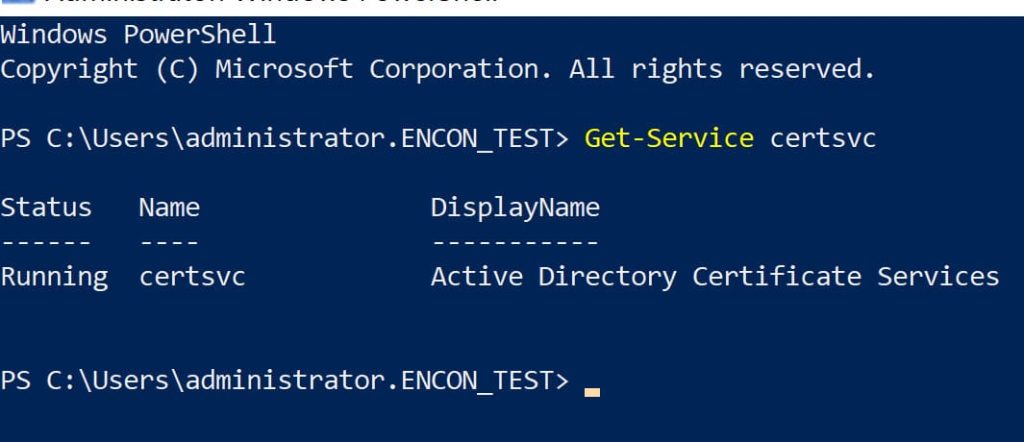
We will start by ensuring the CA service is active on the server. Before troubleshooting any certificate-related issues, always start by confirming that the Certificate Authority (CA) service is running on the server. This is critical because if the CA service is stopped, no certificate requests can be processed, and any downstream troubleshooting will be ineffective and waste valuable time. Open a PowerShell window and run:
Get-Service certsvc
The output should indicate the service status as “Running.” Alternatively, you can open the Services management console (services.msc) and check that “Active Directory Certificate Services” is running.
If the service is stopped, a quick restart can often resolve the issue. Use the following PowerShell command to start or restart the service:
Restart-Service certsvc
After restarting the service, always check the Windows Event Viewer for service-related errors or warnings. Open the Event Viewer by searching for eventvwr.msc. Navigate to Applications and Services Logs > Microsoft > Windows > CertificationAuthority.
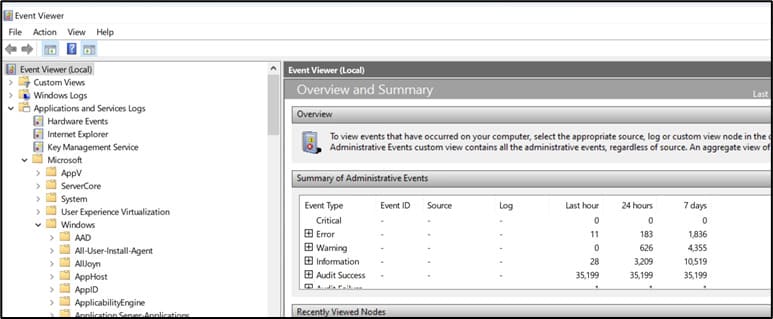
Review recent events for errors, warnings, or informational messages related to the CA service. Pay special attention to logs with Event IDs such as 58 (certificate chain issues), 4886 (certificate requests), and other relevant entries, as these can provide insight into underlying problems or confirm successful operations.
2. Verify Network Connectivity and Required Ports
Ensure necessary ports are open for CA communication.
Required Ports:
- TCP 135 – RPC Endpoint Mapper
It is used for initial client/server negotiation for RPC communication. - TCP 445 – SMB (used for certificate templates and Group Policy)
It is required for accessing certificate templates (stored in AD), GPO distribution, and DCOM. - Dynamic RPC Ports – TCP 49152–65535 (for Windows Server 2012 and newer)
It is used after RPC Endpoint Mapper assigns a high port for communication. - TCP 88 – Kerberos (for domain authentication)
It handles domain authentication when a user or computer requests certificates.
Why These Ports Matter?
- Kerberos (TCP 88): Required for domain-joined machines to authenticate to the CA, especially during auto-enrollment or certificate template access.
- SMB (TCP 445): Access to certificate templates and CA policies stored in Active Directory relies on SMB.
- RPC/High Ports (TCP 135 + 49152–65535): Core for DCOM and RPC calls used by certreq, certutil, MMC snap-ins, and when requesting certificates remotely.
Testing Connectivity using PowerShell:
Test-NetConnection -ComputerName <CA_SERVER> -Port 135
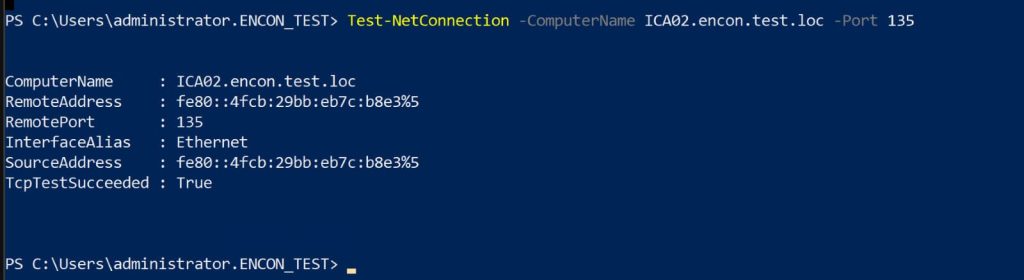
A successful test indicates the port is open.
Common Issues:
Firewalls blocking required ports. To list all firewall rules that may affect CA communications:
Get-NetFirewallRule
Network segmentation prevents communication.
Testing Connectivity using Telnet (if installed):
telnet <CA_SERVER> 135
telnet <CA_SERVER> 445
If the screen goes blank after pressing Enter, the port is open.
If it says, “Could not open connection,” the port is blocked.
3. Test CA Responsiveness with Certutil
Verify the CA is reachable and responsive, and if it fails, it indicates that your system is unable to communicate properly with the Certificate Authority (CA). This failure can imply several underlying issues mentioned below:
Steps:
Open Command Prompt or PowerShell on a client machine and run the following command. It is also recommended that the certutil command be tried from both the client and the CA server itself.
certutil -config – -ping
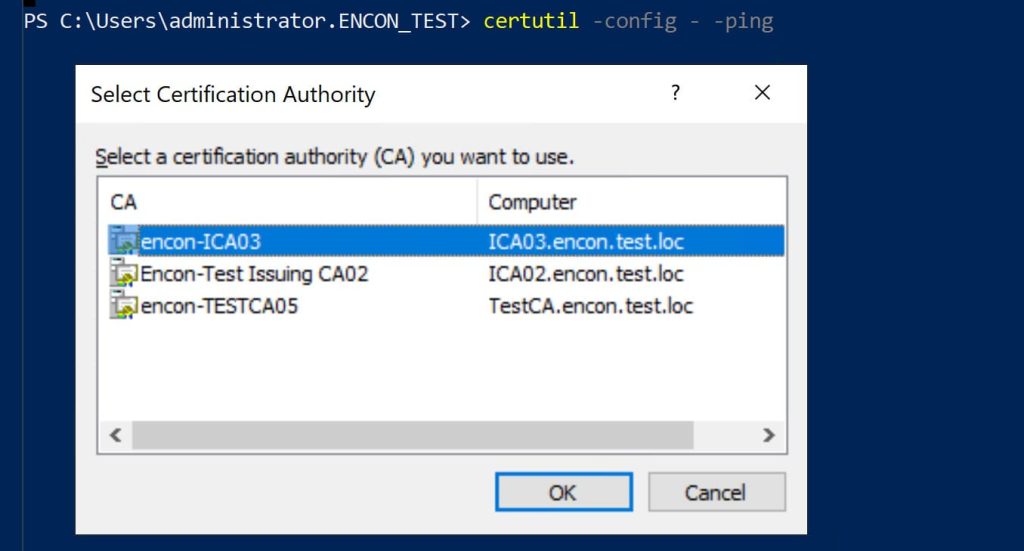
You’ll be prompted to select the CA. A successful response confirms the CA is reachable.

Prompts you to select the CA from a list. A successful response confirms the CA is reachable.
Scripted/Automated Check:
certutil -config “<CAName>\<CACommonName>” -ping
Replace
Common Issues:
- “RPC Server Unavailable” errors indicate communication breakdowns. One such example of such an error is:

If you receive such an error, the CA may be unreachable by the system, misconfigured, or blocked by security policies.
- DNS resolution failure – The CA’s hostname cannot be resolved
- Firewall restrictions – Required ports (e.g., TCP 135 for RPC) are blocked
- CA service is offline – The CA server is down, or the Certificate Services service is stopped
- Network segmentation – Routing or VLAN isolation prevents communication
Such issues prevent clients from discovering or enrolling with the CA.
4. Verify Service Account Permissions
The account used to communicate with the CA must have specific permissions on the CA and certificate templates.
To check CA-level permissions
- Open the Certification Authority console on the CA server (certsrv.msc)
- Right-click the CA and select Properties
- Navigate to the Security tab
- Confirm that the service account has permission to Request Certificates.
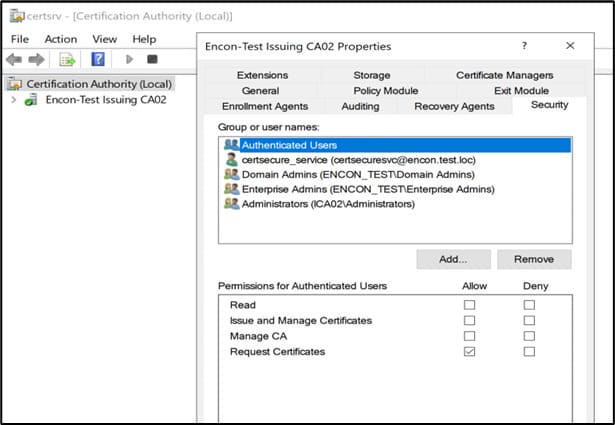
For more detailed auditing or scripting, you can use tools like dsacls:
dsacls “CN=Public Key Services,CN=Services,CN=Configuration,DC=domain,DC=com”
Use the following command to review delegated permissions in Active Directory using PowerShell:
Get-ADPermission -Identity “CA_Name” -User “ServiceAccountName”
These tools help verify if the service account has been granted necessary rights via AD delegation, especially in larger or automated environments.
To check template-level permissions:
- Open the Certificate Templates snap-in (certtmpl.msc)
- Right-click the relevant certificate template and select Properties
- In the Security tab, confirm the account has Read, Enroll, and, if needed, Autoenroll permissions
These permissions must be granted through Active Directory and may require a Group Policy refresh to apply. To verify that the correct Group Policies have applied, run the following on the client system:
gpresult /r
This command displays the applied Group Policy settings and can help confirm whether autoenrollment or certificate-related policies are active on the machine.
Tip: If a certificate template is published but not visible or usable by a service account, it’s usually a template-level permission issue. If no templates work at all, start by checking CA-level permissions.
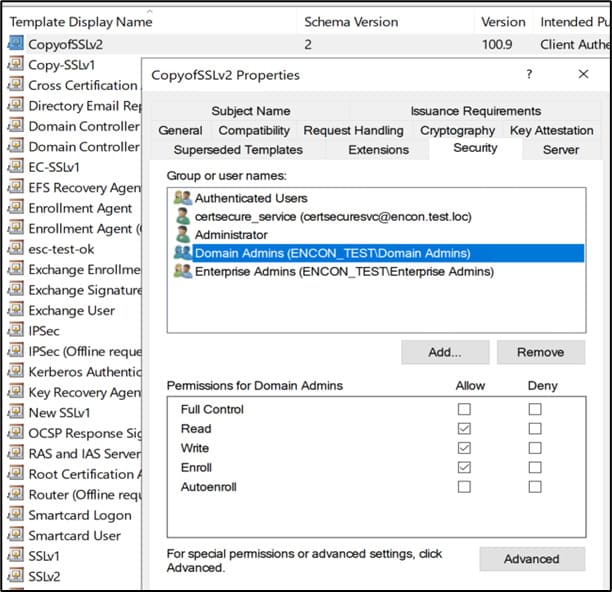
Typical Roles That Interact with the CA:
- NDES Service Account
Used by Network Device Enrollment Service for device certificate requests.
Needs “Request Certificates” at the CA and Read/Enroll on templates. - Autoenroll Clients
Domain computers/users auto-enrolling for certificates.
Require “Request Certificates” at the CA and Read, Enroll, (Autoenroll if used) on templates. - Application/Integration Accounts
Used by apps/services (e.g., SCEP) for certificate automation.
Need “Request Certificates” at the CA and Read/Enroll on templates. - Administrators
Require full control.
Manage CA and templates.
5. Ensure Certificate Templates Are Published and Visible
If your expected certificate template is not available, it may not be published, or your account may lack visibility. Open the Certificate Authority(certsrv.msc).
Right-click “Certificate Templates” and select “New” > “Certificate Template to Issue.”
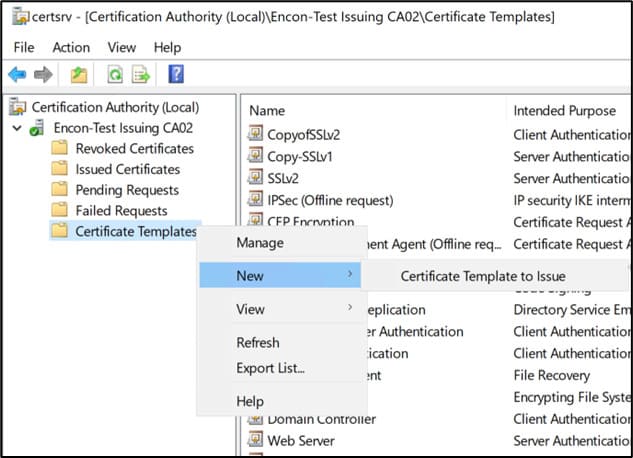
Select and publish the required template.
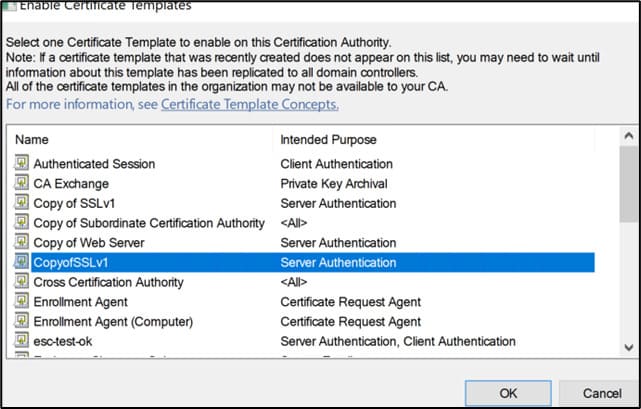
From a domain-joined client, you can list all available templates with the following command:
certutil -template
If your template does not appear, check permissions and publishing status on CA. Replication delays in Active Directory can affect the visibility of new or updated templates across different domains or sites, since changes made on the CA or in template permissions may take some time to propagate and become visible to all clients.
To list all templates currently issued (published) by the CA using PowerShell:
Get-CATemplate
This requires the CertificateServices module, which must be run on the CA or a machine with RSAT (Remote Server Administration Tools) installed.
6. Review Event Logs for CA-Related Errors
On the CA server, open Event Viewer and navigate to the following location:
Applications and Services Logs > Microsoft > Windows > CertificateServicesClient
Review both Operational and Debug logs for errors such as “Access Denied,” “RPC Unavailable,” “Template Not Found,” or “Enrollment Failure.” These logs often point directly to permission issues, connectivity failures, or misconfigurations.
For complete insight, check event logs on both the CA server and client machines. Client-side logs can reveal policy application issues, enrollment errors, or connectivity problems that may not appear in the CA’s logs. For more advanced troubleshooting, consider enabling verbose/debug logging for the Certificate Services (certsvc) component by adding the following registry value:
HKLM\SYSTEM\CurrentControlSet\Services\CertSvc\Configuration
Value: Diagnostic
Type: REG_DWORD
Data: 0x0000ffff
After applying the change, restart the Certificate Services to activate detailed logging using powershell:
Restart-Service -Name CertSvc
7. Validate Certificate Chain and CRL Accessibility
A common cause of communication issues is an incomplete or untrusted certificate chain. Ensure:
- The CA’s root and intermediate certificates are in the appropriate “Trusted Root Certification Authorities” and “Intermediate Certification Authorities” stores.
- Certificate Revocation List (CRL) endpoints are accessible from client devices and integration servers.
You can check certificate stores using:
certlm.msc
And verify CRL accessibility with:
certutil -verify -urlfetch <certificate_file.cer>
Replace <certificate_file.cer> with the path to your certificate file. Additionally, to directly confirm that CRL distribution points (CDPs) are reachable, open the CRL URL in a web browser or use a tool like curl:
curl -I http://<crl_url>
A successful HTTP 200 response indicates the CRL is accessible. This step helps rule out firewall or DNS issues affecting CRL reachability, which can lead to certificate trust or revocation errors during validation.
To analyze the contents of a downloaded CRL, use OpenSSL command:
openssl crl -in <crl_file.crl> -noout -text
This command displays CRL metadata, revocation entries, and the issuer’s information. It helps verify that the CRL is correctly issued and up to date.
Technical Impact of CRL or AIA Failures:
Failures to access CRL or AIA URLs can disrupt certificate validation, leading to a variety of operational issues. These typically arise from DNS resolution problems, firewall blocks, HTTP proxy misconfigurations, or missing publication settings on the CA. Below are key technical manifestations of such failures:
- Certificate Chain Validation Errors
Certificate validation may fail during chain building, triggering errors such as CERT_E_REVOCATION_FAILURE, CERT_E_CHAINING, or CERT_E_UNTRUSTEDROOT. These indicate issues in reaching revocation or AIA endpoints. - SCEP and Autoenrollment Failures
Enrollment operations may fail with specific error codes, such as:- 0x80092013: Revocation server offline
- 0x80094800: Invalid certificate authority
- TLS/SSL Handshake Failures
Clients may reject server certificates during TLS/SSL negotiations due to incomplete chains or unavailable CRL/AIA URLs. This can interrupt secure communications for services like HTTPS, LDAPS, or VPNs. - Event Log Indicators
Windows Event Viewer logs may capture relevant entries under CertificateServicesClient or Schannel, indicating revocation check timeouts, chain construction errors, or download failures from CDP/AIA URLs. - OCSP and CRL Retrieval Failures
Attempts to fetch revocation data via OCSP or CRL may fail due to:- DNS resolution issues
- Incorrect or unreachable URLs
- HTTP proxy restrictions
- Missing or misconfigured CA publications
These issues can silently break trust validation processes unless actively monitored.
Quick Troubleshooting Checklist
| Step | Command/Location | Expected Result | Troubleshooting Tips |
|---|---|---|---|
| CA Service Status | Get-Service certsvc | Service is Running | If not running, check Windows Event Logs for errors. Try restarting the service. Ensure dependencies are met. |
| Port Connectivity | Test-NetConnection -ComputerName <CA_SERVER> -Port 135 | Connection is successful | If it fails, verify firewall settings, network connectivity, and that RPC (port 135) is open between the client and the CA. |
| CA Ping | certutil -config – -ping | “Ping completed successfully.” | If unsuccessful, check network connectivity, CA service status, and DNS resolution of the CA server. |
| Template Visibility | certutil -template | The template is listed | If missing, ensure the template is published on the CA and AD replication is complete. Check template permissions. |
| Permissions | certsrv.msc > Security | Required permissions are granted | If permissions are missing, review and assign necessary rights to users/groups. Check for group policy conflicts. |
| Event Logs | Event Viewer (group by “Network”, “Service”, “Permissions”, “Templates”) | No RPC or permission errors | If errors are present, review details for clues. Filter logs for relevant errors. Address issues as per error codes. |
Common Error Codes and What They Mean
The table below consolidates the error codes and messages referenced throughout this guide, so you can jump straight to a known symptom.
| Error or Message | What It Means | Where You’ll See It |
|---|---|---|
| “RPC Server Unavailable” | The client cannot reach the CA over RPC. The CA may be offline, unreachable, or blocked by a firewall. | certutil -config –ping |
| CERT_E_REVOCATION_FAILURE | Chain validation could not confirm revocation status because the CRL or OCSP endpoint could not be reached. | Certificate chain validation |
| CERT_E_CHAINING | The certificate chain could not be built, often from a missing intermediate certificate. | Certificate chain validation |
| CERT_E_UNTRUSTEDROOT | The root CA certificate is not in the Trusted Root Certification Authorities store. | Certificate chain validation |
| 0x80092013 | Revocation server offline. The client could not fetch revocation status during enrollment. | SCEP and autoenrollment |
| 0x80094800 | Invalid certificate authority. The CA reference is misconfigured or unreachable. | SCEP and autoenrollment |
| “Access Denied” | The account lacks Request Certificates permission at the CA or Enroll permission on the template. | CertificateServicesClient event log |
| “Template Not Found” | The requested template is not published on the CA, or AD replication has not propagated it yet. | CertificateServicesClient event log / certutil -template |
| “Enrollment Failure” | A general enrollment error, usually a downstream symptom of one of the causes above. | CertificateServicesClient event log |
Validation Checks After Resolving CA Communication Issues
Once you have applied a fix, confirm it actually resolved the issue before you consider it closed.
- Rerun
Get-Service certsvcand confirm the status is Running, not just that the restart command completed without error. - Rerun
certutil -config --ping(or the scriptedcertutil -config "<CAName>\<CACommonName>" -pingform) and confirm a successful ping response. - Rerun
Test-NetConnection -ComputerName <CA_SERVER> -Port 135to confirm RPC connectivity, and repeat for port 445 if SMB was part of the issue. - Rerun
certutil -templateon the affected client and confirm the expected template now appears. - Request a test certificate using the affected template and confirm it issues successfully instead of failing at the policy module.
- Check the CertificateServicesClient and CertificationAuthority event logs for a clean window with no repeat errors after the fix.
Rollback Steps if a Fix Doesn’t Resolve the Issue
If a change makes the environment worse, or you need to back out before continuing, these steps reverse the most common changes made in this guide.
- If you enabled verbose Diagnostic logging on the CA, set the registry value back to its previous data (commonly 0) and run
Restart-Service -Name CertSvcagain to return to normal logging levels. - If you changed CA-level or template-level permissions, restore the previous access control list from your documented baseline rather than guessing at the prior state.
- If you unpublished or removed a certificate template, republish it from Certificate Templates in the CA console under Certificate Templates > New > Certificate Template to Issue.
- If a firewall rule change was part of the fix and it caused new problems, revert to the previously exported rule set rather than deleting rules ad hoc.
- If restarting the CA service did not help and the CA was working before a recent change, consider restoring the CA server from its last known-good backup rather than continuing to troubleshoot live.
How can Encryption Consulting help?
Encryption Consulting helps organizations secure and manage Microsoft Certificate Services by providing clear guidance on fixing communication problems, setting up PKI correctly, and automating certificate processes with CertSecure Manager. We work with clients to find the exact cause of issues such as service settings, access permissions, or network errors.
CertSecure Manager supports this by sending alerts before certificates expire, renewing them automatically to avoid downtime, and connecting with Active Directory to follow company policies for certificate use. It keeps track of all certificates in one place, watches for any changes, and handles tasks without needing constant manual work, offering a more automated certificate management.
It ensures the CA is properly integrated with enterprise systems. Whether dealing with a one-time outage or planning a full PKI deployment, we provide the support needed to maintain a reliable, compliant, scalable certificate infrastructure.
Conclusion
Following these steps, you can systematically diagnose and resolve most Microsoft CA communication issues. This approach ensures that your PKI infrastructure remains robust, secure, and integrated with your organization’s certificate management workflows. Proactive monitoring and auditing of CA health and certificate usage help prevent disruptions, detect anomalies early, and support compliance efforts. If you continue to face challenges, consider contacting PKI experts for advanced troubleshooting and support.
Frequently Asked Questions
What is the main takeaway from Microsoft CA Communication?
The main takeaway is that most Microsoft CA communication problems fall into six checkable areas: CA service status, network ports, CA responsiveness, service account permissions, certificate template visibility, and certificate chain or CRL accessibility. Working through them in that order finds the root cause faster than guessing.
Why does this matter for enterprise PKI teams?
Enterprise PKI teams depend on Active Directory Certificate Services to issue and renew certificates for users, computers, and applications. When CA communication breaks, certificate issuance and renewal stall across the environment, so a systematic troubleshooting process matters more than a single fix.
What risks increase if this topic is handled manually?
Handling CA communication issues manually and without a checklist increases the risk of missing a root cause, such as an unpublished template or a blocked RPC port, and applying a fix that treats a symptom instead of the underlying problem, which can let the same failure recur.
Which teams should own this change?
Ownership typically spans the Active Directory or PKI administration team that manages the CA and certificate templates, the network team that controls firewall rules and port access, and the security team that reviews CA-level and template-level permissions.
How does this connect to certificate lifecycle management?
CA communication is the foundation certificate lifecycle management depends on. If clients cannot reach the CA, request a template, or validate a certificate’s chain and revocation status, issuance and renewal automation cannot function, no matter how well the lifecycle policy is designed.
How should organizations measure success?
Success looks like a clean run through the Quick Troubleshooting Checklist, no repeat RPC, permission, or template errors in the CertificateServicesClient and CertificationAuthority event logs, and successful test enrollments against every certificate template clients depend on.
What should be audited or monitored regularly?
Organizations should regularly audit CA service status, certificate template publication and permissions, CRL and AIA endpoint reachability, and the CertificateServicesClient and CertificationAuthority event logs for recurring RPC, access-denied, or revocation errors.
How does this topic affect cloud, hybrid, or multi-CA PKI?
In hybrid environments, Microsoft CA communication issues can be harder to isolate because clients may reach the CA through VPNs, cloud-hosted domain controllers, or multiple issuing CAs. The same checklist still applies, but each CA and network path needs to be tested individually rather than assumed to behave the same way.
What prerequisites are required before implementation?
Before troubleshooting, confirm administrative or delegated access to the CA server and affected client, an elevated PowerShell session on both, access to certsrv.msc and certtmpl.msc, RSAT if running Get-CATemplate remotely, and a documented baseline of current permissions and published templates to roll back to if needed.
What common errors should administrators watch for?
Administrators should watch for “RPC Server Unavailable,” CERT_E_REVOCATION_FAILURE, CERT_E_CHAINING, CERT_E_UNTRUSTEDROOT, SCEP errors 0x80092013 and 0x80094800, and “Access Denied,” “Template Not Found,” or “Enrollment Failure” entries in the CertificateServicesClient event log.
- Executive Summary
- Microsoft CA vs. Public CA
- Prerequisites Before Troubleshooting Microsoft CA Communication
- Step-by-step guide
- 1. Confirm the Microsoft CA Service Is Running
- 2. Verify Network Connectivity and Required Ports
- 3. Test CA Responsiveness with Certutil
- 4. Verify Service Account Permissions
- 5. Ensure Certificate Templates Are Published and Visible
- 6. Review Event Logs for CA-Related Errors
- 7. Validate Certificate Chain and CRL Accessibility
- Quick Troubleshooting Checklist
- Common Error Codes and What They Mean
- Validation Checks After Resolving CA Communication Issues
- Rollback Steps if a Fix Doesn't Resolve the Issue
- How can Encryption Consulting help?
- Conclusion
- Frequently Asked Questions
- What is the main takeaway from Microsoft CA Communication?
- Why does this matter for enterprise PKI teams?
- What risks increase if this topic is handled manually?
- Which teams should own this change?
- How does this connect to certificate lifecycle management?
- How should organizations measure success?
- What should be audited or monitored regularly?
- How does this topic affect cloud, hybrid, or multi-CA PKI?
- What prerequisites are required before implementation?
- What common errors should administrators watch for?