
- Quick Answer: What Are AD CS Containers?
- Key Takeaways
- Who Should Care About AD CS Containers
- Container Operations Reference: Commands, Validation Checks, Common Errors, and Rollback
- What Is AD CS and Why Do Containers Matter?
- The Key AD CS Containers, One by One
- Tools for Viewing and Managing AD CS Containers
- Quick Reference Summary
- How Encryption Consulting Can Help With Your PKI
- Conclusion
- Frequently Asked Questions
If you have ever managed a Windows environment and wondered where your Certificate Authority configuration actually lives inside Active Directory, you are not alone. Most professionals know that Active Directory Certificate Services (AD CS) handles certificate issuance, but the plumbing underneath, specifically the set of specialized containers that store PKI configuration across your forest, often remains a mystery.
This guide will walk through every key container that AD CS uses, explain what it stores, why it matters, how to view it, and what can go wrong if it is misconfigured or neglected.
Quick Answer: What Are AD CS Containers?
AD CS containers are specialized objects in Active Directory that store all PKI configuration for a Windows forest. They live under CN=Public Key Services, CN=Services, CN=Configuration and replicate to every domain controller. They hold trusted root CAs, intermediate CA certs, CRLs, certificate templates, enrollment service registrations, NTAuth trust, KRA certificates, and OID definitions.
Key Takeaways
- All AD CS configuration is stored in the Configuration naming context under
CN=Public Key Servicesand replicates forest-wide to every domain controller. A change to a certificate template or CRL distribution point on one DC eventually appears on every DC in every domain in the forest. This forest-wide scope means every misconfiguration is a forest-wide security event, not a per-domain one. - The eight containers each serve a distinct role in the certificate lifecycle: Certification Authorities (trusted roots), AIA (intermediate CA certs for chain building), CDP (CRLs for revocation checking), Enrollment Services (CA discovery for auto-enrollment), Certificate Templates (blueprint for every certificate type), NTAuthCertificates (CAs authorized for smart card logon), KRA (key recovery agent certs), and OID (custom policy identifiers). Knowing which container does what is the prerequisite to diagnosing any PKI failure.
- Certificate templates are the highest-risk container. The ESC1 through ESC16 attack taxonomy documented by SpecterOps shows that misconfigured templates can allow unprivileged users to escalate to domain admin in under 60 seconds. NTAuthCertificates and the Certification Authorities container are the second-highest-risk targets: adding a rogue entry to either establishes a trusted CA or enables unauthorized smart card logon for the entire forest.
- Expired or missing CRL data in the CDP container causes all certificates issued by the affected CA to fail validation, across every application and every domain in the forest. The DigiCert Trust Pulse Survey (July 2025) found that 45 percent of enterprises experienced certificate-related downtime in the prior year. Most operational PKI failures trace back to stale, missing, or expired data in one of these containers.
- PKIView (pkiview.msc), ADSI Edit (adsiedit.msc), and certutil.exe are the three complementary tools for inspecting and managing AD CS containers. PKIView gives health visibility; ADSI Edit gives raw attribute access; certutil gives command-line publishing and verification. None of them alone covers everything.
Who Should Care About AD CS Containers
AD CS containers are primarily a PKI administrator responsibility, but the security and compliance implications extend to every team that depends on certificate-based authentication, encryption, or code signing.
| Role | Why It Matters | Action Item |
|---|---|---|
| PKI Admins | Own day-to-day container operations: publishing CA certificates and CRLs, monitoring CRL expiry via PKIView, managing certificate template configurations, diagnosing enrollment failures traced to stale Enrollment Services objects, and verifying chain-building via certutil -verify -urlfetch | Establish a quarterly container audit using certutil -store -enterprise Root, certutil -store -enterprise NTAuth, and certutil -v -dstemplate against all published templates; connect container health monitoring to CertSecure Manager for automated expiry alerting and lifecycle tracking across all issued certificates |
| Security Architects | Own the access control policy for each container and the ESC attack surface review for Certificate Templates; unauthorized entries in NTAuthCertificates or Certification Authorities establish rogue CA trust for the entire forest; misconfigured templates are the primary vector for AD CS privilege escalation (ESC1 through ESC16) | Run Locksmith or PSPKIAudit quarterly against the Certificate Templates container to enumerate ESC misconfigurations; require SIEM alerting on modification events for CN=NTAuthCertificates and CN=Certification Authorities; review CBOM Secure cryptographic inventory alongside container audit findings to confirm no rogue certificates appear in the enterprise certificate estate |
| Active Directory Teams | Own the underlying object permissions and replication health for the Configuration naming context; AD replication delays can cause PKIView to show red for a CRL that was just published; permission changes on PKI container objects can silently break CA publishing or auto-enrollment | Include CN=Public Key Services in AD replication monitoring; require AD team sign-off before any ACL changes to the Configuration naming context PKI containers; verify that the CA service account has Write permission to the CDP and AIA containers and that no permission inheritance breaks have occurred |
| Compliance Teams | Must demonstrate that container changes are logged and reviewed; CA Event IDs 4899 and 4900 (template modified, template security updated) and AD object modification events on NTAuthCertificates and Certification Authorities are the primary audit evidence for PKI-related controls under SOC 2, ISO 27001, NIST SP 800-53 SC-12 and SC-17, and FedRAMP | Confirm CA audit logging is enabled (certutil -setreg ca\auditfilter 127) and forwarded to SIEM; include quarterly container audit results (certutil -store -enterprise Root output vs approved CA inventory) in compliance evidence packages; document all container changes with before/after state as part of change management records |
| CISOs | AD CS containers represent forest-wide trust infrastructure; a single unauthorized entry in NTAuthCertificates or Certification Authorities can compromise every domain in the forest; certificate expiration ranked among the top three CISO concerns (56.6 percent, DigiCert Trust Pulse Survey, July 2025); as CA/Browser Forum Ballot SC-081v3 reduces public TLS certificate lifetimes to 47 days by March 2029, operational failures from stale container data will occur at higher frequency | Require a formal AD CS container governance policy as part of PKI program documentation; fund quarterly ESC template audits and SIEM integration for container modification alerting; evaluate whether the operational overhead of self-managed AD CS justifies moving to a managed PKI model with automated container health monitoring |
Container Operations Reference: Commands, Validation Checks, Common Errors, and Rollback
Use this table before performing any container operation in a production environment. Each row maps a container task to its prerequisite, the exact command, the validation check that confirms correct operation, the common error to watch for, and the rollback action.
| Task | Prerequisite | Command | Validation Check | Common Error | Rollback |
|---|---|---|---|---|---|
| Publish root CA cert to Certification Authorities | Enterprise Admin rights; CA certificate file (.cer) accessible from management workstation; non-production test completed | certutil -dsPublish -f RootCA.cer RootCA | certutil -store -enterprise Root shows the new CA; PKIView shows green for the root; clients in all domains trust certificates issued by the CA after Group Policy refresh | Access denied: user is not Enterprise Admin; wrong certificate file: publishing a SubCA cert to the Root container fails silently; fix by verifying certificate type with certutil -dump before publishing | Remove the incorrect entry in ADSI Edit under CN=Certification Authorities; or use certutil -dsDel to remove the stale object |
| Publish intermediate CA cert to AIA | Enterprise Admin rights; intermediate CA certificate file (.cer); domain connectivity | certutil -dsPublish -f SubCA.cer SubCA | certutil -store -enterprise SubCA shows the cert; certutil -verify -urlfetch cert.cer on a client machine completes chain building without errors | Chain-building failure in cross-domain scenarios after publishing: AD replication delay; wait for replication to complete or run repadmin /syncall; if still failing, verify AIA URL in issued certificates points to this container | Delete the incorrect AIA entry in ADSI Edit under CN=AIA; republish the correct certificate |
| Force CRL publication to CDP container | Run on the CA server itself; CA service account must have Write permission to CN=CDP in AD | certutil -crl (on CA server) | PKIView shows green for all CRL distribution points; certutil -store -enterprise ldap:///CN=<CA Name>,CN=CDP,... returns the current CRL with a future expiry date | CRL publication fails silently: CA service account lacks Write permission to the CDP container; check with certutil -getreg ca\DSPublish; access denied in CA event log entry 22 indicates permission issue on the CDP AD object | CRL publication failure is non-destructive; resolve the permission issue and re-run certutil -crl; no rollback needed as CRLs are append-only |
| Add CA to NTAuthCertificates | Enterprise Admin rights; CA certificate file (.cer); change control approval; non-production test completed | certutil -dsPublish -f CA.cer NTAuthCA | certutil -store -enterprise NTAuth lists the new CA; after running certutil -pulse on DCs, smart card logon using certificates from this CA succeeds | Access denied: NTAuthCertificates requires Enterprise Admin, not Domain Admin; after adding, smart card logon still fails: certutil -pulse not yet run on all DCs; force Group Policy update on the DC with gpupdate /force | Remove the entry using ADSI Edit: find CN=NTAuthCertificates, edit the cACertificate attribute, and remove the specific certificate binary value; run certutil -pulse on DCs after removal |
| Audit certificate templates for ESC misconfigurations | Domain user with Read access to AD PKI containers; certutil available; non-production review recommended before any remediation | certutil -v -dstemplate (all templates) or certutil -v -dstemplate <TemplateName> (single template) | Output shows msPKI-Certificate-Name-Flag, msPKI-Private-Key-Flag, pKIExtendedKeyUsage, and msPKI-Enrollment-Flag values; review against ESC1 through ESC16 checklist; Locksmith or PSPKIAudit generate remediation scripts per finding | Access denied: user lacks Read rights on CN=Certificate Templates; requires at minimum domain user with Read ACE on the Templates container; certutil -dstemplate returning no output: no templates published on any CA | Template misconfigurations are remediated by modifying template properties in certtmpl.msc; no direct rollback from certutil; always document pre-change template state before modifying ACLs or flags |
| Verify PKI health across all containers | RSAT or AD CS tools installed; domain connectivity; PKIView.msc available | Run pkiview.msc; right-click Enterprise PKI and choose Manage AD Containers | All CA nodes show green checkmarks; no yellow or red icons on any CRL or AIA URL; container objects for each CA appear in Enrollment Services, AIA, CDP, and Certification Authorities | PKIView shows red for a recently published CRL: AD replication delay; run repadmin /showrepl to check replication status; wait for replication or force with repadmin /syncall /Ade | N/A: PKIView is read-only; all remediation is via certutil or ADSI Edit based on the specific issue identified |
What Is AD CS and Why Do Containers Matter?
Active Directory Certificate Services (AD CS) is Microsoft built-in Public Key Infrastructure (PKI) solution. It lets organizations issue and manage digital certificates for things like user authentication, computer authentication, encrypted email, SSL/TLS, smart card logon, and code signing.
AD CS relies heavily on Active Directory to store configuration, publish certificates, distribute revocation information, and let client computers know which CAs they can trust. The containers we are going to explore are the specific places inside Active Directory where all of that information lives.
The Configuration Naming Context
All AD CS configuration data is stored in the Configuration naming context, under the Public Key Services container, which is replicated to every Domain Controller in the entire forest. That is an important detail. Unlike the Domain naming context (which is scoped to a single domain), configuration data is forest-wide. This means a change to a certificate template or a CRL distribution point on one domain controller will eventually appear on domain controllers in every domain in the forest.
CN=Public Key Services, CN=Services, CN=Configuration, DC={forest root domain}
Everything discussed in this article lives somewhere under that path. So why does forest-wide scope matter?
- Any misconfiguration in AD CS containers affects every domain in the forest.
- Permissions on these containers are set at the forest level by Enterprise Admins.
- A compromised CA or malicious certificate template can escalate privileges across domain boundaries.
- This is why hardening AD CS containers is a forest-wide security concern, not just a per-domain one.
The Key AD CS Containers, One by One
Let us go through each container in detail.
Certification Authorities Container
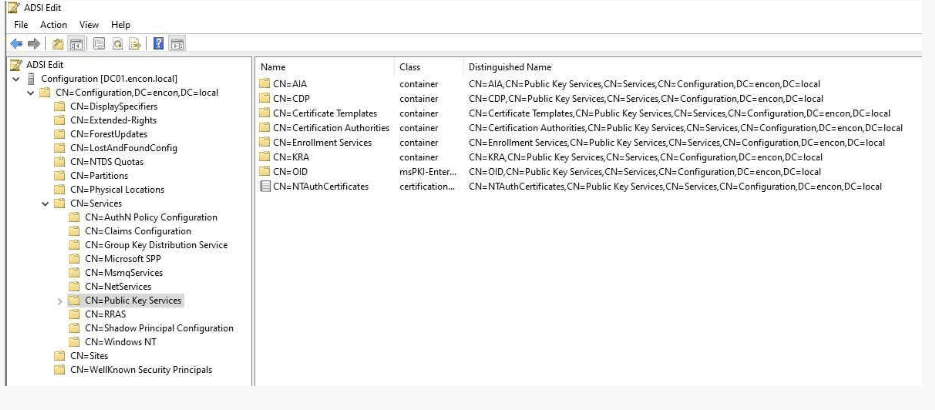
This container holds the CA certificates of every root CA that your organization has decided to trust. When you install an Enterprise Root CA, the setup wizard automatically publishes the CA certificate here. Windows clients then read this container when building certificate chains, which is how they know whether to trust a certificate issued by your internal CA.
You can manually install the Root CA certificate to this container by running the following certutil.exe command:
certutil -dspublish -f <PathToCertFile.cer> RootCA
Replace <PathToCertFile.cer> with the actual path and certificate filename. Note that a copy of the root CA certificate is also installed in the AIA container.
Think of it as the official list of trusted CAs that the whole forest inherits. When a user receives a certificate signed by your internal CA, Windows checks this container (among other stores) to confirm that the issuing CA is trusted.
| Security Note |
|---|
| Only Enterprise Admins can add or remove objects here by default. |
| Monitor for unauthorized root CA certificates being added; this is a classic attacker move to establish a rogue trusted CA. |
| Use the command: certutil -store -enterprise Root to list the current trusted roots and compare against your expected CAs. |
Enrollment Services Container
This is one of the most operationally important containers. Every Enterprise CA that joins your forest publishes an object here. When a Windows client wants to enroll for a certificate, it queries this container to find out which CAs are available and what templates each CA supports.
This discovery process powers auto-enrollment. When Group Policy triggers certificate auto-enrollment, Windows checks the Enrollment Services container to find out which CA to contact and what templates it should request. Without a valid object here, auto-enrollment simply stops working.
The pKIEnrollmentService object also carries an attribute called certificateTemplates, which is a list of templates published on that particular CA. This means if you want to know exactly which templates a specific CA is currently offering, this is where to look.
Viewing in PKIView.msc
Check Enrollment Services objects with the Enterprise PKI MMC snap-in
- Open PKIView.msc (run pkiview.msc from the Start menu)
- The tree view on the left shows your Enterprise PKI hierarchy
- Each CA node represents an object in the Enrollment Services container
- Right-click a CA and choose Properties to see its attributes
- Right-click Enterprise PKI and choose Manage AD Containers for deeper access
Certificate Templates Container
Certificate templates define the blueprint for every certificate type your PKI can issue. The template specifies the key usage, validity period, cryptographic algorithms, subject name format, extended key usage, auto-enrollment settings, and who is allowed to request that type of certificate.
All templates, whether they are currently published on a CA or not, live in this container. The separation between template exists and template is published is important: a template can sit in this container without any CA actively offering it. Only when a CA admin publishes the template does it get listed in the Enrollment Services object for that CA.
Why Templates Are a Security Hotspot
Certificate templates are the number one attack surface in most AD CS deployments. Research by security firms (most famously the ESC1 through ESC16 vulnerability classes documented by SpecterOps) has shown that misconfigured templates can allow unprivileged users to request certificates that grant domain admin privileges.
The most dangerous misconfigurations include:
- Allowing Authenticated Users to enroll in a template that has Manager Approval disabled
- Enabling subject alternative names (SANs) supplied by the requestor in sensitive templates
- Granting enrollment rights to overly broad groups
- Enabling the Mark private key as exportable flag unnecessarily
- Using certificate templates with ENROLLEE_SUPPLIES_SUBJECT flag on high-privilege templates
Critical Security Warning: Never leave Authenticated Users with Enroll permission on templates that lack Manager Approval.
AIA (Authority Information Access) Container
The AIA container stores the certificates of subordinate (intermediate) CAs and any cross-certificates your organization has established. When a client machine receives a certificate and needs to validate it, it has to build a chain from the end-entity certificate up to a trusted root. If the client does not already have the intermediate CA certificate cached locally, it uses the AIA URL embedded in the certificate to fetch it.
The LDAP URL pointing to this container is typically embedded in the AIA extension of every certificate your subordinate CA issues. So, when a machine asks where to get the certificate for the CA that issued this, it follows that LDAP URL and lands in this container.
Verify AIA with certutil: Check what is published in the AIA container from the command line.
- Open an elevated command prompt
- Run:
certutil -store -enterprise SubCA - This lists all certificates in the AD-based AIA container
- Compare the output against your expected intermediate CAs
- To publish a missing cert:
certutil -dsPublish -f SubCA.cer SubCA
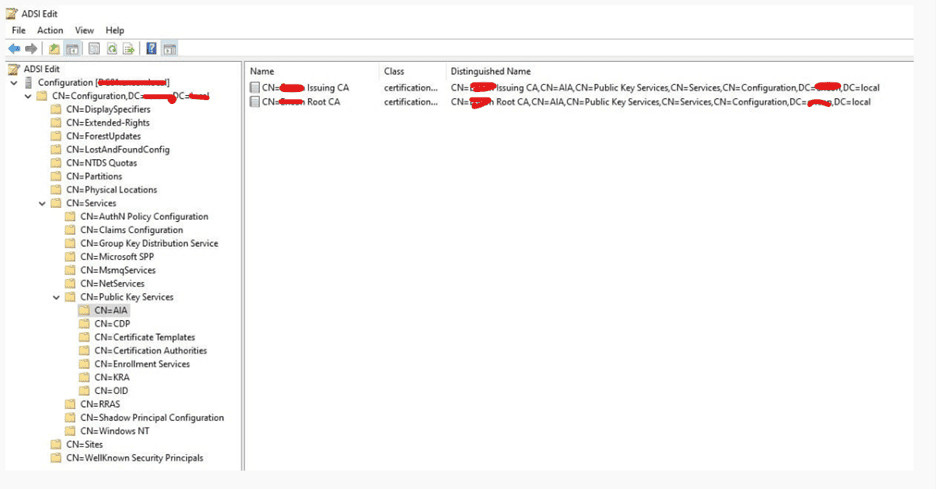
A common problem: if the AIA container is missing the intermediate CA certificate, clients in other domains or forests that do not have the cert cached will fail certificate chain validation. This often shows up as SSL errors on websites or authentication failures in cross-domain scenarios.
| Test Chain Building |
|---|
| After publishing to AIA, always test chain validation from a client machine using: |
| certutil -verify -urlfetch <certfile.cer> |
| This command simulates full chain building including fetching from AIA and CDP URLs, so you can confirm everything resolves correctly. |
CDP (CRL Distribution Point) Container
The CDP container is where your Certificate Revocation Lists (CRLs) live inside Active Directory. A CRL is a signed list of serial numbers for certificates that have been revoked before their expiration date. When a client application validates a certificate, one of its checks is whether this certificate has been revoked. It does that by downloading the CRL from a CDP URL.
Active Directory is one of several supported CDP locations (HTTP is another common one). The LDAP URL pointing to this container is embedded in the CDP extension of every issued certificate. When a certificate is validated, the client follows that URL and retrieves the CRL to check for revocation.
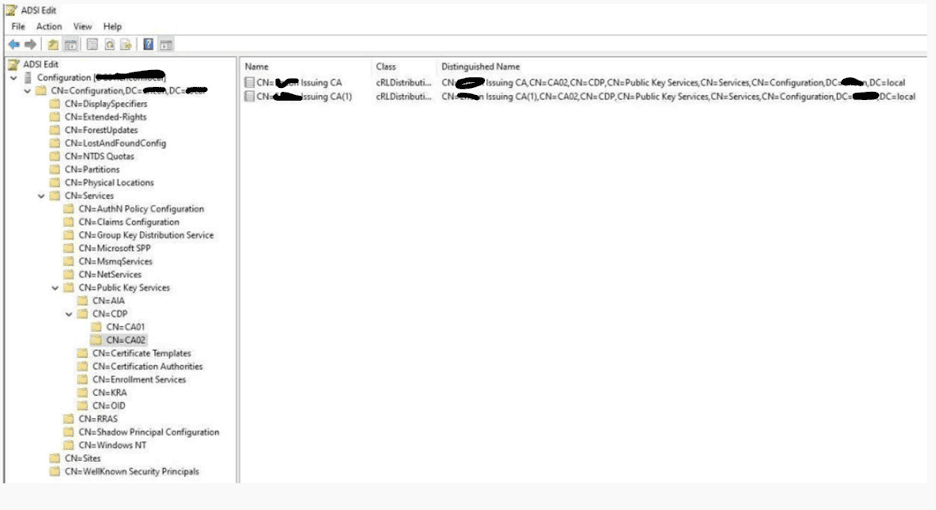
Each CA gets its own sub-container inside CN=CDP. Inside that sub-container you will find:
- Base CRL: The full list of revoked certificates, published on a regular schedule
- Delta CRL: A smaller incremental list of changes since the last base CRL
Publishing a CRL Manually: Force CRL publication to the AD CDP container.
- On the CA server, open an elevated command prompt
- Run:
certutil -crlto force CRL publication - This publishes both the base and delta CRL to all configured CDP locations
- Verify with:
certutil -store -enterprise ldap:///CN=<CA Name>,CN=CDP,... - In PKIView.msc, a yellow icon next to a CA indicates CRL validity is near expiry
View from ADSI Edit:
| Expired CRLs Break Everything |
|---|
| An expired or missing CRL causes all certificates issued by that CA to fail validation. |
| Applications interpret cannot retrieve CRL as a hard failure unless they are configured to allow revocation check failures. |
| Monitor CRL expiry proactively. A typical setup: Base CRL validity 7 days, Delta CRL validity 1 day, published every 12 hours. |
| Set up monitoring alerts when CRL expiry is within 24 hours of occurring. |
NTAuthCertificates Store
Despite sounding like a container, NTAuthCertificates is actually a single AD object with a multi-valued attribute. It holds the CA certificates for every CA that is authorized to issue certificates used for smart card logon and key archival.
Here is why this matters: when a user tries to log in to Windows using a smart card, the domain controller does not just check whether the certificate on the card is valid and trusted. It also checks whether the CA that issued that certificate appears in NTAuthCertificates. If the issuing CA is not listed there, logon is denied, even if the certificate itself is perfectly valid.
Enterprise CAs automatically add themselves to NTAuthCertificates during installation. Third-party CAs or standalone CAs used for smart card certificates must be added manually.
Check NTAuthCertificates from Command Line: Verify which CA certificates are in the NTAuthCertificates store.
- Open an elevated command prompt
- Run:
certutil -store -enterprise NTAuth - This lists all CA certificates currently in NTAuthCertificates
- To add a missing CA:
certutil -dsPublish -f <CA-cert.cer> NTAuthCA - After adding, run:
certutil -pulseon DCs to force policy refresh
| High-Value Target for Attackers |
|---|
| Adding a rogue CA certificate to NTAuthCertificates lets an attacker create forged certificates for smart card logon. |
| This is a known persistence technique. Monitor this object for any unexpected changes. |
| Alert on modifications to: CN=NTAuthCertificates,CN=Public Key Services,CN=Services,CN=Configuration, |
| Regular audits: compare the current cACertificate values against your known-good CA inventory. |
KRA (Key Recovery Agent) Container
The KRA container stores the KRA certificates. When a CA is configured for key archival, it uses the public key from a KRA certificate (stored in this container) to encrypt the archived copy of the user private key. Only the holder of the KRA private key can later decrypt and recover that archived key.
This is a sensitive container. If an attacker gains control of a KRA certificate private key, they can decrypt all archived user private keys, potentially accessing years of encrypted email, documents, and other sensitive data. KRA certificates should be stored with the same physical security controls as CA private keys, ideally protected by a FIPS 140-3 Level 3 HSM. For organizations managing cryptographic assets at scale, CBOM Secure provides inventory visibility that includes KRA certificate expiry and key storage classification alongside CA certificates and end-entity certificates.
OID (Object Identifier) Container
Object Identifiers (OIDs) are globally unique numeric identifiers assigned to just about everything in the PKI world: algorithms, certificate extensions, policies, and more. The OID container in AD is where your organization registers custom OIDs that are used in certificate templates for Application Policies (what is the certificate valid for?) and Issuance Policies (under what conditions was this certificate issued?).
When you create a custom Application Policy extension in the Certificate Templates MMC snap-in, the resulting OID object gets stored here. This container is also how AD CS knows the human-readable names to display for those OIDs in the Certificate Templates UI.
While this container carries less direct security risk than the others, it is worth auditing to ensure no unexpected OID definitions have been added, which could affect template behavior in subtle ways.
Tools for Viewing and Managing AD CS Containers
Now that we know what is in each container, let us talk about how to actually interact with them. You have three main tools at your disposal, each suited to different tasks.
PKIView.msc: The Friendly Starting Point
PKIView (also called the Enterprise PKI MMC snap-in) is the most approachable way to get a bird-eye view of your PKI health. It shows you the CA hierarchy, flags CRL and AIA accessibility issues with color-coded status icons, and lets you navigate the AD containers without needing to know LDAP paths.
PKIView.msc: Enterprise PKI Health View
What you will see when you launch pkiview.msc on a domain-joined computer:
- Start > Run > pkiview.msc
- Left pane: hierarchical tree of your Enterprise PKI (Root CA at top, Subordinate CAs below)
- Green checkmark icon = container/URL is healthy and accessible
- Yellow warning icon = CRL is nearing expiry or URL is slow to respond
- Red X icon = CRL or AIA URL is unreachable or expired
- Right-click Enterprise PKI > Manage AD Containers to view, delete, or refresh container objects
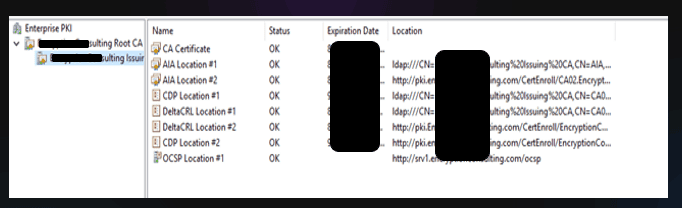
PKIView gives you great visibility but limited ability to make changes beyond deleting stale entries. For deeper management, you need the tools below.
ADSI Edit: The Low-Level Explorer
ADSI Edit (adsiedit.msc) is a raw directory editor that lets you browse and modify any object in Active Directory, including the PKI containers. Think of it as File Explorer for Active Directory. With great power comes great responsibility: a wrong edit in ADSI Edit can break your PKI in ways that are hard to reverse, so always test in a non-production environment first.
ADSI Edit: Navigating to Public Key Services
Browse the full PKI container structure:
- Start > Run > adsiedit.msc
- Right-click ADSI Edit in the left pane > Connect To
- Select Configuration from the well-known naming context dropdown > OK
- Expand: Configuration[DC=…] > CN=Configuration > CN=Services > CN=Public Key Services
- You will now see all the sub-containers: AIA, CDP, Certification Authorities, Enrollment Services, KRA, OID
- Right-click any object and choose Properties to view all its attributes and values
Certutil.exe: The Command-Line Workhorse
Certutil is the command-line workhorse for everything AD CS. It can read from and write to AD CS containers, publish certificates and CRLs, verify certificate chains, and much more. Here are the most used commands for container management:
| Task | Command |
|---|---|
| List trusted root CAs in AD | certutil -store -enterprise Root |
| List intermediate CAs in AIA | certutil -store -enterprise SubCA |
| List NTAuth certificates | certutil -store -enterprise NTAuth |
| Publish a root CA cert to AD | certutil -dsPublish -f RootCA.cer RootCA |
| Publish an intermediate CA cert | certutil -dsPublish -f SubCA.cer SubCA |
| Add a CA to NTAuthCertificates | certutil -dsPublish -f CA.cer NTAuthCA |
| Force publish CRL to AD | certutil -crl (run on CA server) |
| Verify certificate chain with URL fetch | certutil -verify -urlfetch cert.cer |
| Display CA configuration info | certutil -CAInfo |
Quick Reference Summary
Here is a consolidated reference of all the AD CS containers covered in this guide:
| Container | Purpose | Risk if Compromised |
|---|---|---|
| Certification Authorities | Trusted root CA certificates for the forest | Rogue root CA trust established |
| Enrollment Services | Enterprise CAs available for enrollment/auto-enrollment | Auto-enrollment broken; fake CA published |
| Certificate Templates | Blueprint for certificate types the PKI can issue | Privilege escalation via ESC attacks |
| AIA | Intermediate CA certs for chain building | Certificate validation failures |
| CDP | Certificate Revocation Lists for all CAs | Revocation checking fails; stale revocation |
| NTAuthCertificates | CAs authorized for smart card logon | Rogue smart card logon CA; auth bypass |
| KRA | Key Recovery Agent certificates | Mass decryption of archived user keys |
| OID | Custom OID definitions for policies | Template behavior manipulation |
How Encryption Consulting Can Help With Your PKI
Encryption Consulting provides specialized services to identify vulnerabilities and mitigate risks through PKI Services. Our strategic guidance aligns PKI solutions with organizational objectives, enhancing efficiency and minimizing costs. By partnering with Encryption Consulting, organizations can unlock the full potential of PKI solutions, realizing tangible financial benefits while maintaining strong security measures.
Encryption Consulting PKIaaS provides a flexible and secure PKI solution tailored to your specific needs, offering benefits such as customizable options, high assurance standards, and a low-risk managed approach. PKIaaS automates key and certificate management tasks, reducing operational overhead and minimizing the risk of human error. Additionally, it enhances network visibility by requiring certificates for access. It will take care of building the PKI infrastructure to lead and manage the PKI environment (cloud, hybrid, or on-premises) of your organization.
CertSecure Manager has a comprehensive suite of lifecycle management features. From discovery and inventory to issuance, deployment, renewal, revocation, and reporting, CertSecure provides an all-encompassing solution. Intelligent report generation, alerting, automation, automatic deployment onto servers, and certificate enrollment add layers of sophistication, making it a versatile and intelligent asset. For organizations building toward complete cryptographic visibility, CBOM Secure delivers the machine identity inventory that spans AD CS containers and cloud CA sources. As organizations prepare for post-quantum migration following the publication of NIST FIPS 203, 204, and 205 (August 13, 2024), EC PQC Readiness assessment services help plan the transition of AD CS certificate templates and enrollment workflows to ML-DSA-based certificates, with guidance available through the PQC Center of Excellence.
Conclusion
AD CS containers are the unsung heroes (and occasional villains) of Windows PKI. When they are configured correctly and properly secured, they work silently in the background, enabling automatic certificate enrollment, smart card logon, SSL validation, and more. When they are misconfigured, neglected, or attacked, the consequences can range from annoying (auto-enrollment breaks) to catastrophic (forest-wide privilege escalation).
The key takeaways from this guide:
- All AD CS configuration lives in the Configuration naming context and is replicated forest-wide
- Each container serves a specific purpose in the certificate lifecycle; understand each one role
- Certificate templates are the highest-risk attack surface; audit them regularly
- NTAuthCertificates and the KRA container are high-value targets that need tight access control and monitoring
- PKIView, ADSI Edit, and certutil give you three complementary ways to inspect and manage containers
- Most common PKI problems trace back to stale, missing, or expired data in one of these containers
Taking time to truly understand your PKI container structure is one of the best investments you can make in both the reliability and security of your Windows environment. A PKI that is well-understood is a PKI that can be properly defended.
Frequently Asked Questions
What is the main takeaway from Understanding Active Directory Certificate Services Containers?
All AD CS configuration lives in a single forest-wide location: CN=Public Key Services under the Configuration naming context, replicated to every domain controller in the forest. This includes trusted root CAs, intermediate CA certs, CRLs, certificate templates, enrollment service registrations, NTAuth trust, KRA certs, and OID definitions. Every misconfiguration in any of these containers affects all domains in the forest, making them a critical security and operational responsibility for every enterprise PKI team.
Why do AD CS containers matter for enterprise PKI teams?
AD CS containers are the operational backbone of Windows PKI. Auto-enrollment, smart card logon, certificate chain building, and CRL validation all depend on the containers being correctly populated and accessible. The DigiCert Trust Pulse Survey (July 2025) found that 45 percent of enterprises experienced certificate-related downtime in the prior year, and certificate expiration ranked among the top three CISO concerns (56.6 percent). Most of those failures trace back to stale, missing, or expired data in one of these containers.
What risks increase if AD CS containers are managed manually or neglected?
Manual management introduces four categories of risk: operational (expired CRLs breaking all certificate validation), security (unauthorized entries in NTAuthCertificates or Certification Authorities enabling rogue CA trust), compliance (no audit trail for container changes required by SOC 2, ISO 27001, and NIST SP 800-53), and attack surface (misconfigured certificate templates enabling ESC1 through ESC16 privilege escalation). All four risks compound as certificate counts grow and lifetimes shrink toward 47 days under CA/Browser Forum Ballot SC-081v3.
Which teams should own AD CS container governance?
PKI admins own day-to-day container operations: publishing CAs and CRLs, monitoring CRL expiry, managing template configurations, and diagnosing enrollment failures. Security architects own the access control policy for each container and the ESC attack surface review. Active Directory teams own the underlying object permissions and replication health for the Configuration naming context. Compliance teams own audit evidence that container changes are logged and reviewed. CISOs own the governance policy requiring periodic container audits and SIEM alerting on unauthorized container modifications.
How do AD CS containers connect to certificate lifecycle management?
AD CS containers are the data source that certificate lifecycle management platforms read to understand what the PKI environment looks like. CLM platforms like CertSecure Manager rely on the Enrollment Services container to discover available CAs and published templates. The CDP container determines where CRL validation data lives. The Certificate Templates container defines the policies that CLM-driven auto-enrollment follows. Without accurate, current data in these containers, CLM automation operates on stale information and may miss certificate gaps.
How should organizations measure success in AD CS container management?
Key metrics: CRL validity buffer (base CRL always has more than 24 hours of validity remaining; delta CRL always has more than 6 hours); container change audit coverage (100 percent of modifications to NTAuthCertificates, Certification Authorities, and Certificate Templates logged and reviewed within 24 hours); template ESC audit completeness (certutil -v -dstemplate run against all published templates quarterly with findings reviewed); and auto-enrollment success rate (zero devices failing auto-enrollment due to stale or missing Enrollment Services container data).
What should be audited or monitored regularly for AD CS containers?
Monitor continuously: CA Event IDs 4899 and 4900 (certificate template modified and template security updated); AD object modification events on CN=NTAuthCertificates and CN=Certification Authorities; CRL expiry via PKIView or automated monitoring with alerting when base CRL validity drops below 24 hours. Audit quarterly: run certutil -store -enterprise Root and compare against the approved CA inventory; run certutil -v -dstemplate against all published templates and review for ESC misconfigurations; verify that no unexpected CA certificates appear in NTAuthCertificates or the Certification Authorities container.
How do AD CS containers affect cloud, hybrid, or multi-CA PKI environments?
In hybrid environments, AD CS containers remain the authoritative source for on-premises PKI configuration, but cloud-native CA sources are not represented in these containers. Certificates issued by cloud CAs or external PKIaaS providers do not appear in the AD CS Enrollment Services container and are invisible to certutil and PKIView. For complete cryptographic inventory across hybrid environments, CBOM Secure provides machine identity discovery spanning both on-premises AD CS and cloud CA sources. In multi-CA environments, the CDP and Enrollment Services containers contain separate sub-objects per CA, and each must be monitored independently.
What prerequisites are required before managing AD CS containers?
Prerequisites: Enterprise Admin or Domain Admin rights to view and modify objects in the Configuration naming context; ADSI Edit installed via RSAT or AD CS tools; certutil.exe (built into Windows Server and Windows 10/11 by default); PKIView.msc installed via AD CS management tools; domain connectivity from the management workstation to a domain controller; and a current backup of the AD CS configuration (certutil -backupDB on each CA) before making any changes. All modifications to NTAuthCertificates, Certification Authorities, and Certificate Templates should be tested in a non-production environment first.
What common errors should administrators watch for when managing AD CS containers?
Common errors: CRL publication failure because the CA service account lacks Write permission to the CDP container (verify with certutil -getreg ca\DSPublish); certutil -dsPublish returning access denied when adding to NTAuthCertificates (requires Enterprise Admin, not Domain Admin); auto-enrollment failures caused by a stale Enrollment Services object after a CA rename or reinstall (delete the stale object in ADSI Edit and let the CA republish); chain-building failures in cross-domain scenarios caused by missing intermediate CA certs in AIA (publish with certutil -dsPublish -f SubCA.cer SubCA); and PKIView showing red for a CRL just published (often AD replication delay; force replication with repadmin /syncall or check with repadmin /showrepl). For organizations planning migration to post-quantum certificates, check the PQC Center of Excellence for guidance on ML-DSA template configuration in AD CS.
- Quick Answer: What Are AD CS Containers?
- Key Takeaways
- Who Should Care About AD CS Containers
- Container Operations Reference: Commands, Validation Checks, Common Errors, and Rollback
- What Is AD CS and Why Do Containers Matter?
- The Key AD CS Containers, One by One
- Tools for Viewing and Managing AD CS Containers
- Quick Reference Summary
- How Encryption Consulting Can Help With Your PKI
- Conclusion
- Frequently Asked Questions