

- Executive Summary
- Key Takeaways
- Quick Checklist Before You Start
- Why Getting NDES and AD CS Configuration Right Matters
- What is NDES and Why Does it Fail?
- Understanding Error 0x80070003 (ERROR_PATH_NOT_FOUND)
- Root Causes of the CMSCEPSetup::Install Error
- Which Scenario Applies to You? A Decision Table Before You Start
- Step-by-Step Fix Guide
- How to Verify a Successful NDES Installation?
- Owner/Action Matrix by Team
- What to Do Next
- How can Encryption Consulting Help?
- Beyond the Fix: Building Crypto-Agility Into Your AD CS Environment
- Conclusion
- Frequently Asked Questions
Quick answer: CMSCEPSetup::Install error 0x80070003 (ERROR_PATH_NOT_FOUND) happens during NDES setup when the installer cannot find a file system path it expects, usually because Windows Server 2025 leaves residual IIS state behind after role removal. The fix: fully remove IIS, clear the inetpub folder and registry keys, verify service account permissions, then reinstall IIS and rerun the AD CS Configuration Wizard.
This guide walks through exactly why the error happens and how to fix it, step by step, for PKI, security, platform, and compliance teams responsible for keeping certificate enrollment running.
Jump to: Executive Summary | Key Takeaways | Quick Checklist | Decision Table | Step-by-Step Fix | Owner/Action Matrix | What to Do Next | FAQ
Executive Summary
CMSCEPSetup::Install error 0x80070003 blocks Network Device Enrollment Service (NDES) setup on Windows Server 2025 because IIS role removal often leaves the inetpub folder and InetStp/W3SVC registry keys behind, and reinstalling IIS on top of that residual state breaks the installer. NDES failures matter beyond the immediate install: 72% of organizations reported at least one certificate-related outage in the past year, per CyberArk’s 2025 State of Machine Identity Security Report, and DigiCert’s July 2025 Trust Pulse Survey found 45% of enterprises had certificate-related downtime with 37.5% traced to expired certificates. Fixing NDES restores automated device enrollment, which is the same infrastructure that will need to support the CA/Browser Forum’s shrinking TLS certificate validity schedule down to 47 days by March 2029. This guide covers the root causes, a decision table for your exact scenario, the eight-step fix, an owner/action matrix, and what to do next by team.
Key Takeaways
- CMSCEPSetup::Install error 0x80070003 (ERROR_PATH_NOT_FOUND) means the NDES installer could not find a file system path or registry key it expected. It signals a broken or residual system state, not a corrupted installer.
- On Windows Server 2025, removing the IIS role often leaves the inetpub folder and the InetStp/W3SVC registry keys behind. Reinstalling IIS on top of that residual state is the most common trigger for this error.
- The fix: fully remove IIS, restart the server, delete the inetpub folder, clear stale MSCEP registry keys, verify the NDES service account and certificate template permissions, then reinstall IIS and rerun the AD CS Configuration Wizard.
- Not every environment needs all eight steps. Use the decision table below to identify which ones actually apply to your situation.
Quick Checklist Before You Start
- Confirm whether this is a first-time NDES install or a retry after a failed attempt, since that determines which steps you actually need.
- Check whether the InetStp and W3SVC registry keys still exist after a prior IIS removal.
- Confirm the NDES service account has local administrator rights, IIS_IUSRS membership, and Read/Enroll permissions on the CEP Encryption and Exchange Enrollment Agent templates.
- Verify the CEP Encryption and Exchange Enrollment Agent (Offline request) templates are published on the issuing CA.
- Back up or note the current IIS and NDES configuration before starting removal, in case you need to reference it during rollback.
Why Getting NDES and AD CS Configuration Right Matters
A stalled NDES install is more than an afternoon of lost time. It sits inside a broader pattern of PKI operational risk that recent industry research quantifies directly:
- Organizations run an average of nine different PKI and CA solutions across internal private PKI, self-signed certificates, and cloud-based services, according to Keyfactor’s State of Machine Identity Management report (April 6, 2023): the kind of sprawl that makes a single broken AD CS role service like NDES easy to lose track of.
- 72% of organizations experienced at least one certificate-related outage in the past year, per CyberArk’s 2025 State of Machine Identity Security Report, which surveyed 1,200 security leaders across six countries.
- 45% of enterprises reported certificate-related downtime in the past year, and 37.5% traced an outage to an expired certificate, according to DigiCert’s Trust Pulse Survey, published July 2, 2025.
- The CA/Browser Forum’s Ballot SC-081v3, endorsed by Sectigo and passed April 11, 2025, phases maximum public TLS certificate validity down to 200 days in March 2026, 100 days in March 2027, and 47-day TLS certificates by March 2029, source: Sectigo. NDES and every other enrollment path has to keep pace with that renewal frequency.
- Individual certificate-related outages can cost organizations $500,000 to over $5 million depending on industry and scale, according to Sectigo research cited in a Security Boulevard analysis published July 17, 2025.
NDES sits at exactly the point where these numbers get worse: it is the bridge that lets network devices and MDM-managed endpoints request certificates automatically, so a failed or misconfigured NDES role does not just block one install, it blocks every device enrollment that depends on it.
What is NDES and Why Does it Fail?
Network Device Enrollment Service (NDES) is a role service within Active Directory Certificate Services (AD CS) that enables network devices, such as routers, firewalls, and mobile devices, to obtain digital certificates automatically. NDES implements the Simple Certificate Enrollment Protocol (SCEP), a widely adopted standard used by mobile device management (MDM) platforms such as Microsoft Intune, Cisco ISE, and others to automate certificate enrollment for non-domain-joined devices, enabling them to securely request and receive certificates from a Certificate Authority (CA).
NDES acts as a bridge between these non-domain devices and the CA, ensuring they can authenticate and communicate securely within the organization.
As NDES operates at the intersection of IIS, Active Directory, and the Certificate Authority, its installation is highly sensitive to configuration order, service account permissions, and the existing system state. Even a minor misconfiguration in any of these components can cause the setup process to fail, often resulting in cryptic errors such as 0x80070003 (ERROR_PATH_NOT_FOUND).
Understanding Error 0x80070003 (ERROR_PATH_NOT_FOUND)
The full error message you’ll see in the AD CS configuration wizard is:
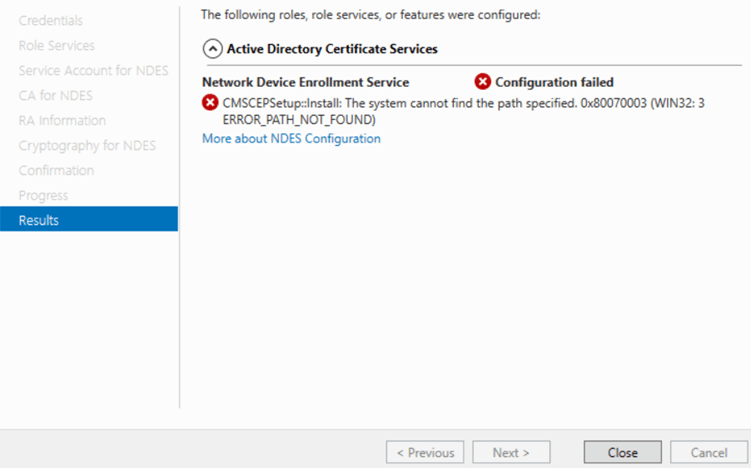
CMSCEPSetup::Install: The system cannot find the path specified.
0x80070003 (WIN32: 3 ERROR_PATH_NOT_FOUND)
The Win32 error code 0x80070003 translates directly to ERROR_PATH_NOT_FOUND, meaning the installer tried to access a file system path or registry location that simply doesn’t exist on the machine.
The component failing is CMSCEPSetup, the SCEP setup module responsible for configuring IIS virtual directories, registering the CA connection, and writing the necessary registry entries. When it can’t find the expected path, it aborts the entire NDES installation.
Root Causes of the CMSCEPSetup::Install Error
1. IIS Not Installed or Misconfigured
NDES depends heavily on IIS. On Windows Server 2025 in particular, even after removing the IIS role, the inetpub folder and associated registry keys may persist in a broken state. If IIS is then re-added on top of this residual state, CMSCEPSetup fails to locate expected paths.
2. Incorrect or Unreachable CA Path
If the CA name is misspelled, the CA server is offline, or the selected CA type is incompatible, the setup cannot resolve the required paths for RA certificates.
3. Leftover Registry Keys from a Previous Failed Install
Stale MSCEP registry keys from prior failed installs cause conflicts when the installer tries to write new values.
4. NDES Service Account Permission Issues
The service account must be a local administrator, have “Log on as a service” rights, and hold Read and Enroll permissions on the CEP Encryption and Exchange Enrollment Agent certificate templates.
5. Missing Certificate Templates
NDES requires the CEP Encryption and Exchange Enrollment Agent (Offline request) templates to be published on the CA. If missing, the installer fails to locate required enrollment paths.
Which Scenario Applies to You? A Decision Table Before You Start
Not every environment needs the full eight-step sequence below. Use this table to identify which steps actually apply to your situation before you start.
| Your situation | Recommended path | Operational owner | Expected outcome |
|---|---|---|---|
| First-time NDES install on a clean Windows Server 2025 box, never previously attempted | Skip Steps 1-4 (IIS/registry cleanup); start directly at Step 5 (service account) through Step 8 (run the wizard) | Platform/DevOps Team | Clean NDES install completes without needing any cleanup steps |
| NDES setup already failed once with 0x80070003 on Windows Server 2025 | Follow Steps 1-8 in full, in order, without skipping the restart in Step 3 | Platform/DevOps Team | Residual IIS and registry state is cleared and NDES installs successfully |
| Migrating or reinstalling NDES from an older Windows Server (2016/2019/2022) onto Server 2025 | Deprovision NDES cleanly on the old server first, then treat the Server 2025 box as a fresh install and follow the full Steps 1-8 sequence there | PKI Team | No mixed-version state carries over, avoiding a repeat of 0x80070003 on the new server |
| 0x80070003 recurs after completing Steps 1-8 once already | Re-check the registry keys in Step 2 (InetStp, W3SVC, MSCEP) for anything not fully cleared, repeat Steps 3-4, then rerun the wizard | Platform/DevOps Team with Security Team support | Root cause identified as incomplete cleanup, not a new fault, and NDES installs on the retry |
Step-by-Step Fix Guide
The steps below provide a clean method for removing the damaged components and properly rebuilding the NDES configuration.
Step 1: Completely Remove IIS
Start by fully removing the Web Server (IIS) role from the server.
-
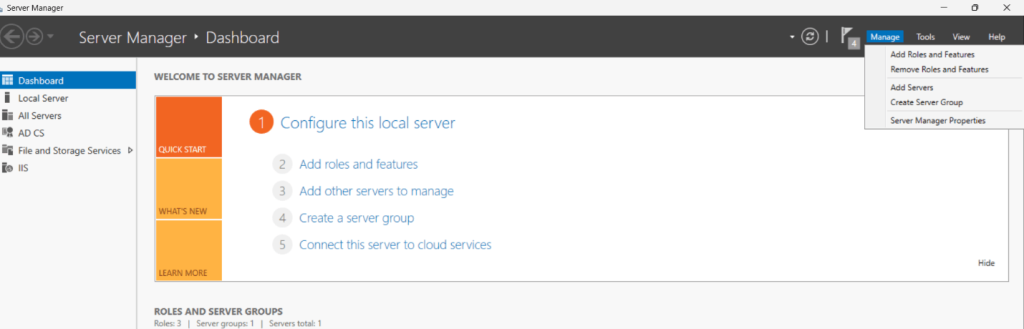
Open Server Manager and go to Manage & Remove Roles and Features.
-
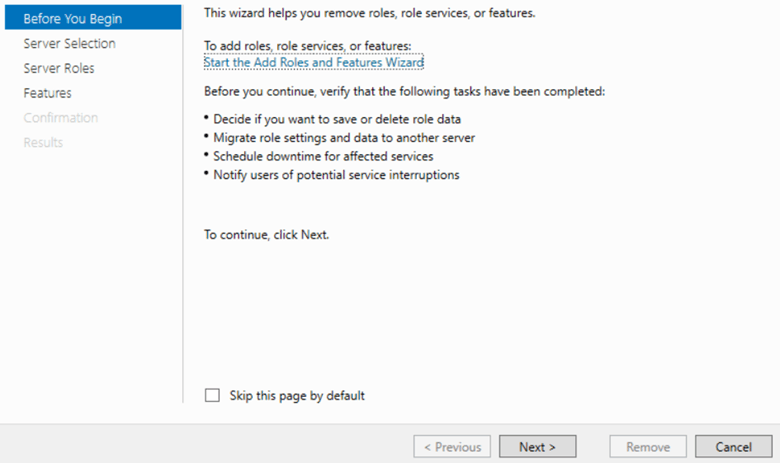
The Remove Roles and Features Wizard will open. Click Next on the Before You Begin screen.
- On the Server Selection page, ensure the correct server is selected, then click Next.
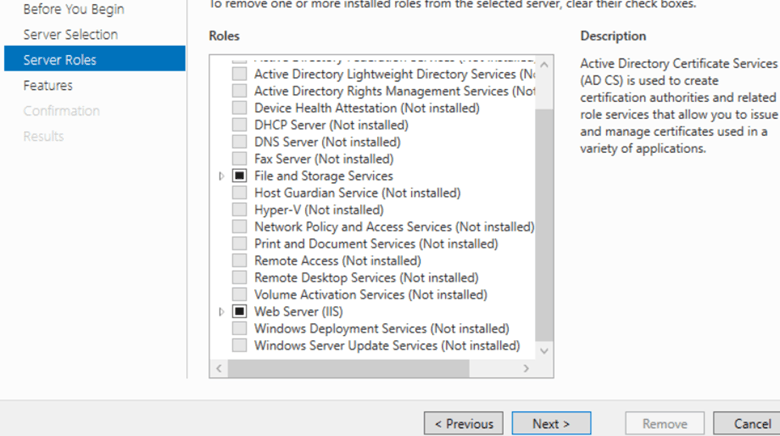
- On the Server Roles page:
- Locate Web Server (IIS).
-
Uncheck the box next to Web Server (IIS).
-
When prompted, click Remove Features to remove all dependent IIS components.
Click Next through the remaining pages (Features, Confirmation).
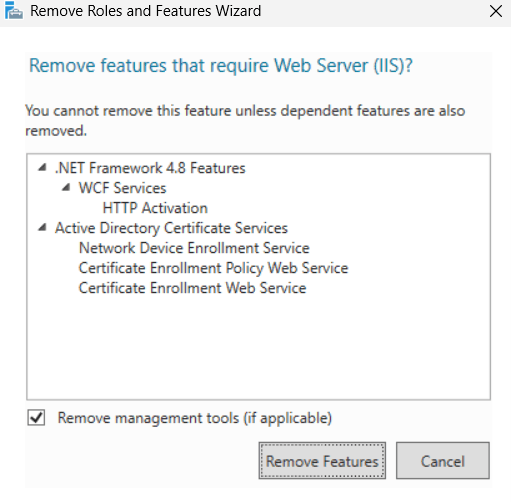
- On the Confirmation page:
-
(Optional) Check Restart the destination server automatically if required.
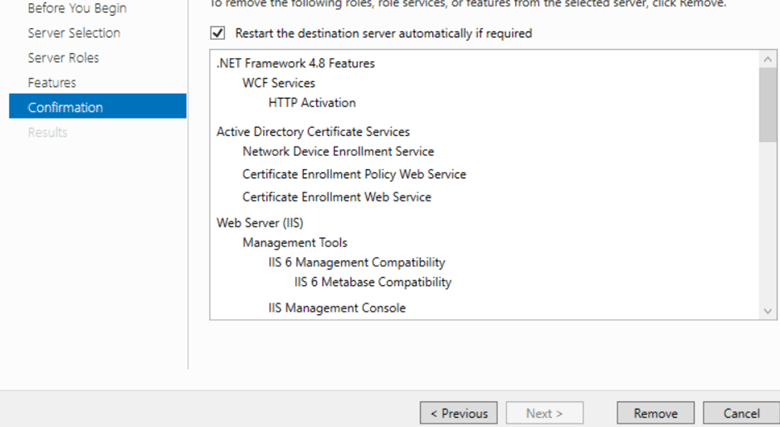
- Click Remove.
- Wait for the removal process to complete.
- Once finished, do not restart immediately (as per your cleanup sequence).
- Proceed to the next steps (registry check and inetpub cleanup).
Note: You can also remove IIS with PowerShell:
Remove-WindowsFeature -Name Web-Server -IncludeManagementTools
Do not restart the server yet. The IIS content folder will be deleted in the next steps.
Step 2: Check the IIS Path in the Registry
Before restarting, open Registry Editor (regedit) and review the IIS installation path to confirm which folder is being used.
Navigate to:
HKEY_LOCAL_MACHINE\SOFTWARE\Microsoft\InetStp
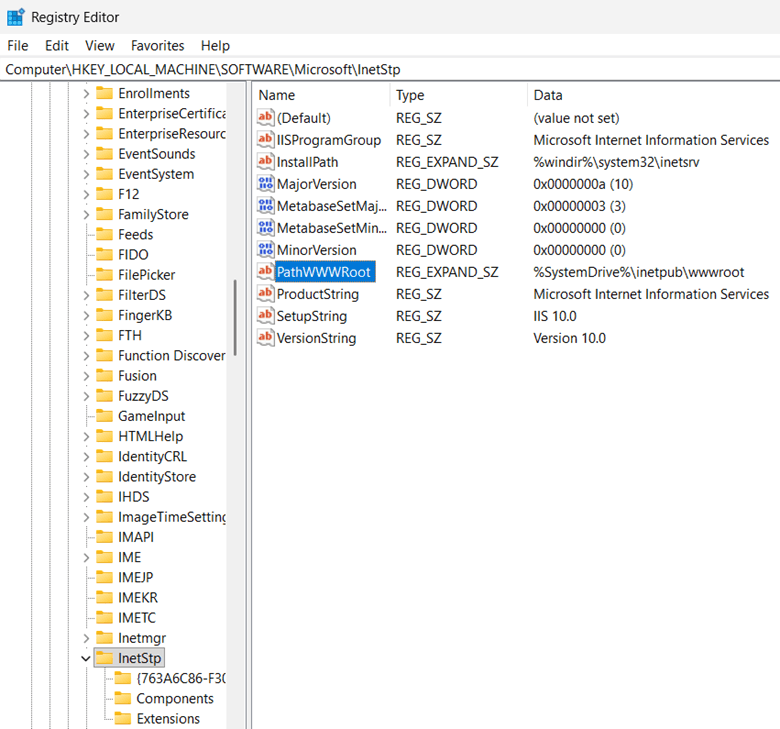
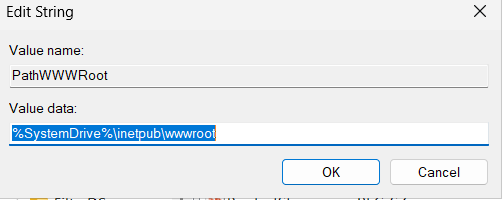
Check the value of PathWWWRoot. In most cases, it will point to:
C:\inetpub\wwwroot
Also review this key for lingering IIS service state:
HKEY_LOCAL_MACHINE\SYSTEM\CurrentControlSet\Services\W3SVC
If the InetStp or W3SVC keys still exist after removing IIS, it usually means IIS did not clean up properly. This leftover state is often the reason NDES setup fails.
Step 3: Restart the Server and Delete the inetpub Folder
Now restart the server. This restart is necessary because Windows Server 2025 may continue holding file locks on IIS folders even after the IIS role has been removed.
After the server comes back online, delete the entire inetpub folder from C: drive.
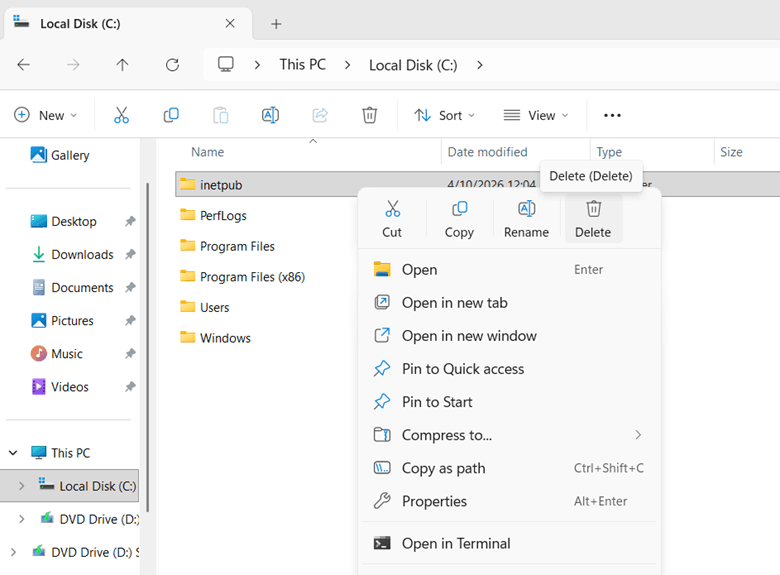
PowerShell command:
Remove-Item -Path "C:\inetpub" -Recurse -Force
Why the restart is required?
On Windows Server 2025, file handles related to IIS are not always fully released immediately after role removal. If you try to delete the inetpub folder before restarting, you may receive errors such as file in use or access denied.
Step 4: Remove Any Previous NDES Installation and Clean the MSCEP Registry
If NDES was previously installed or partially configured, remove the role service and delete the stale MSCEP registry data. To remove the old MSCEP registry key, follow the steps below:
- Open the registry editor
- Go to path- HKLM:\SOFTWARE\Microsoft\Cryptography\MSCEP
- Delete the MSCEP key, if present
Step 5: Verify the NDES Service Account Permissions
Before rerunning the NDES configuration, ensure the service account is correctly configured across local server, IIS, and Certificate Authority.
5.1 Verify Local Administrator Access
- Log in to the NDES server.
- Open Computer Management or press Win + R → type compmgmt.msc.
- Navigate to: Local Users and Groups > Groups.
- Open the Administrators group.
- Click Add and verify the NDES service account is listed.
- If not present, add: DOMAIN\NDES_ServiceAccount.
5.2 Verify IIS_IUSRS Group Membership
- NDES relies on IIS, so the account must have access to IIS worker processes.
- Open Computer Management.
- Navigate to: Local Users and Groups > Groups.
- Open IIS_IUSRS.
- Ensure the NDES service account is a member.
- If not, click Add and add the service account.
5.3 Verify Certificate Template Permissions
- Open Certification Authority (certsrv.msc) on the CA server.
- Right-click Certificate Templates → Manage.
- For each required template (e.g., CEP Encryption, Exchange Enrollment Agent (Offline request)), verify permissions.
- To check permissions:
- Right-click template → Properties.
- Go to Security tab.
- Ensure the NDES service account has:
- ✔ Read
- ✔ Enroll
- If missing, click Add.
- Add the service account.
- Grant Read and Enroll permissions.
5.4 [Optional] Verify “Log on as a Service” Right
- Press Win + R → type secpol.msc.
- Navigate to:
- Local Policies > User Rights Assignment.
- Open Log on as a service.
- Ensure the NDES service account is listed.
- If missing, click Add User or Group.
- Add the service account.
- Apply and save.
Step 6: Publish Required Certificate Templates on the CA
- On the issuing CA, open the Certificate Authority console.
- Go to: Certificate Templates > New > Certificate Template to Issue.
- Publish the following templates:
- CEP Encryption
- Exchange Enrollment Agent (Offline request)
- These templates are required for NDES to complete its configuration successfully.
Step 7: Reinstall IIS with the Required NDES Features
- Once IIS has been fully removed and cleaned up, reinstall it with all features required by NDES.
-
Open Server Manager > Add Roles and Features, then install NDES along with Web Server (IIS) and ensure the following components are included:
- ASP.NET 4.x
- Windows Authentication
- IIS 6 Management Compatibility
- Required Application Development features
Step 8: Run the NDES Configuration Wizard
After completing the IIS cleanup, removing any stale NDES configuration, verifying the service account, and publishing the required certificate templates, the next step is to run the NDES configuration wizard again.
This step is where you reconnect the NDES role to the Certificate Authority and define the service account and cryptographic settings that NDES will use.
- Log in to the NDES server with an account that has the required administrative privileges.
- Open Server Manager.
- In the top-right corner, click the yellow notification flag.
- From the notification menu, select Configure Active Directory Certificate Services on the destination server. This will launch the Active Directory Certificate Services Configuration Wizard.
- On the Credentials page, confirm that the account shown has sufficient permissions to perform the configuration.
- The account used should typically be a Domain Administrator or another account with the necessary rights to configure AD CS role services.
- Click Next.
- On the Role Services page, select Network Device Enrollment Service. Ensure only the intended role service is checked.
- Click Next.
- When prompted, enter the service account that NDES will run under in the format: DOMAIN\serviceaccount.
- Enter and confirm the password for this account.
- Double-check that the username is spelled correctly and belongs to the intended domain.
- Click Next.
- On the CA for NDES page, click Select and choose the correct issuing CA from the list. Verify connection details if prompted.
- Click OK, then click Next.
- Verify the cryptographic settings:
- The correct cryptographic provider is selected.
- The key length meets your organization’s security requirements and industry best practices.
- If using an HSM-backed provider, ensure the HSM software and provider are installed and functioning correctly.
- Review all configuration selections on the Confirmation page.
- Ensure all details are correct before clicking Configure.
- Once the configuration finishes, the wizard will display a Results page.
How to Verify a Successful NDES Installation?
- Open a browser on the NDES server and navigate to http://localhost/certsrv/mscep/mscep.dll. You should see an SCEP capabilities response page.
- In IIS Manager, confirm the CertSrv application and mscep virtual directory exist under Default Web Site.
- Open Services (services.msc) and confirm Network Device Enrollment Service is running.
- In Event Viewer, check for Event ID 6 from source MSCEP, which confirms successful startup.
- Confirm C:\inetpub\wwwroot was recreated cleanly by IIS during the fresh install.
Owner/Action Matrix by Team
NDES failures cross PKI, security, platform, and compliance boundaries. Here is how responsibility typically divides for this fix.
| Team | Primary Responsibility | Key Action |
|---|---|---|
| PKI Team | CA connectivity, certificate templates, enrollment policy | Publish CEP Encryption and Exchange Enrollment Agent templates and confirm the CA path NDES will use |
| Security Team | Service account permissions, access control | Verify the NDES service account’s local administrator rights, IIS_IUSRS membership, and template permissions |
| Platform/DevOps Team | IIS and Windows Server configuration | Own the IIS removal, registry cleanup, reinstall, and NDES Configuration Wizard steps |
| Compliance Team | Audit evidence for device enrollment infrastructure | Confirm NDES downtime and remediation are logged for audit trails covering PCI DSS, HIPAA, or other applicable frameworks |
What to Do Next
For PKI Teams
Confirm the CEP Encryption and Exchange Enrollment Agent templates are published on every issuing CA that fronts an NDES server, not just the one you are currently fixing, so the same failure does not resurface elsewhere.
For Security Teams
Audit the NDES service account’s permissions against the checklist above, and confirm no service account is over-provisioned beyond what NDES actually requires.
For Platform/DevOps Teams
Document the IIS removal and registry cleanup steps used here as a runbook, since Windows Server 2025’s residual IIS state is likely to recur on the next NDES server you provision.
For Compliance Teams
Log the NDES outage window and remediation steps as evidence for your certificate infrastructure availability record, and confirm device enrollment resumed without a gap that would affect audit scope.
How can Encryption Consulting Help?
Encryption Consulting has extensive experience delivering end-to-end PKI solutions for enterprise and government clients. We provide both professional services and our automation platform (CertSecure Manager) to ensure your PKI is secure, resilient, and future-ready.
1. PKI Services
End-to-end advisory, design, and implementation services to help organizations build, modernize, and govern secure Public Key Infrastructure environments.
2. Project Planning
We assess your cryptographic environment, review PKI configurations, dependencies, and requirements, and consolidate findings into a structured, customer-approved project plan.
3. CP/CPS Development
In the next phase, we will develop Certificate Policy (CP) and Certification Practice Statement (CPS) aligned with RFC#3647. These documents are customized to your organization’s regulatory, security, and operational requirements.
4. PKI Design and Implementation
We design and deploy resilient PKI infrastructures, including offline Root CAs, issuing CAs, NDES servers, HSM integration, etc., depending on the customer’s needs. Deliverables include PKI design document, build guides, ceremony scripts, and system configurations. Once deployed, we conduct thorough testing, validation, fine-tuning, and knowledge transfer sessions to empower your team.
5. Business Continuity and Disaster Recovery
Following the deployment, we develop and implement business continuity and disaster recovery strategies, conduct failover testing, and document operational workflows for the entire PKI and HSM infrastructure, supported by a comprehensive PKI operations guide.
6. Ongoing Support and Maintenance
After implementation, we offer a subscription-based yearly support package that provides comprehensive coverage for PKI, CLM, and HSM components. This includes incident response, troubleshooting, system optimization, certificate lifecycle management, CP/CPS updates, key archival, HSM firmware upgrades, audit logging, and patch management.
This approach ensures your PKI infrastructure is not only secure and compliant but also scalable, resilient, and fully aligned with your long-term operational and regulatory goals.
CertSecure Manager
CertSecure Manager by Encryption Consulting delivers the certificate automation that turns a fix like this one into a one-time event instead of a recurring fire drill, covering the entire certificate lifecycle so your team can focus on security rather than renewals.
Automation for Short-Lived Certificates: With ACME enrollment and the CA/Browser Forum’s shift toward 47-day maximum TLS validity by 2029, manual renewal is no longer a practical option. CertSecure Manager automates enrolment, renewal, and deployment to ensure certificates never expire unnoticed.
Seamless DevOps & Cloud Integration: Certificates can be provisioned directly into Web Servers and cloud instances, and they integrate with modern logging tools like Datadog, Splunk, ITSM tools like ServiceNow, and DevOps tools such as Terraform and Ansible.
Multi-CA Support: Many organizations utilize multiple CAs (internal Microsoft CA, public CAs such as DigiCert and GlobalSign, etc.). CertSecure Manager integrates across these sources, providing a single pane of glass for issuance and lifecycle management.
Unified Issuance & Renewal Policies: CertSecure Manager enforces your organization’s key sizes, algorithms, and renewal rules consistently across all certificates, not just automating renewals with multiple CAs, but ensuring every certificate meets your security standards every time.
Proactive Monitoring & Renewal Testing: Continuous monitoring, combined with simulated renewal/expiry testing, ensures you identify risks before certificates impact production systems.
Centralized Visibility & Compliance: One consolidated dashboard displays all certificates, key lengths, strong and weak algorithms, and their expiry dates. Audit trails and policy enforcement simplify compliance with PCI DSS, HIPAA, and other frameworks.
If you’re still wondering where and how to get started with securing your PKI, Encryption Consulting is here to support you with its PKI Support Services. You can count on us as your trusted partner, and we will guide you through every step with clarity, confidence, and real-world expertise.
Beyond the Fix: Building Crypto-Agility Into Your AD CS Environment
Fixing a stalled NDES install gets device enrollment working again today, but it’s also a natural checkpoint to look at where your broader AD CS environment stands. Microsoft’s May 2026 security update (KB5087539) brought ML-DSA post-quantum signature support to AD CS on Windows Server 2025, the same server role this guide covers. Our analysis of what ML-DSA support really means for your Microsoft PKI walks through what was delivered, what’s still coming, and how to plan a migration against real regulatory deadlines.
That transition goes smoother when it’s built on two foundations: a documented cryptographic inventory and the crypto agility to act on it. Our PQC Center of Excellence and PQC readiness assessments help organizations plan that transition, and CBOM Secure covers how to discover and catalog every algorithm and key length in use, including the templates and certificates NDES issues, turning that inventory into ongoing CBOM intelligence rather than a one-time scan. The Post-Quantum Cryptography Migration Guide (9 Phases) lays out the sequence for moving from quantum-vulnerable algorithms like RSA to quantum-resistant ones such as ML-KEM and ML-DSA without breaking the PKI you just finished repairing.
Conclusion
On Windows Server 2025, the CMSCEPSetup::Install: ERROR_PATH_NOT_FOUND (0x80070003) error is most commonly caused by a residual IIS state that persists after role removal. The fix requires fully removing IIS, restarting the server, deleting the inetpub folder, and clearing leftover IIS registry keys before reinstalling IIS and running the NDES wizard again.
On earlier Windows Server versions, the issue usually comes down to missing IIS features, incorrect CA configuration, stale MSCEP registry keys, or service account permissions. Work through the steps in order and use Event Viewer to pinpoint any remaining missing paths.
Frequently Asked Questions
What is the main takeaway from Fix NDES Configuration Failed: ERROR_PATH_NOT_FOUND (0x80070003) on Windows Server 2025?
CMSCEPSetup::Install error 0x80070003 on Windows Server 2025 is almost always caused by residual IIS state left behind after role removal, not a corrupted installer. Fully removing IIS, clearing the leftover inetpub folder and registry keys, verifying service account permissions, then reinstalling IIS and rerunning the AD CS Configuration Wizard resolves it in the large majority of cases.
Why does this matter for enterprise certificate lifecycle management?
NDES is the bridge that lets network devices and MDM-managed endpoints request certificates automatically, so a broken NDES role blocks every device enrollment that depends on it, not just one certificate. DigiCert’s July 2025 Trust Pulse Survey found 45% of enterprises had certificate-related downtime in the past year, with 37.5% traced to expired certificates, the same failure mode a stalled enrollment pipeline produces at scale.
What teams are responsible for acting on this guidance?
Platform and DevOps teams own the IIS removal, registry cleanup, and NDES Configuration Wizard steps. Security teams verify the NDES service account’s permissions and access controls. PKI teams confirm certificate template publication and CA connectivity. Compliance teams log the outage and remediation as audit evidence.
What risks increase if this topic is handled manually?
Manually diagnosing NDES failures without a decision path risks re-running the same failed steps, missing a residual registry key, or reinstalling IIS on top of broken state again, extending the device enrollment outage. Without a documented runbook, the same failure tends to recur the next time NDES is provisioned on a new server.
How does automation reduce certificate outage risk?
Once NDES is restored, automating the certificates it issues rather than tracking them manually removes the same class of risk that caused this outage in the first place. Platforms like CertSecure Manager automate enrollment, renewal, and deployment so certificates issued through NDES or any other path do not depend on someone remembering an expiry date.
What metrics should teams track after implementation?
Track NDES service uptime, the number of failed device enrollment attempts per week, time to resolve a configuration failure if one recurs, and the percentage of certificates issued through NDES that are under automated lifecycle management rather than manually tracked.
How does this connect to 47-day TLS certificate readiness?
The CA/Browser Forum’s Ballot SC-081v3 phases maximum public TLS certificate validity down to 200 days in March 2026, 100 days in March 2027, and 47 days by March 2029. NDES and every other enrollment path will need to handle that renewal frequency reliably, which makes a stable, well-documented NDES configuration a prerequisite for 47-day readiness rather than a separate project.
How should this be handled in multi-cloud or hybrid PKI environments?
In hybrid environments, NDES typically sits alongside cloud-based MDM enrollment paths and public CA integrations, so a fix on one NDES server should be documented and applied consistently across every server handling the same role, rather than treated as a one-off repair. Centralizing certificate discovery across on-premises AD CS and cloud environments makes it easier to spot when another NDES instance is at risk of the same failure.
- Executive Summary
- Key Takeaways
- Quick Checklist Before You Start
- Why Getting NDES and AD CS Configuration Right Matters
- What is NDES and Why Does it Fail?
- Understanding Error 0x80070003 (ERROR_PATH_NOT_FOUND)
- Root Causes of the CMSCEPSetup::Install Error
- Which Scenario Applies to You? A Decision Table Before You Start
- Step-by-Step Fix Guide
- How to Verify a Successful NDES Installation?
- Owner/Action Matrix by Team
- What to Do Next
- How can Encryption Consulting Help?
- Beyond the Fix: Building Crypto-Agility Into Your AD CS Environment
- Conclusion
- Frequently Asked Questions