

A single expired certificate can silently break authentication for thousands of users. Yet in most Active Directory environments, certificate lifecycle management is still handled manually — one device at a time. Group Policy auto-enrollment changes that.
When a domain-joined machine processes a Group Policy refresh, the auto-enrollment engine runs in the background and checks whether the machine or user is eligible for any published certificate templates. If a valid template is found and the account has the right permissions, a certificate request is submitted automatically to the CA. The same mechanism handles renewals as certificates approach expiry and cleans up revoked certificates from the local store. The result is that your entire certificate lifecycle — issuance, renewal, and revocation — operates automatically across every domain-joined device in scope, driven entirely by policy.
This guide walks through the complete setup: from template configuration on the CA to GPO deployment, verification, and a systematic troubleshooting process for when things go wrong.
Prerequisites
Before you begin, ensure the following prerequisites are met:
- Active Directory Certificate Services (AD CS) is installed and configured with at least one Enterprise Certification Authority (CA).
- The server certificate template is configured for auto-enrollment. For more information, see: Configure a server certificate template for auto-enrollment.
-
You have a user account that is a member of both:
- Enterprise Admins
- Root domain’s Domain Admins security groups
-
Access to the following management consoles:
- Group Policy Management
- Network Policy Server
Certificate Template Configuration
The GPO tells clients to check for templates they can auto-enroll. But if no template is configured with the right settings and published to the CA, there is nothing for the client to request. Template configuration must happen before GPO configuration. The following section will guide you to create a Certificate Template for auto-enrollment step by step.
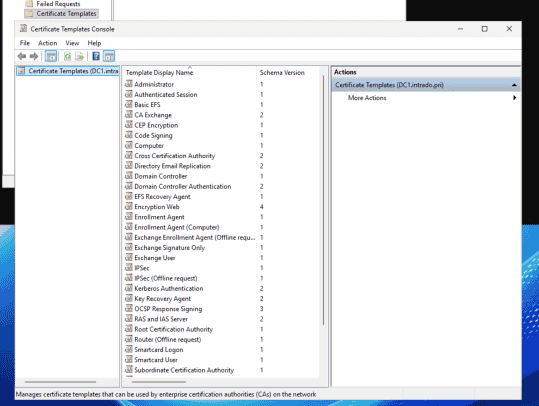
Step 1: Open the Certificate Templates Console
- On the Issuing CA, run: certsrv.msc
- Expand the CA node, right-click Certificate Templates, and select Manage.
- The Certificate Templates Console (certtmpl.msc) opens, listing all available templates.
Step 2: Duplicate an Existing Template
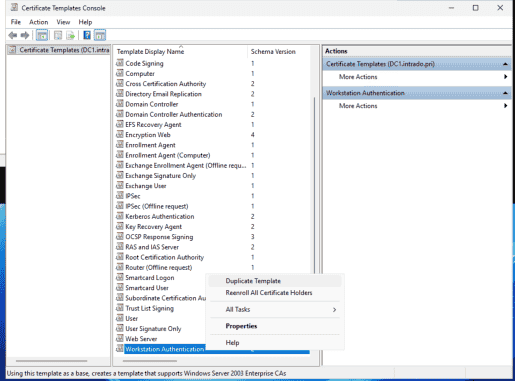
Never modify built-in templates directly. Always duplicate the appropriate base template:- Workstation Authentication: for computer certificates (client authentication)
- User: for user certificates (client authentication + EFS + email)
- Web Server: for IIS/web server certificates
Right-click the base template and select Duplicate Template. Select Windows Server 2016 or later compatibility. Choose the minimum operating system version of AD CS Certificate Authority (CA) that you want to support. Check Microsoft’s current ADCS documentation to confirm the latest supported version, as this changes with Windows Server releases.
You can also select the minimum recipient operating system for the certificate template, with the most recent version being Windows 10/Windows Server 2016. After that, provide a name for the certificate template and configure the template settings.
Step 3: Configure the General Tab
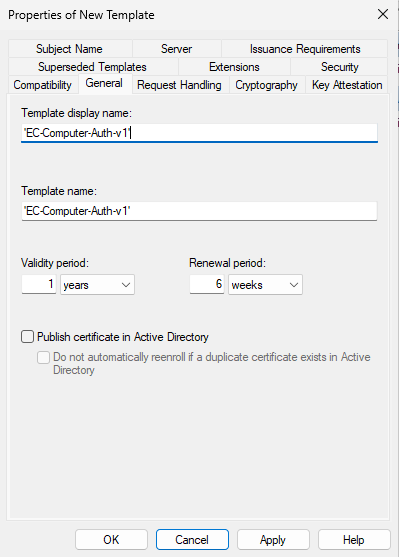
- Template Display Name: give it a descriptive name (e.g., ‘EC-Computer-Auth-v1’)
- Validity Period: e.g., 2 years (1 year for high-security environments) Renewal Period: e.g., 6 weeks Publish certificate in Active Directory: LEAVE UNCHECKED for computer auth and web server certificates. Only check this for user certificates used for S/MIME email encryption or EFS. Enabling it for other certificate types creates unnecessary AD bloat and may result in stale certificate objects accumulating in Active Directory.
Step 4: Configure the Subject Name Tab
Set the Subject Name to ‘Build from this Active Directory information’. This allows the CA to automatically populate the subject name from the machine or user’s AD object, which is commonly required for standard enterprise auto-enrollment deployments. Subject Name Format: set to ‘Common Name’ for most templates.
Include this information in the alternate subject name:
- For computer certificates → check DNS name (populates the FQDN of the machine from AD’s dNSHostName attribute)
- For user certificates → check User principal name (UPN) and optionally Email (for certificates intended for S/MIME or email protection)
Step 5: Configure Extended Key Usages (EKUs)
On the Extensions tab, ensure the Application Policies (EKUs) match the certificate’s intended use:
| Certificate Usage | Required EKU |
|---|---|
| Computer Authentication | Client Authentication (1.3.6.1.5.5.7.3.2) |
| Web Server SSL | Server Authentication (1.3.6.1.5.5.7.3.1) |
| S/MIME Email | Secure Email (1.3.6.1.5.5.7.3.4) |
| EFS | Encrypting File System (1.3.6.1.4.1.311.10.3.4) |
| Smart Card Logon | Smart Card Logon (1.3.6.1.4.1.311.20.2.2) |
| IPsec | IP security IKE intermediate (1.3.6.1.5.5.8.2.2) |
Note: The Extensions tab also shows Issuance Policies, which are certificate-policy OIDs (RFC 5280 Section 4.2.1.4) used for assurance-level controls, not to be confused with Application Policies (EKUs) configured above.
Step 6: Set the Security/Permissions Tab
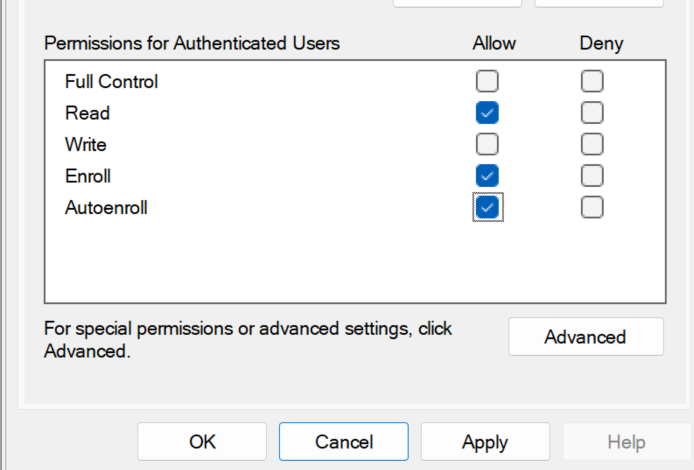
This is the most commonly misconfigured step and the most common cause of auto-enrollment failures. Each principal (user or computer group) that should auto-enroll needs ALL THREE permissions:
| Permission | Purpose | Required |
|---|---|---|
| Read | Account can see the template exists | Yes (minimum) |
| Enroll | Account can manually request a certificate | Yes |
| Autoenroll | Account can automatically receive a certificate via GPO | Yes |
To set permissions: Open certtmpl.msc → Right-click template → Properties → Security tab → select the relevant group → under Allow, check Read, Enroll, and Autoenroll.
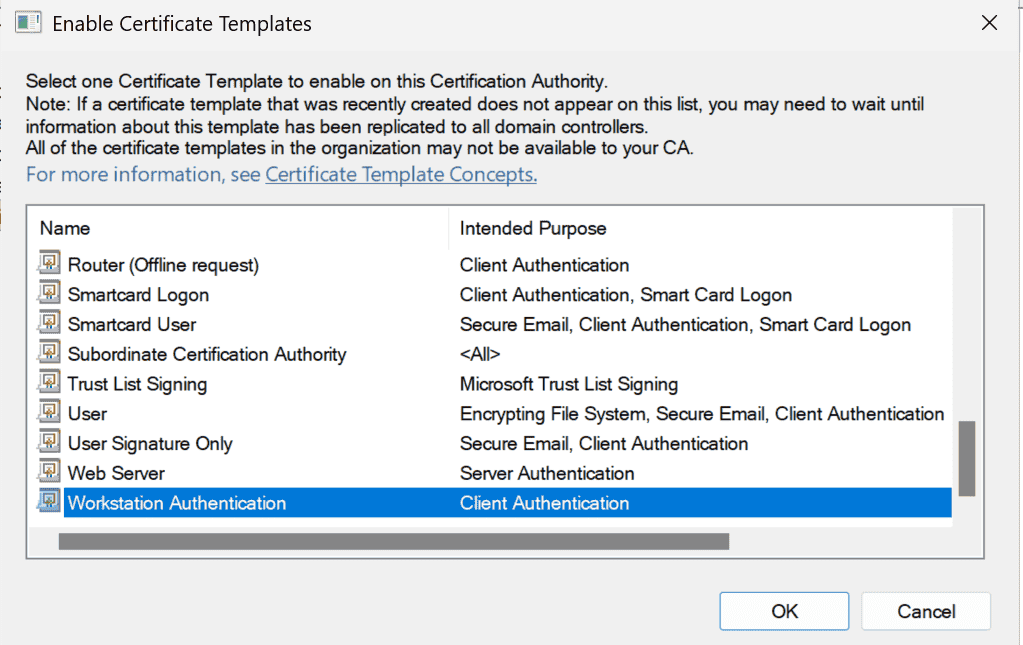
Step 7: Publish the Template to the CA
Configuring the template is not enough — it must also be published (made available) on the Issuing CA:
- Open certsrv.msc on the Issuing CA.
- Expand the CA, right-click Certificate Templates, and select New → Certificate Template to Issue.
- In the dialog, select your newly created template and click OK.
With the template created, published, and permissioned, the CA side of the configuration is complete. The next step moves to the domain side: creating the GPO that tells every domain-joined machine to look for that template and request a certificate automatically.
How to Configure the Group Policy and Enable the Auto-enrollment
Step 1: Create a Group Policy Object (GPO) in the Domain Controller
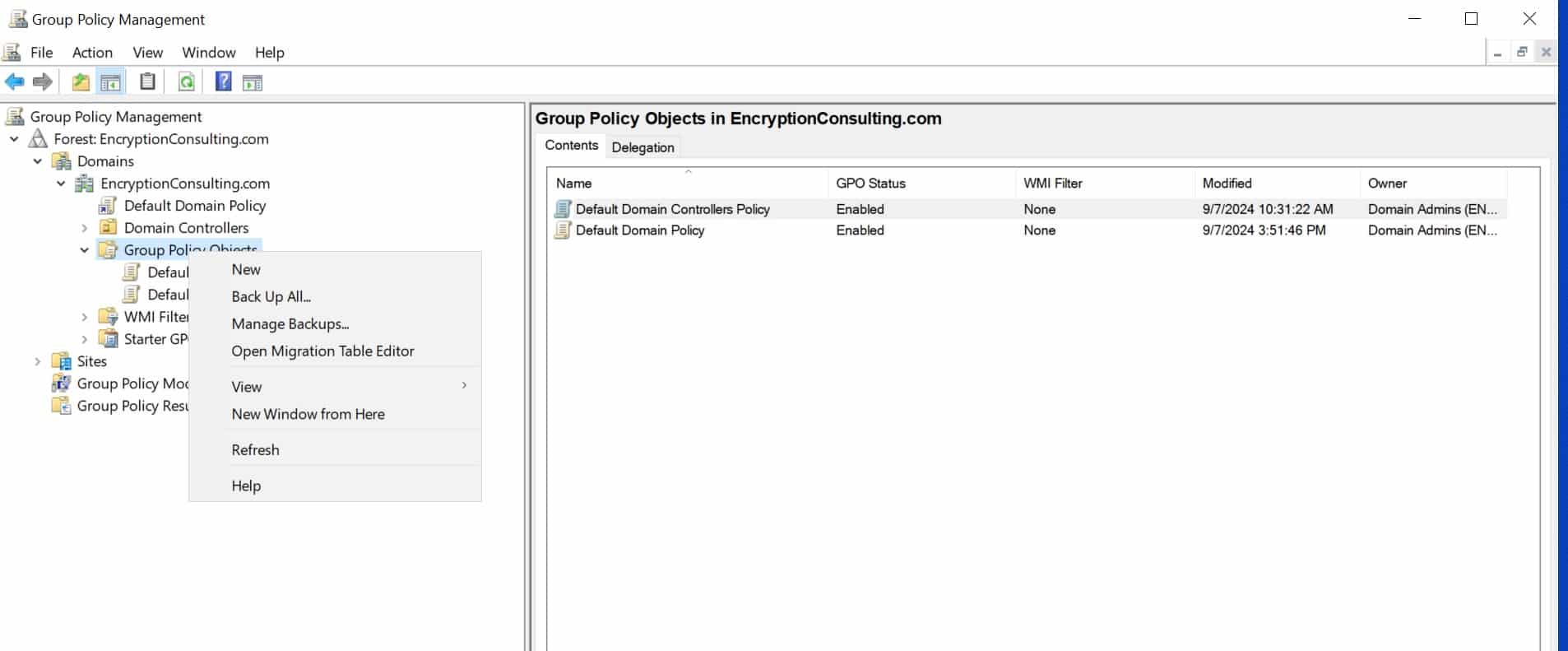
- Open Group Policy Management
- In the console tree, right-click GPOs under your domain (e.g., EncryptionConsulting.com).
-
Select New to create a new GPO.
-
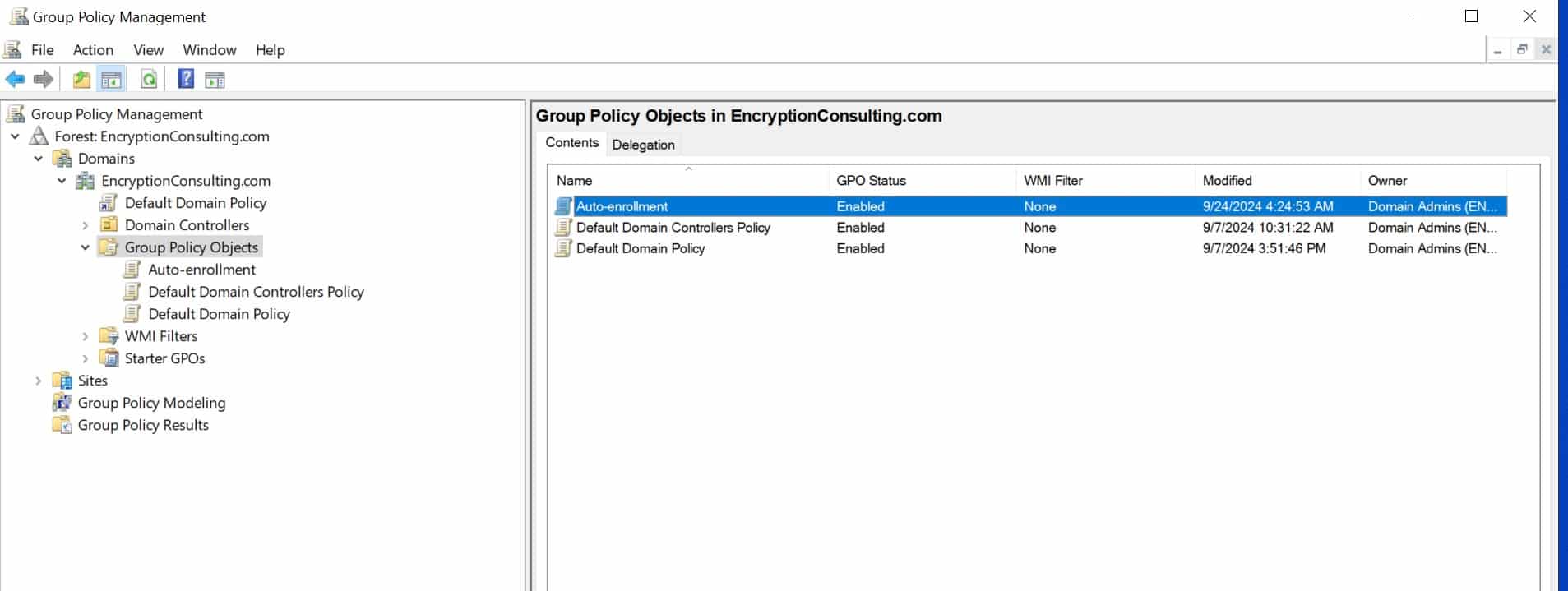
Name the GPO (e.g., Auto-enrollment).
-
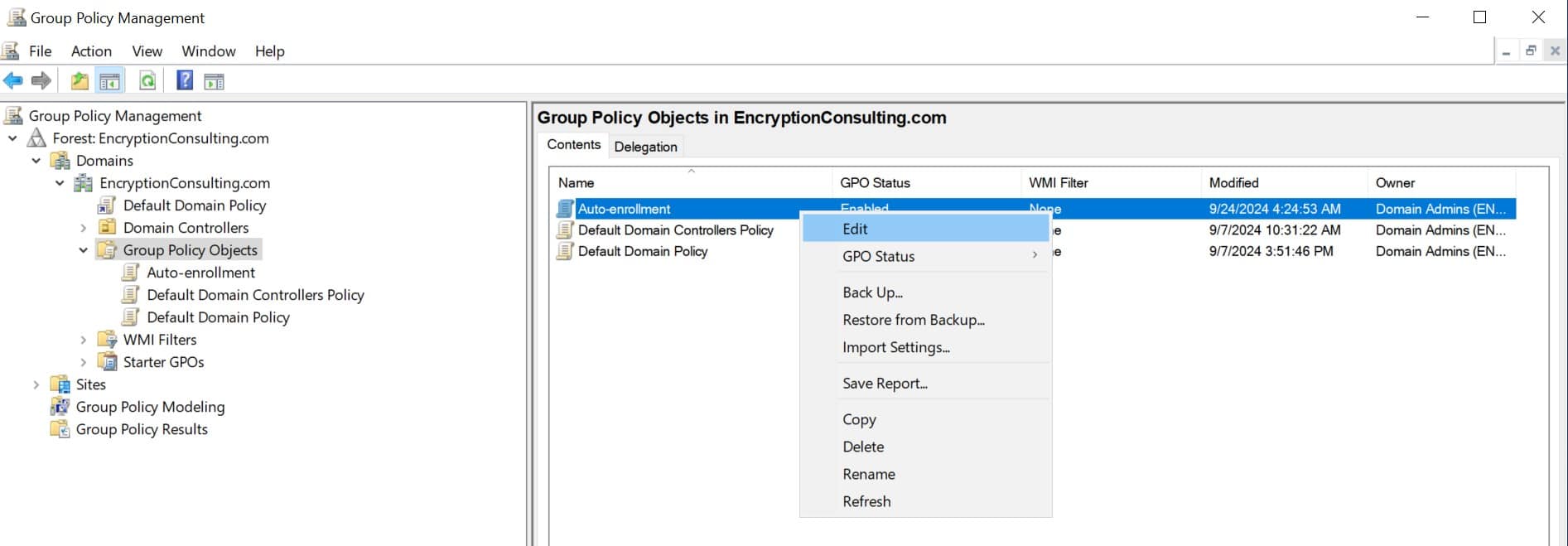
Right-click on the newly created GPO and select Edit.
Step 2: Configure Certificate Auto-enrollment
-
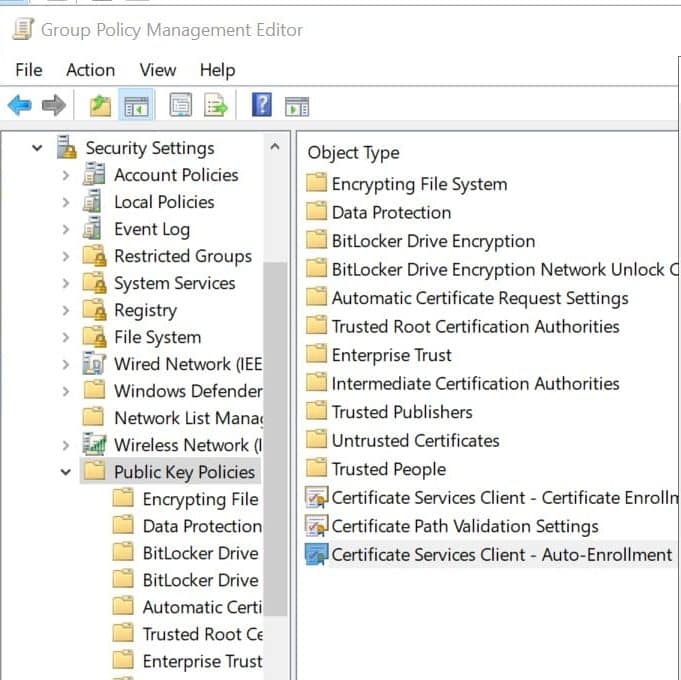
In the Group Policy Management Editor, navigate to:
Computer Configuration > Policies > Windows Settings > Security Settings > Public Key Policies.
-
Right-click on Certificate Services Client – Auto-Enrollment and select Properties.
-
In the Auto-Enrollment Policy Configuration window, configure as follows:
- Configuration Model: Enabled
-
Check the boxes for:
1. Renew expired certificates, update pending certificates, and remove revoked certificates.
2. Update certificates that use certificate templates.
-
Set a percentage for certificate expiry notifications if needed (e.g., 10%).
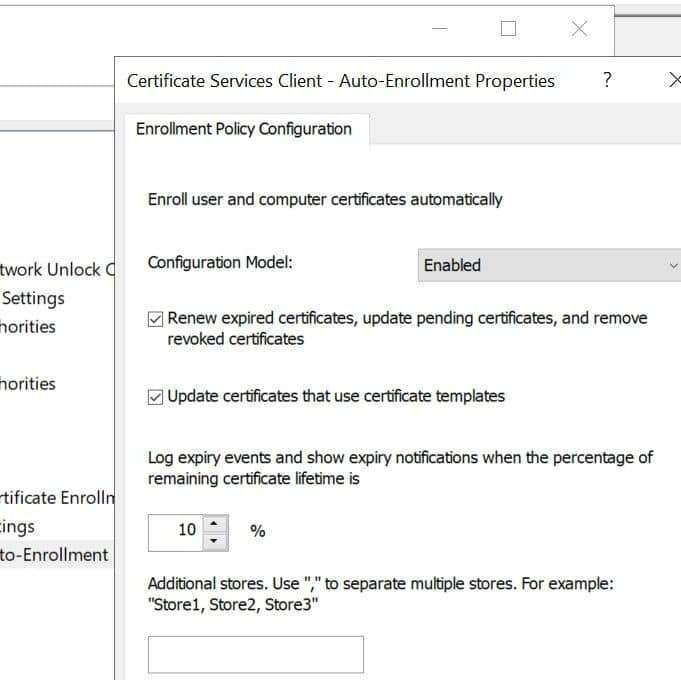
- When you open the Certificate Services Client – Auto-Enrollment Properties dialog, you see the four settings. Here is what each does:
| Setting | Recommended Value | What it does if Unchecked |
|---|---|---|
| Configuration Model | Enabled | Auto-enrollment is completely disabled — no certificates will deploy |
| Renew expired certificates, update pending certificates, and remove revoked certificates | Checked | Certificates approaching expiry will not be renewed automatically, and already-expired certificates will not be replaced; pending requests are abandoned, revoked certificates remain in the store |
| Update certificates that use certificate templates | Checked | If you update a template (new key length, new EKU), existing certificates may NOT be re-enrolled to get the new version — causing stale certificates |
| Expiration notification (% remaining) | 10% (default) | Users/admins get no advance warning of expiring certificates — only relevant when manual action is needed |
Note: Configuration Model setting controls the state of the auto-enrollment policy:
- Disabled: Autoenrollment is completely disabled, and certificates will not be enrolled or renewed automatically through Group Policy processing. However, certificates can still be requested manually through other enrollment methods.
- Enabled: Auto-enrollment is triggered automatically based on internal timers (Group Policy refresh cycle and the CertificateServicesClient scheduled task).
- Not Defined: The auto-enrollment state is determined by local registry information on the following path:
Key: SOFTWARE\Policies\Microsoft\Cryptography\AutoEnrollment | Value: AEPolicy | Type: DWORD
Note: If your organization uses both machine and user certificates (which most enterprises do), you need to enable auto-enrollment under BOTH Computer Configuration and User Configuration. Enabling only one means the other type of certificate will never auto-enroll.
- Click OK to save the changes.
Both paths must be configured depending on what certificates you are deploying. They are independent settings:
| GPO Path | Certificate Types | Example Use Cases |
|---|---|---|
| Computer Configuration → Policies → Windows Settings → Security Settings → Public Key Policies → Certificate Services Client – Auto-Enrollment | Machine/Computer certificates | Computer auth, web server SSL, IPsec tunnels, SCCM client certs |
| User Configuration → Policies → Windows Settings → Security Settings → Public Key Policies → Certificate Services Client – Auto-Enrollment | User certificates | S/MIME email encryption, smart card logon, EFS, user VPN certs |
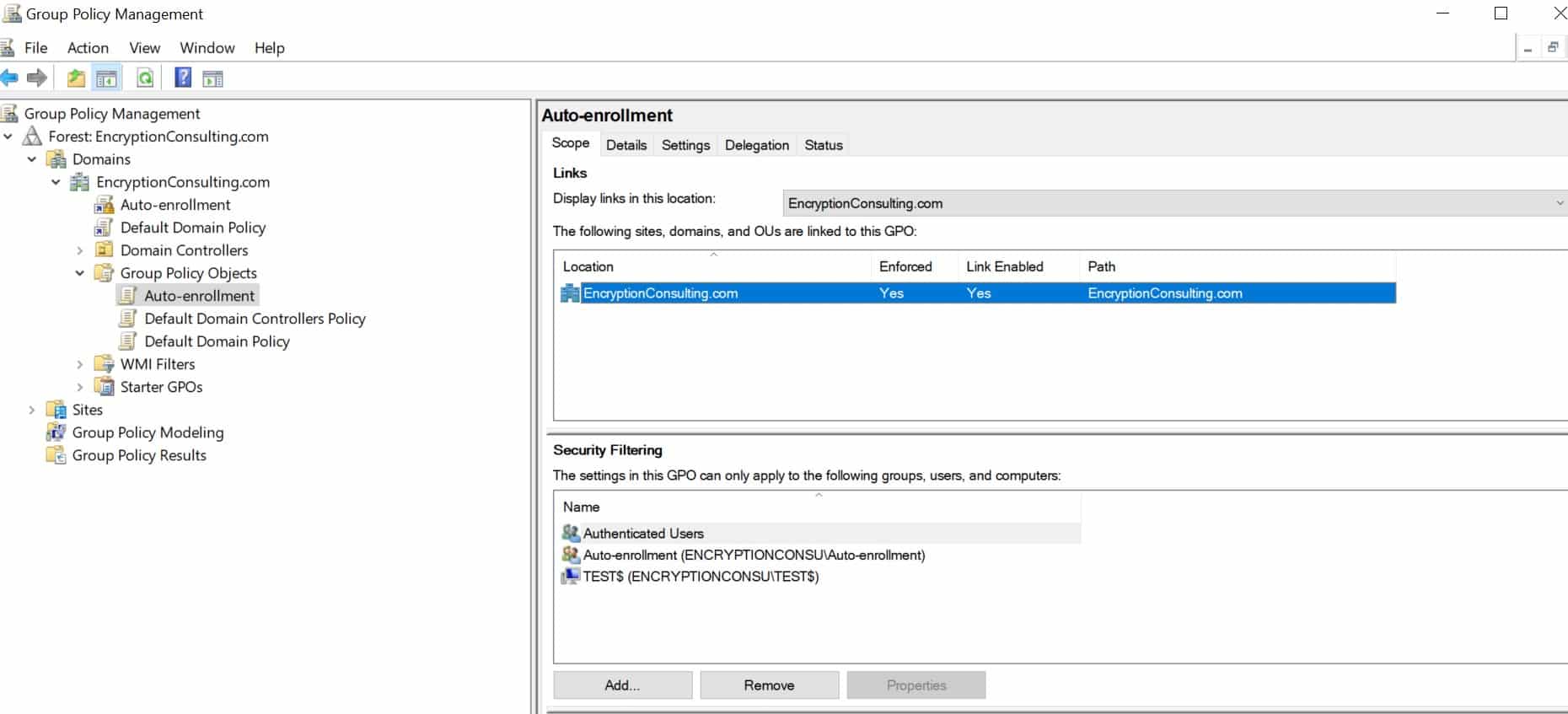
Step 3: Link the GPO to Your Domain
- Go back to Group Policy Management.
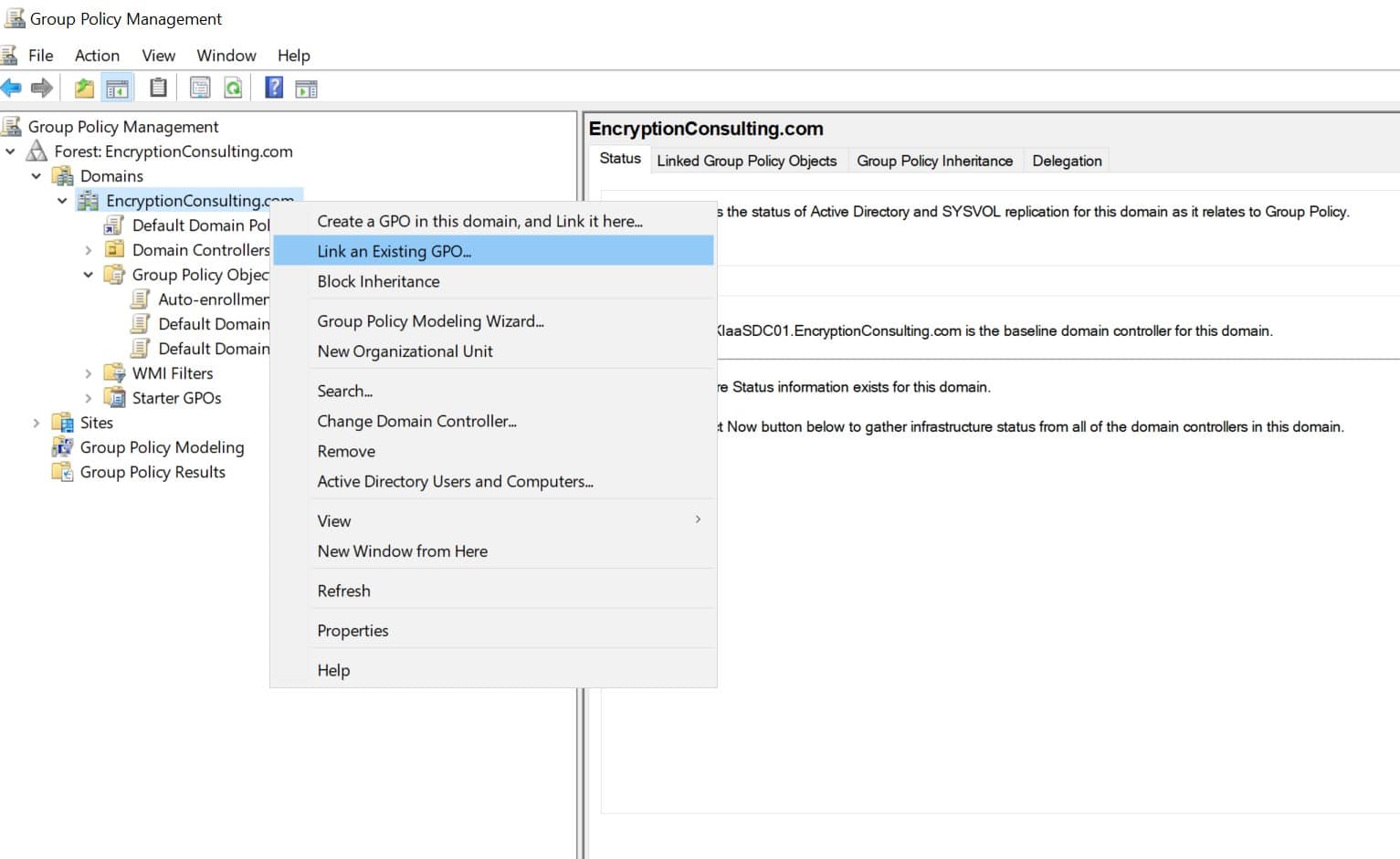
- Right-click on your domain (e.g., EncryptionConsulting.com).
-
Select Link an Existing GPO.
-
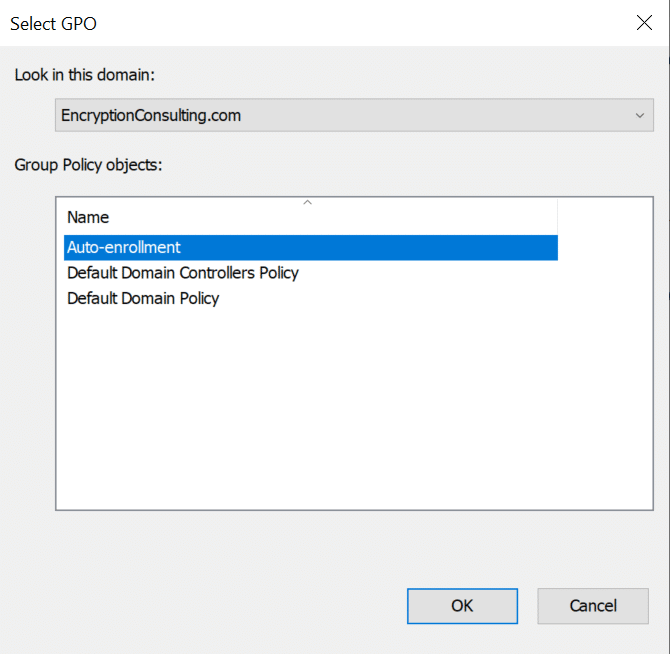
In the Select GPO window, choose the Auto-enrollment GPO you just created.
- Click OK.
Step 4: Ensure Group Policy is Enforced
-
For most environments, linking the GPO at the domain root is sufficient — all OUs inherit the policy automatically. Only enable Enforce if specific child OUs in your domain have ‘Block Inheritance’ configured and you need auto-enrollment to reach those OUs regardless. The following figure represents granting Domain Computers Read, Enroll, and Autoenroll permissions under the Security tab.
-
If your environment has OUs with Block Inheritance and you need to override them, do the following:
- In Group Policy Management, under the domain level (e.g., EncryptionConsulting.com), right-click the Autoenrollment GPO.
- Select Enforce to ensure the policy is applied across the domain.
Warning: Enforced GPOs override Block Inheritance on ALL child OUs and can have unintended effects in environments with complex OU-level policy structures.
Step 5: Verify Auto-enrollment Configuration
After the GPO is configured, auto-enrollment does not happen instantaneously. Understanding the trigger cycle helps admins know when to expect certificates and how to force immediate enrollment for testing:
- Group Policy Refresh Cycle: GPO is applied automatically every 90 minutes (default) on workstations, with a randomized offset of 0–30 minutes to avoid network storms. Computers also apply GPO at startup and users at logon.
- Auto-enrollment Scheduled Task: Once GPO is applied, Windows creates a scheduled task (visible in Task Scheduler under Microsoft → Windows → CertificateServicesClient) that handles the actual certificate requests.
- Renewal Window: Certificates are automatically renewed when 80% of the validity period has elapsed, and the certificate is within the template’s renewal period. For example, a certificate valid for one year reaches the 80% mark at around 41.5 weeks. If the certificate has a renewal period of six weeks, it will be renewed during the 46th week period.
The template’s renewal period must also be greater than 8 hours (the auto-enrollment engine’s minimum trigger interval). Additionally, the renewal period must be less than 20% of the certificate’s validity period. If either condition is violated, auto-enrollment skips renewal entirely and attempts a fresh enrollment instead, which can re-trigger CA manager approval.
Note: Domain Controllers refresh Group Policy every 5 minutes by default. If testing auto-enrollment on a DC-class machine, GPO changes propagate significantly faster than on workstations.
Now, to verify the auto-enrollment configurations, perform the following steps:
- In the Windows 11 Client Machine, open Task Scheduler.
-
Check under the CertificateServicesClient folder: Task Scheduler → Microsoft → Windows → CertificateServicesClient for tasks created by the enrollment client, ensuring the auto-enrollment task is ready and scheduled.
Step 6: Force Group Policy Update
- Open Command Prompt as an administrator.
-
Run the following command to update group policies: gpupdate or gpupdate /force
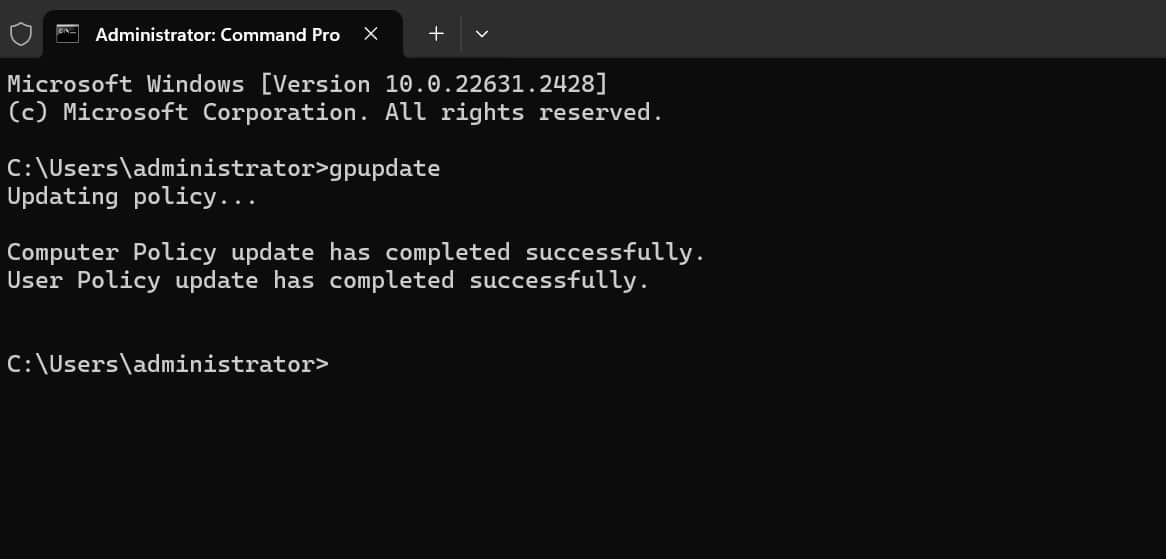
- Ensure the update completes successfully.
Step 7: Verify Group Policy Application
-
In Command Prompt, run the following command to check the applied policies: gpresult /r
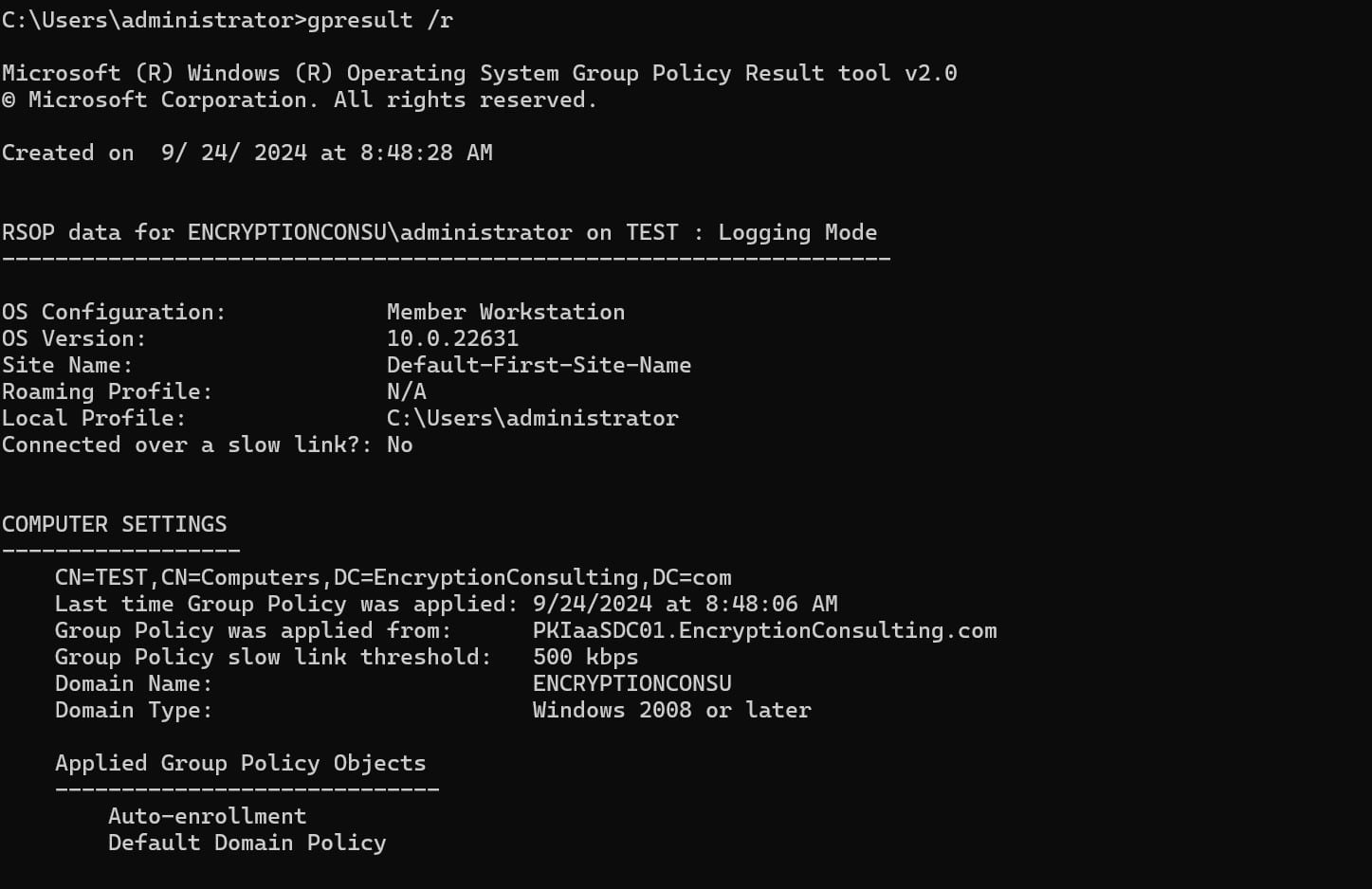
- Confirm that the Auto-enrollment policy is applied to the necessary computers and users.
At this point, auto-enrollment should be functioning. If certificates are appearing in the expected stores on domain-joined machines, no further action is needed. If they are not — or if you want to understand why enrollment is silent when something goes wrong — the following section walks through each failure layer in sequence.
Troubleshooting Auto-enrollment Failures
Auto-enrollment is one of those features that works silently when configured correctly and fails just as silently when something is off. Unlike a broken web server that throws a visible error, a misconfigured auto-enrollment setup simply does nothing. No certificate appears, no obvious alert fires, and the admin is left wondering whether the problem is in the GPO, the template, the network, or the CA itself. This section walks through each layer in sequence, including GPO delivery, template configuration, and network connectivity, so you can isolate the failure point quickly.
Step 1: Verify GPO is Reaching the Client
Run on the affected machine to confirm the auto-enrollment GPO is in the applied list:
gpresult /r
rsop.msc
Then check the registry. AEPolicy must be 7 (0x7):
reg query "HKLM\SOFTWARE\Policies\Microsoft\Cryptography\AutoEnrollment" /v AEPolicy
reg query "HKCU\SOFTWARE\Policies\Microsoft\Cryptography\AutoEnrollment" /v AEPolicy
| AEPolicy Value | Configuration State | Effect |
|---|---|---|
| 0x00000000 (or key absent) | Auto-enrollment engine enabled, but no enrollment actions configured Update certificates using templates: OFF Renew expired / update pending / remove revoked: OFF | Pending requests not collected Revoked certificates not removed |
| 0x00000001 | Auto-enrollment engine: Active Update certificates using templates: ON Renew expired / update pending / remove revoked: OFF | New certificate requests issued automatically Expired certificates not renewed Pending requests not collected Revoked certificates not removed |
| 0x00000006 | Auto-enrollment engine: Active Update certificates using templates: OFF Renew expired / update pending / remove revoked: ON | New certificate requests not issued automatically Expired certificates renewed Pending requests collected Revoked certificates removed |
| 0x00000007 | Auto-enrollment engine: Active Update certificates using templates: ON Renew expired / update pending / remove revoked: ON | New certificate requests issued automatically Expired certificates renewed Pending requests collected Revoked certificates removed — Recommended for all environments |
| 0x00008000 | Auto-enrollment: Disabled entirely | No automatic requests No renewal No pending collection No revocation cleanup |
Even if the auto-enrollment option is shown as “Enabled” in Group Policy Management Console (GPMC) or rsop.msc, it is not present on the domain clients. You will not find the registry key in the computer or user portion of the registry:
HKEY_LOCAL_MACHINE\SOFTWARE\Policies\Microsoft\Cryptography\Autoenrollment | Value Name: AEPolicy | Type: REG_DWORD | Value Data: 0
HKEY_CURRENT_USER\SOFTWARE\Policies\Microsoft\Cryptography\Autoenrollment | Value Name: AEPolicy | Value Type: REG_DWORD | Value Data: 0
This happens because the GPMC Settings Report and gpedit.msc UI show auto-enrollment as “Enabled” in the Default Domain Policy even when the registry.pol file does not contain the AEPolicy value. This occurs when the setting is opened in gpedit.msc but Cancel is clicked instead of OK — the setting appears saved but was never written. Fix: open the auto-enrollment setting in gpedit.msc, configure it, and click OK (not Cancel) to force the AEPolicy value to be written to registry.pol. The RSOP registry check above is therefore always more reliable than trusting the GPMC display.
On domains with legacy Server 2003-era DCs or GPOs, the GPMC display may show auto-enrollment as “Enabled” even when the AEPolicy value was never written to registry.pol (KB2018984). On Server 2008 and later, GPMC accurately reflects the actual state. If you are in a legacy environment, always confirm via the registry check above rather than trusting the GPMC display.
Alternative resolution: if the Default Domain Policy is too broad to edit safely, create a NEW GPO containing only the auto-enrollment settings and link it to the domain or target OU with a higher priority (lower link order number) than the Default Domain Policy.
Step 2: Verify Template and CA Configuration
Check that the template is published on the Issuing CA:
certutil -catemplates
If absent: certsrv.msc → right-click Certificate Templates → New → Certificate Template to Issue.
If certificates are expected to be published into Active Directory objects, verify the Issuing CA computer account is a member of the Cert Publishers group using:
dsget group “CN=Cert Publishers,CN=Users,DC=domain,DC=com” -members
In certtmpl.msc, check the Security tab on the template. The requesting group needs all three:
| Permission | Required? | Most Missed? |
|---|---|---|
| Read | Yes | No |
| Enroll | Yes | No |
| Autoenroll | Yes | Yes |
If permissions look correct but certificates still do not appear, clear the stale auto-enrollment directory cache on the client:
Delete: HKLM\SOFTWARE\Microsoft\Cryptography\AutoEnrollment\AEDirectoryCache
Then, run the following command:
gpupdate /force && certutil -pulse
Step 3: Test Manual Enrollment to Split Config vs. Network
Before diving into RPC/DCOM, do a manual certificate request. This one test cuts troubleshooting time in half:
- Open certlm.msc (machine) or certmgr.msc (user) on the affected client
- Right-click Personal → All Tasks → Request New Certificate
- Select the same template you are auto-enrolling
| Manual Enrollment Result | Conclusion | Next Step |
|---|---|---|
| Succeeds | CA is reachable, template is fine. Problem is in GPO, registry, or Autoenroll permission | Recheck Steps 1 and 2 |
| Also fails | CA is not reachable from this client | Proceed to Step 4 — RPC/DCOM layer |
Step 4: RPC/DCOM Layer (if Manual Enrollment Also Fails)
Auto-enrollment communicates via RPC/DCOM (MS-WCCE)
Test 1: Validate RPC/DCOM channel via COM interface
$CS = "CASERVERNAME\CACommonName"
$R = New-Object -ComObject CertificateAuthority.Request
$R.GetCAProperty($CS, 0x6, 0, 4, 0)
Test 2: Simpler reachability check via certutil
certutil -ping -config "CASERVERNAME\CACommonName"
For machine certificate troubleshooting, run in SYSTEM context (the context auto-enrollment uses):
psexec -s powershell.exe # then run the above
Note:
- psexec is a Sysinternals tool (download from learn.microsoft.com/sysinternals)
- Some EDR/AV solutions flag psexec as a dual-use tool. Whitelist it in your security tooling before use in a production environment.
Enable the required firewall rules on the CA
Enable-NetFirewallRule -Name Microsoft-Windows-CertificateServices-CertSvc-DCOM-In
Enable-NetFirewallRule -Name Microsoft-Windows-CertificateServices-CertSvc-RPC-EPMAP-In
Enable-NetFirewallRule -Name Microsoft-Windows-CertificateServices-CertSvc-RPC-TCP-In
Also verify the CERTSVC_DCOM_ACCESS group on the CA still contains Authenticated Users. Check in: dcomcnfg → My Computer → Properties → COM Security → Edit Limits → Access Permissions.
Enable verbose auto-enrollment logging on the client for more detail:
For modern systems, run the following:
certutil -setreg Enroll\LogLevel 4
For legacy systems, use the following path: HKLM\SOFTWARE\Microsoft\Cryptography\AutoEnrollment\AEEventLogLevel = 0 (DWORD)
Note:
- 0 = verbose (counter-intuitive — lower value = more logging)
- 1 = errors and warnings only
- 2 = errors only (default)
Then run:
certutil -pulse
Step 5: Read Event Viewer Logs
Navigate to Apps and Services Logs → Microsoft → Windows
- Log 1: Apps and Services Logs → Microsoft → Windows → CertificateServicesClient-AutoEnrollment → Operational
- Log 2: Apps and Services Logs → Microsoft → Windows → CertificateServicesClient-CertEnroll → Operational
Events here: 6 (Error), 64 (Warning)
Events here: 9 (denied), 13 (failed), 52 (CA not trusted), 65 (policy server auth), 82 (CEP auth failure)
PowerShell to query both at once:
Get-WinEvent -FilterHashtable @{
LogName='Application'
ProviderName=@(
'Microsoft-Windows-CertificateServicesClient-AutoEnrollment',
'Microsoft-Windows-CertificateServicesClient-CertEnroll'
)
StartTime=(Get-Date -Hour 0 -Minute 0 -Second 0)
} | Sort-Object TimeCreated -Descending
| Event ID | Meaning | Root Cause |
|---|---|---|
| 6 | Error (Auto-enrollment source): Entire auto-enrollment process failed. | Error code in the message gives root cause: 0x8007054b – domain unreachable 0x800706ba – RPC server unavailable 0x800b0101 – certificate not within validity period 0x80070576 – time skew between client and server | Check the error code. 0x80070576 – check NTP sync. 0x8007054b – check domain connectivity (DNS, DC reachability). |
| 9 | Error (CertEnroll source): Request explicitly DENIED by the CA. | Check Read+Enroll+Autoenroll permissions on the template. |
| 13 | Error (CertEnroll source): Enrollment request failed. The root cause is in the embedded error code. | Check the embedded error code first: 0x800706BA – RPC unavailable: check firewall/DCOM (Step 4) 0x80094012 – Template permission failure: check Read+Enroll+Autoenroll 0x80070005 – Access denied: check CA-level “Request Certificates” permission 0x80094800 – Template not supported by this CA: certutil -catemplates 0x800B0112 – CA cert not trusted: certutil -viewstore -enterprise NTAuth |
| 52 | CA certificate is not trusted by the client | Ensure CA cert chain is in the client’s Trusted Root / Intermediate stores; certutil -dspublish -f IssuingCA.cer NTAuthCA |
| 64 | Warning from CertificateServicesClient-AutoEnrollment, meaning a certificate is about to expire or has already expired | Check renewal window, template permissions, and CA availability. |
| 82 | Error (CertEnroll): Failed to authenticate to ALL enrollment server URLs for the policy (see embedded error code for specific cause — e.g., RPC_S_SERVER_UNAVAILABLE, Kerberos failure) | Check CA/RPC reachability (ports 135 + dynamic RPC); verify SSL cert on CEP endpoint is trusted; check Kerberos auth to the enrollment policy server; for RPC_S_SERVER_UNAVAILABLE, also enable CA firewall rules and verify CERTSVC_DCOM_ACCESS |
| 10036 (CA) | DCOM hardening rejection | Check CVE-2021-26414 patch levels; verify CERTSVC_DCOM_ACCESS |
Step 6: Check the CA for Pending or Failed Requests
Open certsrv.msc on the Issuing CA and inspect:
- Pending Requests: Template has CA manager approval required, which prevents fully automatic enrollment because requests remain pending until approved. Edit template → Request Handling → uncheck approval.
- Failed Requests: Right-click → Properties to see the rejection code. Common causes: template requires an email address the AD object does not have; key archival required but no KRA configured.
Also verify the Issuing CA certificate is in the NTAuth AD container — if absent, certificates will not autoenroll:
certutil -dspublish -f IssuingCA.cer NTAuthCA
certutil -viewstore -enterprise NTAuth
Quick Reference — Error Code Table
| Error | Root Cause | Fix |
|---|---|---|
| No cert, no event log entries | GPO not reaching client; AEPolicy != 7 | gpresult /r; check AEPolicy registry; verify OU and GPO link |
| RSOP shows Enabled but no cert | Cache stale or Autoenroll permission missing | Delete AEDirectoryCache key; check template permissions |
| Event 64: Warning: A certificate is about to expire or has already expired. | The event is triggered when the certificate is about to expire (or has expired) according to the time interval configured in the Auto-enrollment group policy | Check renewal period on template; verify CA reachability; confirm Read+Enroll+Autoenroll still present. |
| 0x800706BA: RPC unavailable | Firewall blocked, DCOM patch mismatch, or CERTSVC_DCOM_ACCESS modified | Enable CA firewall rules; check CVE-2021-26414; verify DCOM group |
| Works for some users, not others | User not in group with Autoenroll or in wrong OU | Add to group; move to correct OU; gpupdate + certutil -pulse |
| Computer certificates work, user certificates don’t | User Configuration GPO path not enabled | Enable auto-enrollment under User Configuration as well |
| Fails only for remote/VPN users | CA unreachable before VPN establishes at login | Configure pre-logon VPN; or run certutil -pulse after VPN connects |
| Duplicate certificates accumulating | Template supersession not configured | Add old template to the Superseded Templates tab of the new template |
How Encryption Consulting Can Help
Encryption Consulting provides specialized services to identify vulnerabilities and mitigate risks by providing PKI Services. Our strategic guidance aligns PKI solutions with organizational objectives, enhancing efficiency and minimizing costs. By partnering with Encryption Consulting, organizations can unlock the full potential of PKI solutions, realizing tangible financial benefits while maintaining strong security measures.
Our PKI Assessment Services provide a comprehensive evaluation of your existing ADCS environment, identifying gaps in CA hygiene, backup practices, CRL/AIA configuration, and database health. Whether your CA database has grown unchecked over time or your maintenance processes lack structure, our team delivers a detailed risk report along with a prioritized roadmap to bring your PKI back into a healthy and auditable state.
CertSecure Manager
If you’re managing this at scale across hundreds of machines, manual monitoring becomes untenable. One of the most comprehensive solutions in the CLM space is CertSecure Manager by Encryption Consulting. Designed to address the growing complexity of certificate environments, CertSecure Manager offers a centralized, automated, and policy-driven approach to CLM.
- Centralized Certificate Inventory: Automatically discovers and inventories certificates across cloud, on-prem, and hybrid environments.
- Automated Lifecycle Management: Handles issuance, renewal, and revocation of certificates with minimal human intervention.
- Policy Enforcement Engine: Ensures compliance with enterprise security policies and industry standards.
- Role-Based Access Control (RBAC): Provides granular access management to ensure only authorized users can manage certificates.
- Integration With Leading CAs and DevOps Tools: Seamlessly integrates with public and private Certificate Authorities, as well as CI/CD pipelines.
- Real-Time Monitoring and Alerts: Offers dashboards and alerts for expiring or misconfigured certificates.
- Audit and Reporting: Maintains detailed logs and reports for compliance and forensic analysis.
Conclusion
Group Policy auto-enrollment eliminates the most common source of certificate failures in Active Directory environments: human gaps. When configured correctly — with the right template permissions, dual-path GPO settings for both machine and user certificates, and the renewal window tuned to your validity periods — the entire certificate lifecycle runs without administrator intervention. Certificates are issued on domain join, renewed before expiry, and cleaned up on revocation, automatically, across every device in scope.
The setup has real failure points, and most of them are silent. A missing Autoenroll permission, an AEPolicy value that was never written to registry.pol, or a template published on the wrong CA will each produce the same result: no certificate, no error, no indication of where to look. The troubleshooting sequence in this guide — GPO delivery first, then template and permissions, then manual enrollment to isolate network from configuration, then RPC/DCOM — is designed to cut through that silence systematically.
Once auto-enrollment is running cleanly, the operational question shifts from “did this certificate get deployed?” to “are all certificates across my environment healthy?” At scale, that requires visibility beyond what native Windows tooling provides. That is where a purpose-built certificate lifecycle management solution becomes worthwhile — not to replace auto-enrollment, but to give you the inventory, alerting, and audit trail that Group Policy alone cannot.
- Prerequisites
- Certificate Template Configuration
- How to Configure the Group Policy and Enable the Auto-enrollment
- Step 1: Create a Group Policy Object (GPO) in the Domain Controller
- Step 2: Configure Certificate Auto-enrollment
- Step 3: Link the GPO to Your Domain
- Step 4: Ensure Group Policy is Enforced
- Step 5: Verify Auto-enrollment Configuration
- Step 6: Force Group Policy Update
- Step 7: Verify Group Policy Application
- Troubleshooting Auto-enrollment Failures
- How Encryption Consulting Can Help
- Conclusion