

Active Directory Certificate Services (AD CS) forms the foundation of enterprise PKI. It issues and manages the digital certificates that authenticate users, devices, and services across an organization. Given its central role in establishing trust, the Certification Authority (CA) is also a high-value target. Unauthorized certificate issuances, configuration tampering, key archival abuse, and revocation manipulation can all occur silently if the right safeguards are not in place.
Enabling advanced auditing on your CA is one of the most critical security controls you can implement. It gives your security team the visibility needed to detect anomalies, satisfy compliance requirements, and respond to incidents before they escalate into breaches.
However, CA auditing in Windows is not just a single toggle; instead, it requires multiple configuration steps working together and omitting any one of them results in no audit events being generated at all. This guide covers the complete process for enabling and validating CA auditing. It explains which events the CA captures and where those records are stored, how to configure the CA’s internal audit filter, and how to enable the required operating system-level audit policies.
Understanding Windows CA Event Auditing
Windows Server CA implements three distinct event auditing mechanisms, each serving a different purpose and writing to a different destination.
Standard Events
These are top-level informational events written to the Application event log, sourced from CertificationAuthority. They cover high-level operational activity such as CA certificate expiration warnings and service-level errors. Standard logging is active by default and requires no additional configuration.
Audit Events
These are the detailed, security-relevant events written to the Security event log. Audit events capture granular CA activity including certificate issuance, revocation, key archival, configuration changes, and changes to CA security settings.
Auditing security events must be enabled in two places: at the CA level, where you define which event categories are to be logged, and at the operating system level, where you specify that those events are written to the Windows Security log. If either configuration is missing, no security events are logged for the CA. Audit events are not enabled by default and are the primary subject of this guide.
Debug Log
These are low-level debug traces logged in certsrv.log (CA service), certutil.log (certutil operations), and certocm.log (installation/setup). These logs are useful only for Microsoft Support and are not enabled by default. They are not intended for routine security monitoring.
Understanding the difference between these three engines is essential before understanding the configuration, particularly because Standard Events and Audit Events use entirely separate log destinations, filters, and activation methods.
What is Auditpol?
Windows generates logs across a wide range of system activities by default, many of which are generic and of little value to a security team focused on certificate infrastructure. To address this, Microsoft provides a built-in command-line utility called Auditpol (Audit Policy), which allows administrators to view and configure the Windows advanced audit policy at a granular, subcategory level.
In the context of ADCS, Auditpol is primarily used to verify that the Certificate Services and Registry audit subcategories are actively enabled on the CA server before any audit events can be expected to appear in the Security log.
Auditpol and the CA audit engine serve two different but equally essential roles. Auditpol instructs Windows to listen for and record CA-generated events at the operating system level, while the CA audit engine instructs the CA on which events to generate at the service level. Neither configuration is sufficient in isolation — both must be in place for audit events to appear in the Windows Security log.
To check the current audit policy status on your CA server, run:
auditpol /get /category:*
This command is introduced here to confirm that the required audit subcategories are enabled, and it will be used again later in the verification section to validate the final configuration after all CA auditing steps are completed.
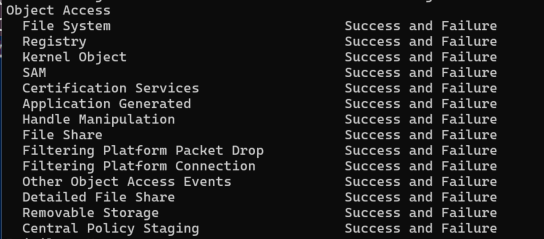
Under the Object Access section of the output, confirm that Certification Services shows at least Success enabled — without this, no CA audit events will reach the Security log regardless of what is configured at the CA level.
Configuring the CA Audit Engine
Enabling CA audit events requires completing four strongly recommended configuration steps. In practice, omitting any of these steps can result in incomplete or entirely missing CA security audit visibility. Steps 1 and 2 are foundational — if either is missing, CA security events will not appear in the Security log. Step 3 is technically optional but is strongly recommended in any Group Policy-managed environment because legacy audit policies can silently override advanced audit subcategory settings. Step 4 extends audit coverage to registry-level configuration changes that bypass standard audit channels.
The following sections walk through the complete CA auditing configuration process, beginning with the CA-level audit filter and then enabling the Windows audit policies required to capture those events in the Security log.
Step 1: Set the CA AuditFilter
The first step operates at the CA level and controls which categories of events the CA service is permitted to generate. The CA audit filter is a bitmask value representing seven different audit categories that can be enabled. If all values are enabled, the audit filter will have a value of 127.
Microsoft recommends enabling all categories. This correlates with a decimal value of 127 on the AuditFilter registry value, which is also helpful for streamlining installations using scripts instead of manually going through the wizard.
| Decimal Value | Audit Category |
|---|---|
| 1 | Start and stop Active Directory Certificate Services |
| 2 | Back up and restore the CA database |
| 4 | Issue and manage certificate requests |
| 8 | Revoke certificates and publish CRLs |
| 16 | Change CA security settings |
| 32 | Store and retrieve archived keys |
| 64 | Change CA configuration |
| 127 | All categories enabled (recommended) |
This can be configured either via the CA MMC (certsrv.msc) under the Auditing tab in the CA Properties, or directly from an elevated command prompt:
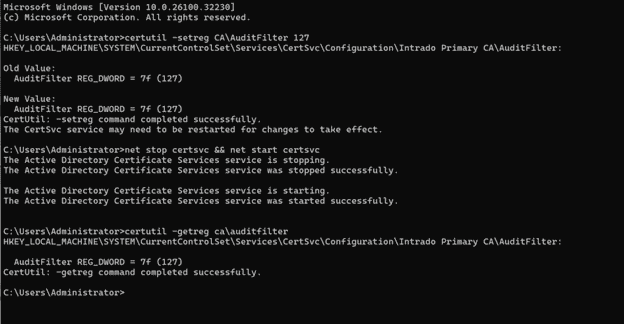
certutil -setreg CA\AuditFilter 127
Restart the Certificate Services for the change to take effect:
net stop certsvc && net start certsvc
To verify the setting has been applied correctly:
certutil -getreg ca\auditfilter
Enable Auditing via the ADCS Snap-in (GUI Method)
If you prefer a graphical interface, the same AuditFilter configuration can be applied through the CA MMC. Perform the following steps on the ADCS server:
- Open Server Manager.
- Select Tools → Certificate Authority.
- Right-click the CA name and select Properties.
- Select the Auditing tab.
-
Enable all required auditing settings by checking the following:
- Backing up and restoring the CA database
- Change CA configuration
- Change CA security settings
- Issuing and managing certificate requests
- Revoke certificates and publish CRLs
- Storing and retrieving archived keys
- Starting and stopping Active Directory Certificate Services
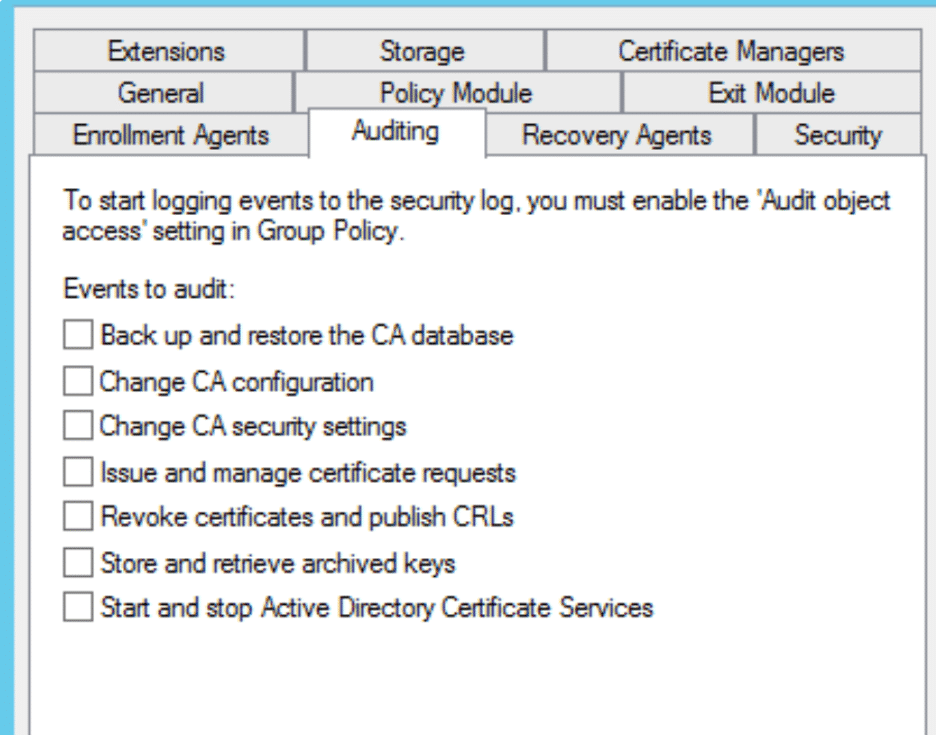
Note: Checking all boxes in the Auditing tab is equivalent to running certutil -setreg CA\AuditFilter 127 from the command line. Both approaches produce the same result — use whichever fits your workflow.
Enable Certificate Template Auditing (EDITF_AUDITCERTTEMPLATELOAD)
Event IDs 4898, 4899, and 4900 – which track certificate template loading and updates – are not controlled by the AuditFilter value alone. These events require an additional configuration flag to be set. To enable certificate template change auditing, run the following command:
certutil -setreg policy\EditFlags +EDITF_AUDITCERTTEMPLATELOAD
A restart of the Certificate Services is required after this change. Once enabled, you can monitor the following template-related event IDs in the Security log:
- 4898: Certificate Services loaded a template
- 4899: Certificate Services template was updated
- 4900: Certificate Services loaded a template configuration
Note: This flag EDITF_AUDITCERTTEMPLATELOAD is set on the CA policy module’s EditFlags, which is separate from the AuditFilter registry value configured in Step 1.
Step 2: Configure the GPO for Object Access Audit (Audit Certification Services)
The second step operates at the operating system level and tells Windows to write the CA-generated events into the Security event log. In the Group Policy Management Editor, navigate to Computer Configuration → Policies → Windows Settings → Security Settings → Advanced Audit Policy Configuration → Audit Policies, then double-click Object Access and configure Audit Certification Services for Success; Failure is optional but recommended for defense-in-depth, as CA operations rarely produce auditable failure events in practice.
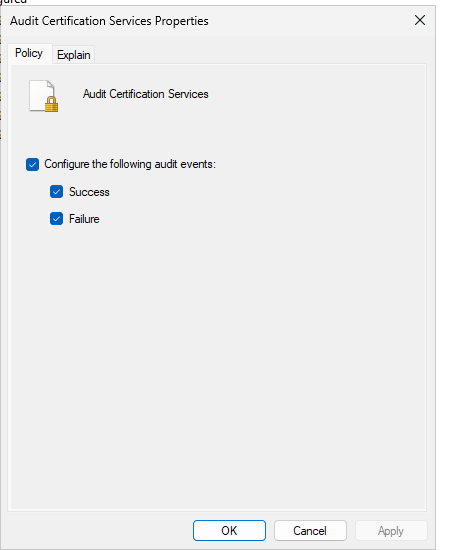
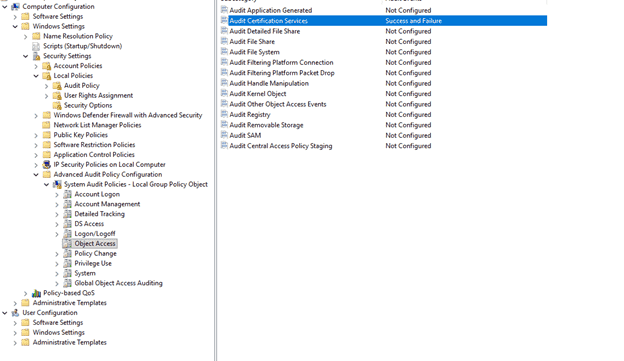
Apply this GPO to the Organizational Unit (OU) containing your CA servers to ensure the policy is scoped correctly and does not inadvertently affect other servers. After applying, run gpupdate /force on the CA server to refresh policy immediately.
Warning: Applying Advanced Audit Policy Configuration via GPO will silently reset every audit subcategory not explicitly defined in that same GPO, including Logon/Logoff, Account Logon, Privilege Use, and other categories your environment may already rely on. All undefined subcategories fall to “No Audit”, which can break an existing audit baseline without any error or alert.
The backup and import workflow described below is the Microsoft-recommended approach for preserving your existing audit baseline before applying this GPO. Run:
auditpol.exe /backup /file:auditbaseline.csv
Then import that baseline into your CA GPO and modify only the Certification Services subcategory. This ensures all other audit categories are preserved, and you are only adding to the existing policy, not replacing it.
Note: If AD CS has been installed on a domain controller, configure the audit policy in the Default Domain Controllers Policy GPO. If AD CS has been installed on a Windows server, configure the audit policy in a dedicated GPO applied to that server’s OU.
Step 3: Enable Audit Subcategory Processing
Step 3 is functionally required in domain-joined and GPO-managed environments, which covers the vast majority of enterprise ADCS deployments. It is technically optional only on standalone CAs with no GPO audit policy in place.
Steps 1 and 2 are the minimum required to generate CA audit events. Steps 3 and 4 are strongly recommended hardening measures that prevent your subcategory configuration from being silently overridden or bypassed.
Without this setting, legacy category-level audit policies can silently override your more granular subcategory configurations, meaning your Audit Certification Services setting may never actually take effect. To prevent this, explicitly configure the system to prioritize subcategory-level policies.
Navigate to:
Computer Configuration\Policies\Windows Settings\Security Settings\Local Policies\Security Options
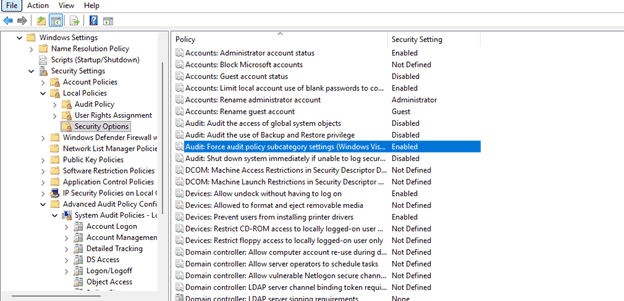
Set “Audit: Force audit policy subcategory settings (Windows Vista or later) to override audit policy category settings” to Enabled.
This ensures that the subcategory-level policy for Audit Certification Services takes precedence over any category-level “Audit object access” settings that may already exist in your environment.
Note: Once subcategory processing is enforced, any GPO that defines Advanced Audit Policy settings will take full control of those subcategories. Ensure your GPO includes all subcategories you rely on, not just Certification Services, to avoid unintentionally silencing other audit categories.
Step 4: Enable Registry Auditing
Some CA configuration changes can be made directly through the registry, bypassing the standard audit channels. To ensure these changes are also captured, registry auditing should be enabled on the CA server’s certificate services registry key.
Note: Registry SACLs alone do not generate audit events. The Object Access → Registry audit subcategory must also be enabled through auditpol or Group Policy for registry access events to be logged.
Perform the following steps to enable Registry Auditing:
- Open regedit on the ADCS server.
-
Navigate to the following registry key:
HKLM\System\CurrentControlSet\Services\CertSvc\Configuration\ - Right-click on Configuration and select Permissions.
- Click the Security tab, then click Advanced.
- Select the Auditing tab and click Add.
-
Set the principal to Authenticated Users and configure the following SACL permissions:
- Set Value
- Create Subkey
- Delete
- Write DAC
- Write Owner
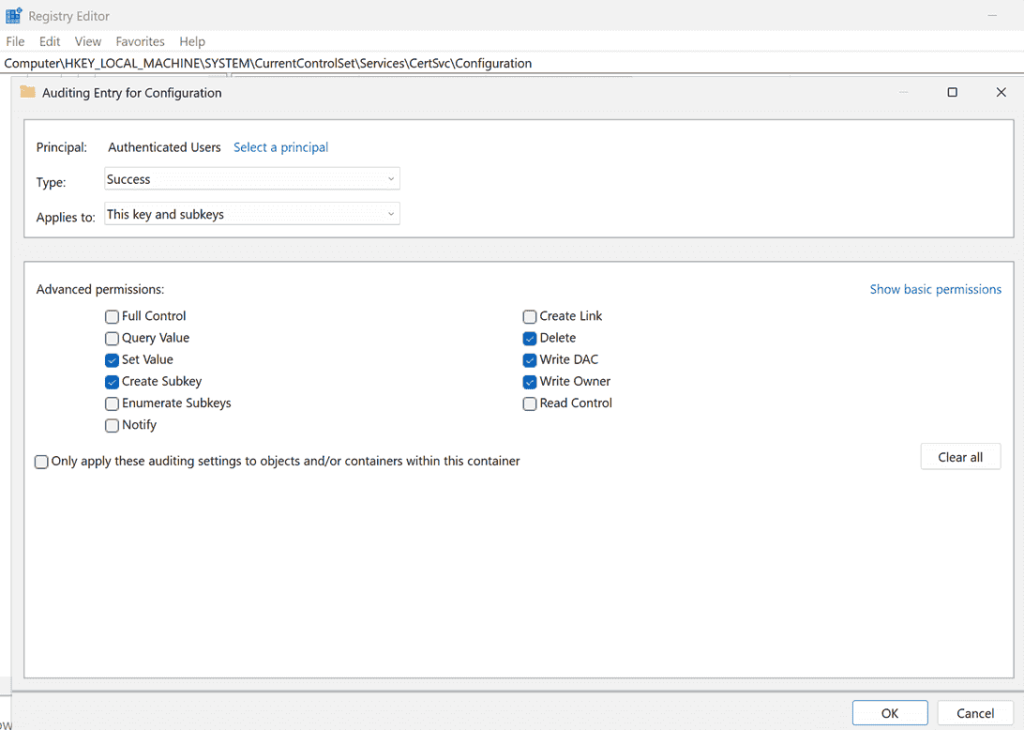
After configuring registry auditing, restart the Certificate Services and run gpupdate /force to ensure all settings are applied. You should then see registry-related event IDs (such as Event ID 4657: A registry value was modified) appearing in the Security log alongside the standard CA audit events.
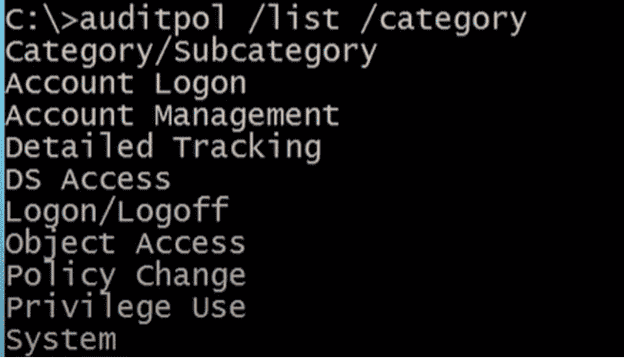
The following output shows the available auditpol commands. Use this as a reference when verifying or modifying audit policy settings on your CA server:
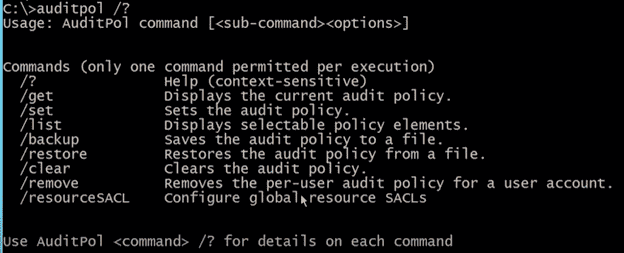
Running auditpol /list /category returns all top-level audit policy categories available on the system. Certification Services falls under the Object Access category, which is where the CA audit subcategory is configured:
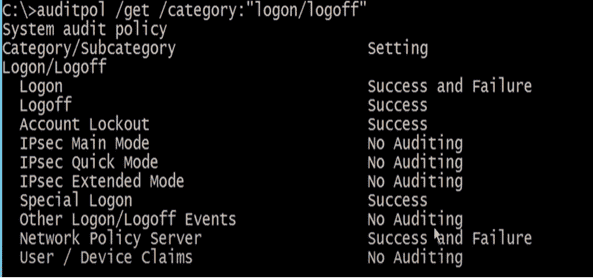
The following output demonstrates how auditpol /get displays the current audit settings for a specific category, broken down by subcategory and their configured status. This same approach is used to verify that Audit Certification Services under Object Access is set to Success and Failure after applying your GPO:
Verify Your Configuration
After completing all steps, verify the configuration is working end-to-end before relying on it for monitoring or compliance purposes.
-
Run
auditpol /get /category:*and confirm that Certification Services under Object Access shows Success and Failure are enabled. -
Run
certutil -getreg ca\auditfilterand verify that the returned value is0x7f(hexadecimal), which is equivalent to127in decimal. Windows typically displays the value in hexadecimal (0x7f), while127is commonly used when configuring the setting viacertutil. -
Open Event Viewer on the CA server and navigate to:
Windows Logs → Security - Perform a test action to confirm audit events are flowing. Key event IDs to look for are listed below:
| Event ID | Description |
|---|---|
| 4657 | A registry value was modified |
| 4885 | The audit filter for Certificate Services changed |
| 4886 | Certificate Services received a certificate request |
| 4887 | Certificate Services approved a certificate request and issued a certificate |
| 4888 | Certificate Services denied a certificate request |
| 4890 | Certificate manager settings changed |
| 4891 | A configuration entry changed in Certificate Services |
| 4893 | Certificate Services archived a key |
| 4898 | Certificate Services loaded a certificate template |
| 4899 | A certificate template was updated |
- Run gpresult /r on the CA server and confirm the correct GPO is applied to the machine.
While manual configuration is effective, managing audit policies across multiple CAs at scale can become complex and this is where CertSecure Manager comes into play.
How Can Encryption Consulting Help?
Encryption Consulting provides specialized services to identify vulnerabilities and mitigate risks by providing PKI Services. Our strategic guidance aligns PKI solutions with organizational objectives, enhancing efficiency and minimizing costs. By partnering with Encryption Consulting, organizations can unlock the full potential of PKI solutions, realizing tangible financial benefits while maintaining strong security measures.
Our PKI Assessment Services provide a comprehensive evaluation of your existing ADCS environment, identifying gaps in CA hygiene, backup practices, CRL/AIA configuration, and database health. Whether your CA database has grown unchecked over time or your maintenance processes lack structure, our team delivers a detailed risk report along with a prioritized roadmap to bring your PKI back into a healthy and auditable state.
CertSecure Manager
Encryption Consulting’s CertSecure Manager is a vendor-neutral certificate lifecycle management solution that centralizes discovery, automation, enrollment, policy enforcement, and integrations. It prevents outages with automated renewals, enhances compliance, streamlines IT operations, and unifies management of public and private CAs through a single, automated, scalable platform.
- Automation for Short-Lived Certificates: With ACME and 90-day/47-day TLS certificates becoming the standard, manual renewal is no longer a practical option. CertSecure Manager automates enrollment, renewal, and deployment to ensure certificates never expire unnoticed.
- Seamless DevOps & Cloud Integration: Certificates can be provisioned directly into web servers and cloud instances, and integrate with modern logging tools such as Datadog and Splunk, ITSM platforms like ServiceNow, and DevOps tools including Terraform and Ansible.
- Multi-CA Support: Many organizations utilize multiple CAs, including internal Microsoft CAs and public CAs such as DigiCert and GlobalSign. CertSecure Manager integrates across these sources, providing a single pane of glass for certificate issuance and lifecycle management.
- Unified Issuance & Renewal Policies: CertSecure Manager enforces organizational standards for key sizes, algorithms, and renewal policies consistently across all certificates. Beyond automating renewals across multiple CAs, it ensures every certificate aligns with enterprise security requirements.
- Proactive Monitoring & Renewal Testing: Continuous monitoring, combined with simulated renewal and expiry testing, helps identify risks before certificates impact production systems.
- Audit Visibility & Compliance Reporting: CertSecure Manager provides centralized visibility into certificate issuance, renewal, revocation, and policy-related activities. Integrated reporting and SIEM-friendly logging help security teams investigate certificate-related events, monitor operational anomalies, and maintain compliance evidence across enterprise PKI environments.
- Centralized Visibility & Compliance: A consolidated dashboard displays all certificates, key lengths, strong and weak algorithms, and expiry dates. Audit trails and policy enforcement simplify compliance with frameworks such as PCI DSS and HIPAA.
Conclusion
Enabling the CA Advanced Audit Filter is one of the most impactful steps an organization can take toward building a truly secure PKI architecture. By enabling the Advanced Audit Filter across all seven event categories, configuring the operating system-level policy to capture those events in the Security log, and ensuring subcategory settings are properly enforced, organizations gain complete visibility into the lifecycle of every certificate and every administrative action taken within their CA environment.
Security teams gain the ability to detect anomalous certificate issuance in near real-time, correlate CA activity with broader threat signals in their SIEM and produce audit-ready evidence on demand — without scrambling to reconstruct activity after the fact. Incident responders no longer have to guess whether a certificate was issued, revoked, or tampered with; the Security log tells the story precisely.
For compliance, every administrative action taken within the CA environment leaves a traceable, time-stamped footprint that maps directly to controls in PCI DSS, HIPAA, and NIST frameworks.